
Image Resolution And Print Quality
In this Photoshop tutorial, we're going to look at how image resolution affects print quality.
Have you ever downloaded an image from the internet and then printed it, only to get results that were, well, less than you expected? The image looked great on your computer screen, but when you printed it, it either printed at the size of a postage stamp or it printed at a decent size but looked blurry or "blocky"? The culprit is image resolution.
Actually, that's not really fair to say. Image resolution didn't purposely set out to make your life miserable when you printed your internet photo. The problem was simply that most photos on the internet have very small pixel dimensions, usually in the neighborhood of 640 pixels wide by 480 pixels high, or even smaller, and that's because images don't need to be very large in order to appear at a decent size and good quality on your computer screen, and also because smaller images download much faster on websites than larger images do (which is a whole other topic that we don't need to get into here).
So what can you do to make photos you download off the internet appear just as high quality when printed as photos you took yourself with your digital camera? The answer - absolutely nothing. There simply are not enough pixels in most internet images to allow them to print at high quality, at least not without printing them at the size of a postage stamp, that is. Let's find out why.
First of all, let's get off the topic of downloading images from the internet, since we really shouldn't be doing that anyway without permission from the copyright owner, and look at image resolution in general. I cover it in much more detail in the Image Resolution, Pixel Dimensions and Document Size tutorial, but let's do a short recap.
The term "image resolution" means how many of your image's pixels will fit inside each inch of paper when printed. Obviously, since your photo has a fixed number of pixels, the more of them you squeeze inside each inch of paper, the smaller the image will appear on the paper. Likewise, the fewer pixels you print per inch, the larger the image will appear on paper. The number of pixels that will be printed per inch is known as the resolution of the image, or "image resolution". Image resolution has everything to do with printing your image. It has nothing to do with how your image appears on your computer screen, which is why images you download off the internet usually appear much larger and higher quality on your screen than they do when you print them.
Let's use a photo as an example:
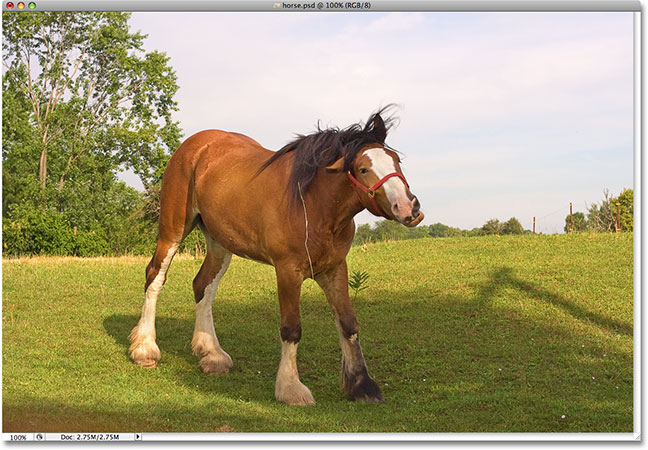
I always laugh every time I see this photo of a horse I took while driving around the countryside one day. Normally this horse stands proud, powerful, full of grace and dignity, yet I seem to have caught him in a rather unflattering moment. He's standing on a bit of a strange angle, he has a piece of straw dangling from his hair, and he seems to be in the middle of chewing his food. Either that, or he's desperately trying to crack a smile for me. In either case, since this guy is already embarrassed, as am I for having taken this wonderful photo, let's use this image as an example.
First, let's look at what Photoshop can tell us about the current size of this photo. I'll go up to the Image menu at the top of the screen and choose Image Size, which brings up the appropriately-named Image Size dialog box:

The Image Size dialog box is divided into two main sections, Pixel Dimensions at the top and Document Size directly below it. The Pixel Dimensions section tells us how many pixels are in our image. The Document Size section tells us how large the image will appear on paper if we print it. If we look at the Pixel Dimensions section, we can see that this photo has a width of 1200 pixels and a height of 800 pixels. That may sound like a lot of pixels (1200 x 800 = 960,000 pixels!), and it certainly would be if we were displaying this image on a computer screen. In fact, at 1200 x 800, it may be too large to fit entirely on your screen! But just because it looks nice and big on the screen doesn't necessarily mean it will print nice and big, at least not with any degree of quality. Let's take a closer look at what the Document Size section is telling us:
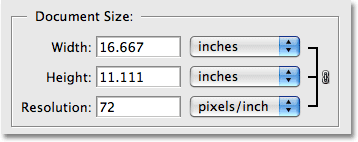
The Document Size section of the Image Size dialog box tells us two things - what the current resolution of our image is, and how large or small the image will appear if we print it based on that resolution. Currently, our resolution value is set to 72 pixels/inch, which means that out of the 1200 pixels that make up our photo from left to right (the width), 72 of them will print inside each inch of paper, and out of the 800 pixels that make up the image from top to bottom (the height), 72 of them will print inside each inch of paper. The value in the Resolution box is for both width and height, not the total number of pixels that will print. In other words, for every square inch of paper, 72 pixels from our image will be printed from left to right and 72 pixels will be printed from top to bottom. The total number of pixels printed in every square inch of paper would then be, in this case anyway, 72 x 72 (72 pixels for the width times 72 pixels for the height), which gives us 5184 pixels!
Let's do some simple math ourselves to make sure that the width and height being shown to us in the Document Size section is correct. We know from the Pixel Dimensions section that we have 1200 pixels from left to right in our image and 800 pixels from top to bottom. Our print resolution is currently set to 72 pixels/inch, so to figure out how large our image will be when printed, all we need to do is divide the number of pixels from left to right by 72, which will give us our print width, and the number of pixels from top to bottom by 72, which will give us our print height. Let's do that:
1200 pixels wide divided by 72 pixels per inch = 16.667 inches
800 pixels high divided by 72 pixels per inch = 11.111 inches
Based on our own simple calculations, at a resolution of 72 pixels/inch (ppi for short), our image would be 16.667 inches wide by 11.111 inches high when printed. And if we look at the Document Size section once again:
That's exactly what it says! Wow, a 1200 x 800 pixel photo is large enough for an 11 x 14 inch print, with a little extra to spare! That's great!
Sadly, no. If only life were that simple.
The fact is, 72 pixels/inch is not enough to give us sharp, good quality, professional looking images when printed. It's not even close. To give you an idea of what I mean, here's a rough approximation of how the photo would look on paper if we tried to print it at a resolution of 72 pixels/inch. You'll have to use your imagination a bit here and try to imagine this at 11 x 16 inches:

Doesn't exactly look good, does it? The problem is that at 72 pixels/inch, the image information is being spread out too far on the paper for the photo to appear sharp and detailed, sort of like spreading too little peanut butter over too much toast. The photo now appears soft, dull and generally unappealing. We don't see this problem on a computer screen because computer monitors are generally referred to as low resolution devices. Even a photo with relatively small pixel dimensions, like 640 x 480, will look great on a computer screen. Printers, however, are high resolution devices, and if you want your photos to appear sharp and detailed when printed, you'll need a resolution much higher than 72 pixels/inch.
So how high of a resolution value do you need for professional quality printing? The generally accepted value is 300 pixels/inch. Printing an image at a resolution of 300 pixels/inch squeezes the pixels in close enough together to keep everything looking sharp. In fact, 300 is usually a bit more than you need. You can often get by with a resolution of 240 pixels/inch without noticing any loss of image quality. The professional standard, though, is 300 pixels/inch.
Let's take our same image then at 1200 pixels wide by 800 pixels high, change our resolution from 72 pixels/inch to 300 pixels/inch, and see what we get. Here's the Image Size dialog box again showing the new resolution of 300 pixels/inch. Notice in the Pixel Dimensions section at the top that we still have 1200 pixels for the width and 800 pixels for the height. The only thing that's changed is our resolution, from 72 to 300:
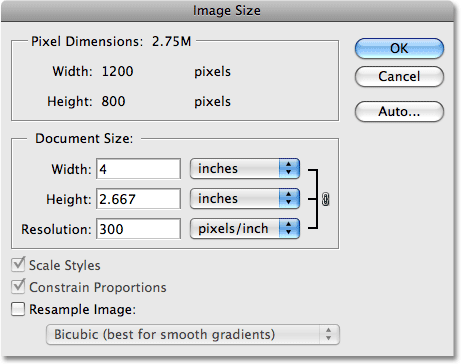
With our resolution now increased from 72 to 300 pixels/inch, this means that out of the 1200 pixels that make up our image from left to right, 300 of them will now print inside every inch of paper, and out of the 800 pixels contained in our image from top to bottom, 300 of them will now print inside every inch of paper. Naturally, with so many more pixels squeezing into each inch of paper, we'd expect the photo to print much smaller, and sure enough, the Document Size section is now showing that our photo will print at a size of only 4 inches wide by 2.667 inches high:

Where did those new width and height values come from? Again, some simple math is all we need:
1200 pixels wide divided by 300 pixels per inch = 4 inches
800 pixels high divided by 300 pixels per inch = 2.667 inches
The photo will now print much smaller than it would at a resolution of 72 pixels/inch, but what we lose in physical size, we more than make up for in image quality. At 300 pixels/inch (or even 240 pixels/inch), we'd enjoy sharp, detailed, professional quality print results:

Of course, most people don't print their photos at weird sizes like 4 x 2.667, so how do we make sure we're going to get professional quality print results with more standard print sizes like 4 x 6? An excellent question, and the answer comes to us once again through some boring yet simple math.
Let's say you've taken some photos of your recent family vacation using your digital camera and you want to print out some 4 x 6's on your printer. We know now that in order to achieve professional quality prints, we need set the resolution of our images to a minimum of 240 pixels/inch, although 300 pixels per inch is the official standard. Let's look at both of these resolution values though to see how large of an image, in pixels, we'll need out of the camera in order to print 4 x 6's with good image quality. First, let's look at 240 pixels per inch:
To figure out how large, in pixels, our images need to be in order to print 4 x 6's at professional quality, all we need to do is multiply 240 x 4 for the width, and then 240 x 6 for the height (or vice versa depending on if your photo is in landscape or portrait mode). Let's do that:
240 pixels per inch x 4 inches wide = 960 pixels
240 pixels per inch x 6 inches high = 1440 pixels
Based on our math, we can see that in order to print a digital photo as a 4 x 6 at 240 pixels/inch resolution, which should give us excellent quality, our photo's pixel dimensions need to beat least 960 x 1440. We can see exactly how many pixels that is by multiplying 960 by 1440, which gives us 1,382,400 pixels. Let's round that up to 1.4 million pixels. That may sound like a lot of pixels but it really isn't, not when you consider that 1.4 million is the minimum number of pixels you'd need to print good quality 4 x 6 photos using the minimum resolution we can use to achieve good quality, which is 240 pixels/inch. The good news at least is that these days, most digital cameras on the market are 5MP ("mega pixels", or "millions of pixels") and higher, so they'd have no trouble printing good quality 4 x 6's even using 300 pixels/inch for the resolution.
Of course, we haven't actually looked at how many pixels we'd need to print professional quality 4 x 6's at 300 pixels/inch, so let's do that now. We'll use the same simple formula as above, where we'll multiply 300 by 4 and then 300 by 6 to give us the pixel dimensions we'll need:
300 pixels per inch x 4 inches wide = 1200 pixels
300 pixels per inch x 6 inches high = 1800 pixels
Let's do one more quick calculation to see how many pixels we need in total:
1200 pixels wide times 1800 pixels high = 2,160,000
So, in order to print a photo as a 4 x 6 using the professional standard of 300 pixels/inch for resolution, our photo needs to be 1200 pixels wide by 1800 pixels high (or vice versa), which means we'll need a total of 2,160,000 pixels, which again should be no problem for most digital cameras on the market today which are 5MP and higher.
What if you have a photo you absolutely love and feel it deserves an 8 x 10 print rather than a 4 x 6? How large of an image in pixels do we need to print a good quality 8 x 10? The answer is as easy as when we needed to find out how large of an image we'd need for a 4 x 6. All we need to do is multiply the resolution value in pixels by the width in inches and do the same thing for the height. Let's first use 240 pixels per inch as our resolution:
240 pixels per inch x 8 inches wide = 1920 pixels
240 pixels per inch x 10 inches wide = 2400 pixels
Total number of pixels = 1920 pixels wide x 2400 pixels high = 4,608,000 pixels
From our little bit of math, we can see that in order to print a photo at good quality as an 8 x 10, our photo needs to be 1920 pixels wide by 2400 pixels high (or vice versa), for a total of approximately 4.6 million pixels. Now we're starting to push the limits of lower end digital cameras. A 4MP digital camera wouldn't capture quite enough pixels to be able to print an image at 8 x 10 at 240 pixels/inch resolution. It would fall about 600,000 pixels short. You could still print an 8 x 10 image of course, but you most likely wouldn't get professional looking results.
Let's do the same calculations for an 8 x 10 at 300 pixels/inch resolution:
300 pixels per inch x 8 inches wide = 2400 pixels
300 pixels per inch x 10 inches wide = 3000 pixels
Total number of pixels = 2400 pixels wide x 3000 pixels high = 7,200,000 pixels
Now we're really pushing the limits as far as digital cameras currently on the market. In order to be able to print a photo as an 8 x 10 using the 300 pixels/inch resolution standard, our photo needs to be 2400 pixels wide by 3000 pixels high (or vice versa), for a total of 7.2 million pixels! Now that's a lot of pixels! This means you need at least a 7.2MP digital camera in order to be able to print your photos as 8 x 10's and still get true, professional quality prints.
Of course, keep in mind that most photos require at least a little cropping, which means you'll need to start with even more pixels. If you know you're going to be printing a lot of photos as 8 x 10's, investing in a good quality 8 MP or higher camera is highly recommended. And there we have it!