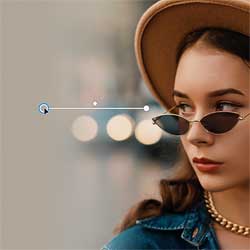
Fade an Image to Color in Photoshop with Live Gradients
Learn how to fade an image to a solid color in Photoshop. Use Live Gradients to easily blend photos into backgrounds in this tutorial updated for 2026.
Everyone loves Photoshop effects. Not only are photo effects fun to create, but they’re a great way to learn Photoshop since they often introduce us to tools, commands or other features we might otherwise never know about! All of our Photoshop effects tutorials are written with beginners in mind, with easy-to-follow, step-by-step instructions. See our complete list below, or download our tutorials as print-ready PDFs!
Visit our YouTube channel for our latest Photoshop effects videos!
Learn how to fade an image to a solid color in Photoshop. Use Live Gradients to easily blend photos into backgrounds in this tutorial updated for 2026.
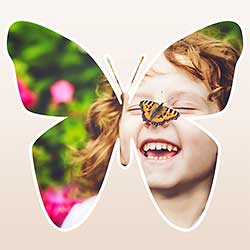
Learn how to fill a shape with a photo in Photoshop. Discover how to use custom shapes and clipping masks in this step-by-step tutorial updated for 2026.
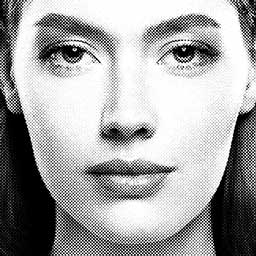
Turn any photo into a classic halftone dot pattern, including how to color the effect, with this complete step-by-step guide for Photoshop 2026!
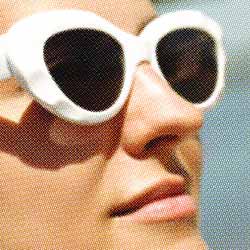
Learn how to create true color halftone dot patterns using Photoshop’s Color Halftone filter and this one simple trick.

Learn how to create transparent text in Photoshop 2026 so the image behind the text to show through the letters! A step by step tutorial.
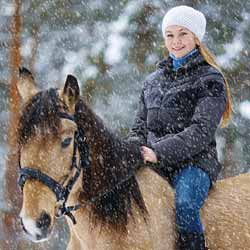
Learn how to add realistic falling snow to your winter photos with Photoshop. Fully updated for Photoshop 2026.
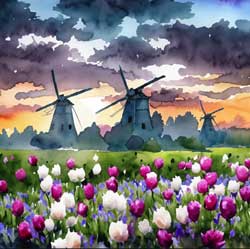
Learn the simple trick that lets you turn any photo into a painting in Photoshop using Generative Fill and Adobe Firefly.

Learn how to use the Generate Image feature in Photoshop to generate entire AI images from scratch with the power of Adobe Firefly.
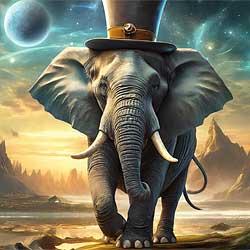
Learn how to use Adobe Firefly’s Visual Intensity setting to adjust the amount of detail and complexity in Firefly’s AI images.

Learn how to control the composition and visual style of Adobe Firefly’s AI-generated images by using existing images as a reference.

Learn how to round the corners of an image in Photoshop! This tutorial shows you the easiest way to add perfectly rounded corners to your photos, fully updated for Photoshop 2026.
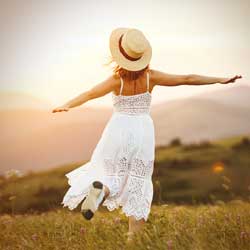
Add a vignette to your photo the fastest and easiest way using Photoshop and its new Live Gradients feature in Photoshop 2023.
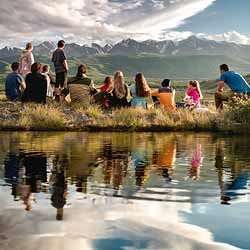
Learn how to add realistic water reflections to an image in seconds using Photoshop’s Generative Fill, powered by generative AI.
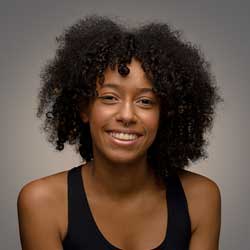
Add a spotlight behind the subject in your photo with just a few simple steps using the amazing masking features in Adobe Camera Raw.
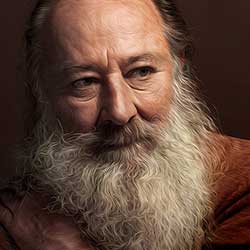
Transform your photos into beautiful and stunning paintings with the Oil Paint filter in Photoshop. Follow along with this step-by-step tutorial.

Learn how to recreate the look of classic 3D movies with this easy red and blue retro 3D effect in Photoshop.
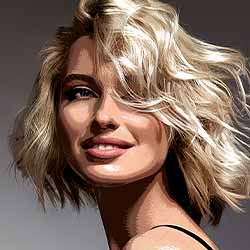
Add an easy posterize effect to your image in Photoshop to recreate the classic look of posters printed with limited colors of ink.

Learn how copy an image and paste it into a selection in a different image using the Paste Into command in Photoshop.
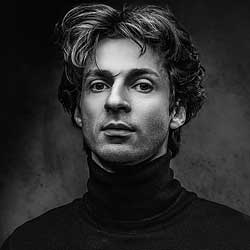
Turn photos to high contrast black and white with Photoshop using Gradient Maps, the fastest and easiest way to create great looking b&w images.

Add fun and excitement to a photo by creating the illusion that a smaller, cropped version of the same photo is inside it!
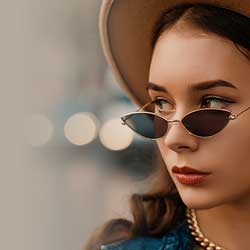
Learn step-by-step how to fade an image to black, white or any color background with Photoshop! Perfect for adding space for text or to blend an image with a design.
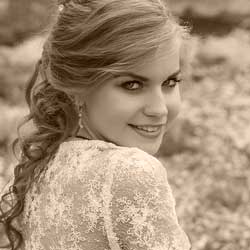
Learn an easy way to convert a full color photo to a single color with this simple monochromatic color effect in Photoshop!

Learn how to add canvas space and a drop shadow to an image in Photoshop to create a simple but stylish photo border.
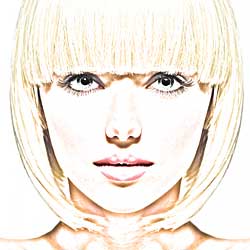
Learn how to turn any photo into a pencil sketch with Photoshop, plus three easy ways to add color to your sketch!
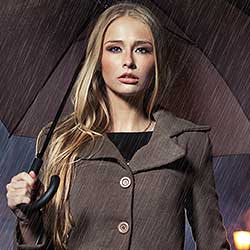
Learn how to add rain to your photos without getting your camera wet by creating the rain effect in Photoshop!

Learn how layer effects make it easy to add transparent text effects to your image! Works with any version of Photoshop.
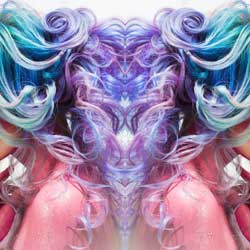
Learn a fast and easy way to mirror an image in Photoshop and create fun symmetrical designs from virtually any photo!
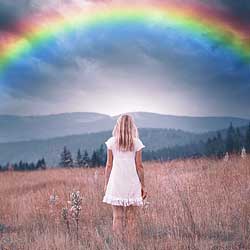
Learn how to brighten those stormy skies by adding a colorful rainbow to your image in the latest version of Photoshop!
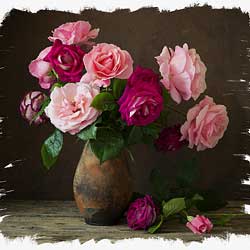
Make your image look like it was painted on canvas with this easy photo border effect!
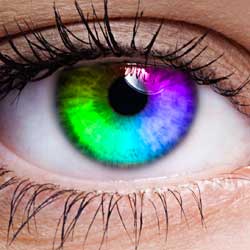
Why choose a single eye color when you can choose every color in the rainbow! Learn how to give someone rainbow colored eyes with Photoshop CC 2020!
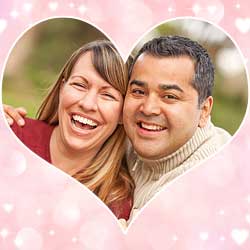
Learn how to place an image inside a shape, and how to move the shape to a new background, in the latest version of Photoshop!

Learn step-by-step how to turn your images into a fun vertical photo collage with Photoshop!

Learn how to quickly place two related images side by side and combine them into a single composite image with Photoshop!
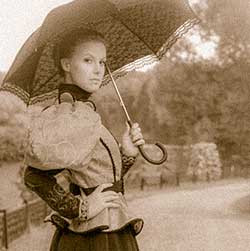
Learn how to turn a new photo into an old, vintage photo with Photoshop and its powerful Camera Raw Filter. Now updated for Photoshop CC 2019.
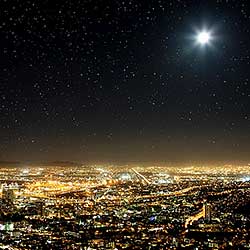
Add a field of stars to your night skies with Photoshop! You’ll learn how to create stars in Photoshop, add a glow and color to the stars, and how to blend the stars with your image!
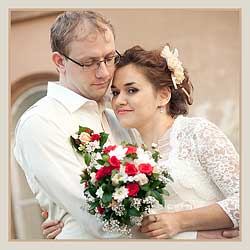
Learn how to add a simple border around your photo with Photoshop CC and CS6.

Learn how to easily blend two images together like a Hollywood movie poster with Photoshop!

Learn how to easily turn a single image into a square photo collage in Photoshop! Step by step for Photoshop CC and CS6.
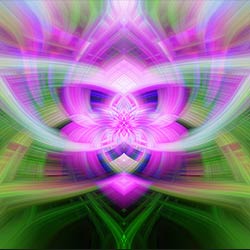
Learn how to turn your photos into fun, colorful twirl art effects in Photoshop using Smart Filters and layer blend modes!

Learn how to easily blend text into clouds with Photoshop, as if your text is floating in the sky! We’ll create the effect using Photoshop’s Blending Options, and when we’re done, you’ll know how to blend text into any image or background you like!

Learn how to easily place text behind an object with Photoshop! Create the same classic effect that’s used everywhere you look, from magazine covers to movie posters!
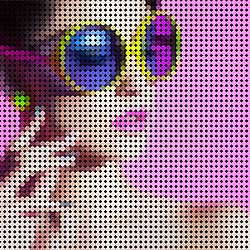
In this Photo Effects tutorial, learn how to easily turn any photo into a pattern of solid-colored dots with Photoshop!
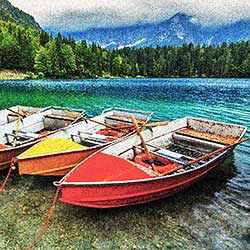
Learn how to easily create a realistic pointillism effect in Photoshop by turning your images into paintings of colored dots using the Pointillize filter, Smart Filters and layer blend modes.
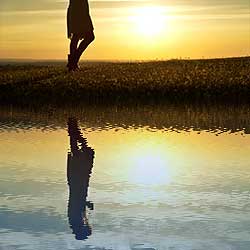
Learn how to add a realistic water reflection to an image in Photoshop complete with water ripples! Our step-by-step guide!
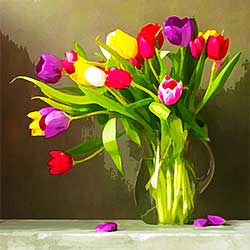
Learn how to easily turn a photo into a watercolor painting, and how to keep the effect fully editable, using Smart Filters and blend modes in Photoshop.
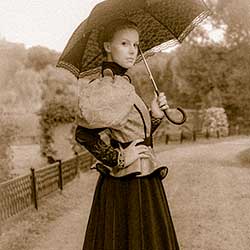
Learn how to turn a new photo into an old fashioned, vintage photo with Adobe Lightroom! Once you know the steps, you can easily create the exact same vintage photo effect with Camera Raw in Photoshop!
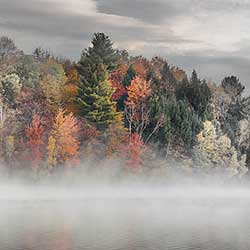
No time for making selections? This tutorial shows you how to create a quick and easy Color Splash effect in Photoshop with just a Gradient Map adjustment layer, a layer mask and a brush!
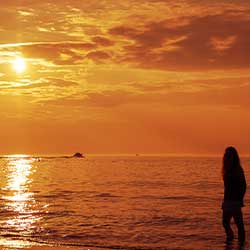
Learn how to easily enhance a sunset photo and restore those warm golden hues with a Gradient Map adjustment and a layer blend mode in Photoshop!
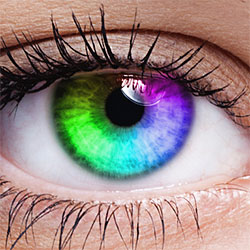
Why choose a single eye color when you can choose every color at once! Learn step-by-step how to easily give someone rainbow colored eyes with Photoshop! Video + Text.
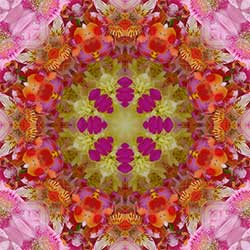
Learn how to create fun and interesting designs and patterns from a single image in Photoshop simply by flipping, rotating and mirroring it, and experimenting with different layer blend modes!