
The Background Eraser Tool In Photoshop
In this tutorial, we’ll learn all about the Background Eraser Tool in Photoshop and how to use it to easily remove background areas of an image.
The Background Eraser Tool is especially useful with photos that contain lots of fine detail along the edges between your subject and its background, like, for example, if you want to erase the sky in an image without erasing the trees below it.
But don't let the name fool you. The Background Eraser really has nothing to do with erasing backgrounds, since Photoshop has no way of knowing what's considered the background in a photo and what isn't. It can just as easily be used to erase any part of an image, and that's because the Background Eraser is really a color eraser. It samples colors as you drag the tool over them and erases only those colors, leaving all other colors untouched. So if your sky is blue and your trees are green, the Background Eraser can easily erase the blue sky while leaving the green trees alone, at least until someone comes along and cuts them down, which gives us all the more reason to protect them in the image.
This version of our Background Eraser tutorial has been updated for Photoshop CS6 and is also fully compatible with Photoshop CC (Creative Cloud). If you're using Photoshop CS5 or earlier, you can still follow along here, or you can check out the original Background Eraser tutorial.
The Background Eraser is, without a doubt, one of the best tools in Photoshop for removing unwanted areas of a photo, but it’s not perfect and it does have one serious drawback. As an eraser tool, it physically deletes pixels from the image, which means that once they’re gone, they’re gone for good. To avoid damaging your original image, it’s a good idea to duplicate your Background layer first before erasing any pixels, or work on a separate copy of your image.
How To Remove Backgrounds With Photoshop
Selecting The Background Eraser Tool
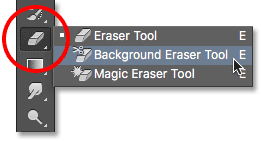
By default, the Background Eraser is hiding behind Photoshop's regular Eraser Tool in the Tools panel. To select it, right-click (Win) / Control-click (Mac) on the Eraser Tool, and then choose the Background Eraser Tool from the fly-out menu that appears:
With the Background Eraser selected, your mouse cursor will change into a circle with a small crosshair in the center of it:

Adjusting The Size Of The Brush
The Background Eraser Tool is really a brush, and just like Photoshop’s other Brush tools, you can adjust its size directly from your keyboard. Press the left bracket key ( [ ) repeatedly to make it smaller or the right bracket key ( ] ) to make it larger. You can also adjust the hardness of the edges by adding the Shift key. Press Shift+left bracket ( [ ) repeatedly to make the edges softer or Shift+right bracket ( ] ) to make them harder. In general, you'll want to use hard edges with the Background Eraser since soft edges can leave many background artifacts behind.
How The Background Eraser Works
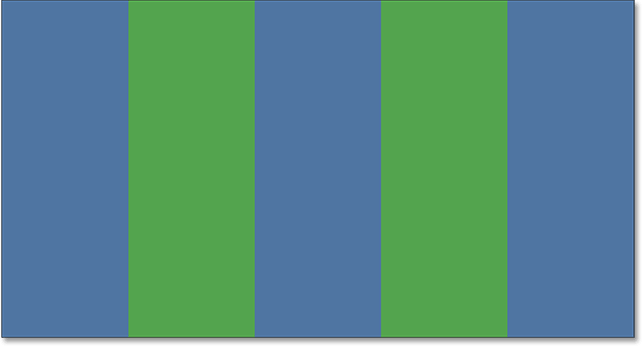
Before we look at a real-world example of Photoshop’s Background Eraser Tool in action, let’s learn the basics of how it works. Here’s a simple image made up of nothing more than a few blue and green vertical columns:
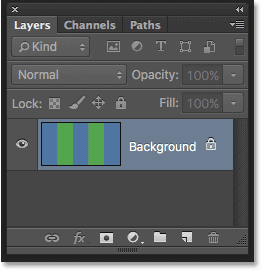
If we look in my Layers panel, we see that the image is sitting on the Background layer:
Let’s say I want to erase the blue column in the middle without erasing the green columns on either side of it. The way the Background Eraser works (by default, anyway) is that Photoshop samples the color that’s directly underneath the crosshair in the center of the circle. The larger circle surrounding the crosshair represents the area where Photoshop will erase pixels. Any pixels inside the circle that match the color of the pixel directly under the crosshair will be erased.
To erase the blue center column, I’ll move the cursor into the blue area, making sure that the crosshair in the center is directly over the blue color I want to erase:
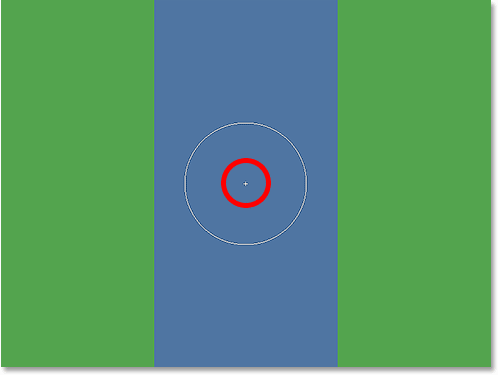
When I click my mouse button, Photoshop samples the blue color under the crosshair and erases all of the matching blue pixels that fall within the larger circle:
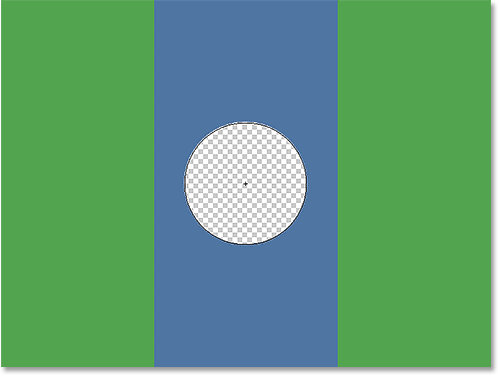
To erase more of the blue column, I just need to continue holding my mouse button down as I drag the Background Eraser over more of the area. Notice that even though the circle sometimes extends into one of the green columns, they remain untouched, and that’s because those pixels are not the same color as the color that Photoshop sampled. This makes it easy to get right up along the edges of the area I want to erase. As long as I keep the crosshair inside the blue area, Photoshop will only erase blue pixels:
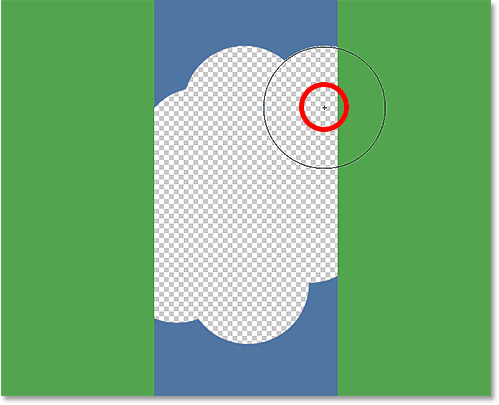
However, if I accidentally move the crosshair over an area of green, Photoshop samples the green color and starts erasing green pixels:
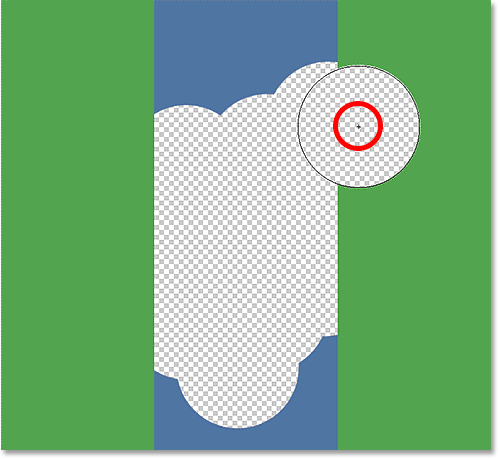
If you make a mistake like this, simply press Ctrl+Z (Win) / Command+Z (Mac) on your keyboard to undo it. If you need to undo multiple steps, press Ctrl+Alt+Z (Win) / Command+Option+Z (Mac) repeatedly.
A Quick Note About The Background Layer
Notice the checkerboard pattern that appears in place of the areas I've erased. That's Photoshop's way of representing transparency on a layer, which, if you're familiar with Photoshop, may have you wondering what's going on here. A moment ago, we saw that my image was sitting on the Background layer. Photoshop treats Background layers differently from normal layers, with different rules for what we can and can't do with them.
One of the things we can't do is erase pixels on them, since transparency is not allowed on a Background layer (after all, it's the background, and not being able to see through it is part of what makes it a background). How, then, did I manage to erase the pixels? Is there some sort of "Extra Strength" setting for the Background Eraser that we haven't looked at yet?
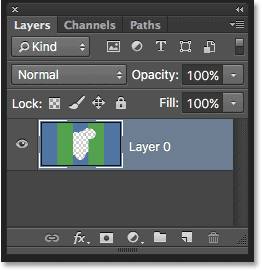
Nope. What happened is that Photoshop assumed I knew what I doing (not always the best assumption to make) and, rather than tossing up an error message complaining that I can't delete pixels on a Background layer, it automatically converted the Background layer into a regular layer, which it named "Layer 0". This isn't anything terribly important, or even remotely interesting, but it's still good to know what's going on:
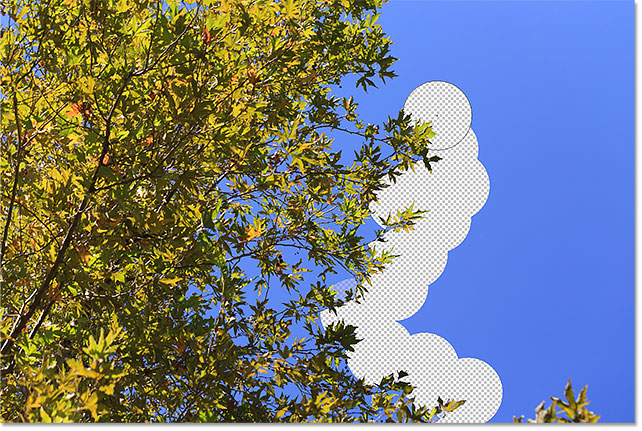
Let’s take what we’ve learned so far and look at a real-world example of the Background Eraser Tool in action. As I make my way around the tree in this photo, the Background Eraser has little trouble erasing the blue sky while leaving the tree itself untouched, as long as I keep the crosshair over the sky and away from the tree:
However, if I slip and move the crosshair over one of the leaves, then Photoshop samples the new color and starts erasing the tree, in which case I'd need to press Ctrl+Z (Win) / Command+Z (Mac) on my keyboard to undo the last step and try again:
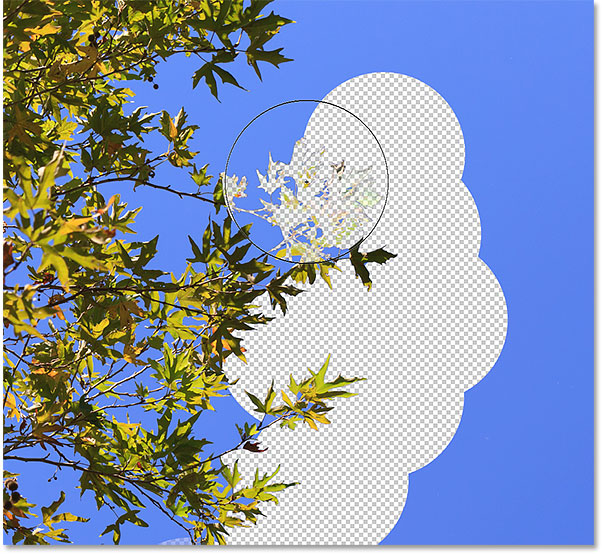
So far, we know that Photoshop samples the color directly under the crosshair in the center of the Background Eraser's cursor, and that it erases any pixels of the same color that fall within the larger circle. We also know that if we move the crosshair over a different color as we're dragging the Background Eraser around, Photoshop will sample the new color and use it as the color it should be erasing.
What we've just described here is the default behavior of the Background Eraser Tool, but it's not the only way the tool can behave. So how do we change things? We do that using the settings found in the Options Bar. Let's check them out.
Sampling Options
Whenever we have the Background Eraser Tool selected, the Options Bar along the top of the screen displays various options for controlling how the tool behaves. One of the most important behaviors we can change is how Photoshop samples colors under the crosshair, or if it samples them at all.
Over on the left of the Options Bar, you'll find a set of three icons. These are the Sampling Options, and each icon selects a different behavior. From left to right, we have Continuous, Once and Background Swatch:

Of the three, the two you'll switch between the most are Continuous (the icon on the left) and Once (the middle icon). Continuous is selected by default, and it means that as we move the Background Eraser around, Photoshop continuously samples the color under the crosshair. That's why, when I accidentally moved the crosshair over the green column or the green tree, Photoshop started erasing green pixels even though I was initially erasing blue pixels.
The Continuous sampling option works great when the background you're trying to erase contains multiple colors. But if the color of your background doesn't change much, the Once option usually works better. I'll select it by clicking on the middle icon:

As you may have guessed from its name, Once tells Photoshop to sample the color under the crosshair once and that's it. Whichever color is under the crosshair the moment you click your mouse button is the color that Photoshop will erase no matter how many other colors you drag the crosshair over (as long as you keep your mouse button held down). Watch what happens now when I "accidentally" move the crosshair over the green column. The Background Eraser has no effect on it this time because the crosshair was over the blue column when I clicked and held down my mouse button:
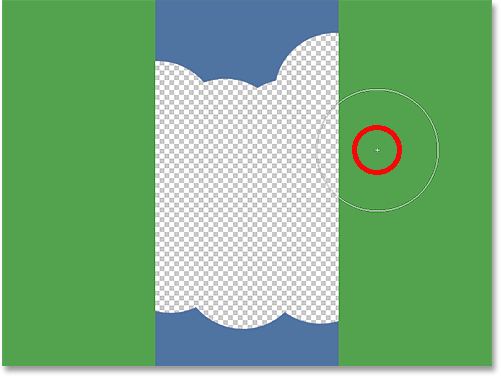
We see the same thing happening in our photo. With Once selected as the sampling option, Photoshop is able to ignore the leaves this time even though I've moved the crosshair over them, and that's because I initially clicked on the blue sky:
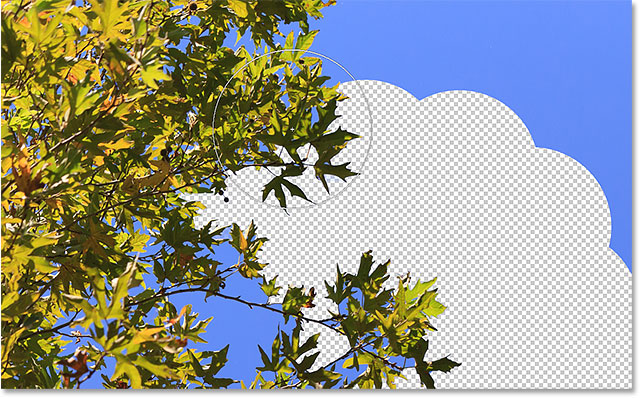
If you're having trouble positioning the crosshair over the color you want to erase, try the Background Swatch sampling option (the icon on the right):

With Background Swatch selected, click on the Background color swatch in the Tools panel and choose a color from the Color Picker that matches (as close as possible, anyway) the color in your image that you want to erase. If the color you've selected isn't quite right, adjust the Tolerance value in the Options Bar (which we'll look at in a moment) until you're able to erase the pixels:

Limits
Another important option for the Background Eraser is Limits. Once Photoshop knows which color you want to erase, Limits tells it where it can look for pixels that match that color so it can erase them. The three options for Limits are Contiguous, Discontiguous and Find Edges:

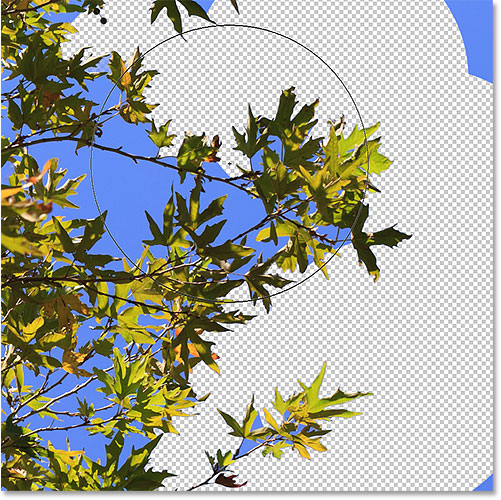
Contiguous, the default setting, means that Photoshop can only erase pixels in areas that are physically touching the pixel under the crosshair. In other words, it can't jump across tree branches, fence posts, or anything else in the photo that separates one area of pixels from another. Here we see that while the Background Eraser has no trouble erasing the sky around the outside of the tree, the Contiguous option is preventing it from deleting the isolated blue areas between the leaves and branches. We'll see how to get around this problem in a moment:
If you notice that Photoshop is having trouble maintaining the sharpness of the edges around the subject you're trying to keep (in other words, some of the edge is fading away), try undoing your steps and then switching the Limits option to Find Edges:
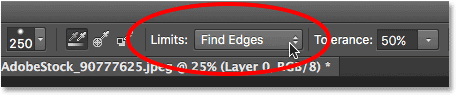
Find Edges is similar to Contiguous in that it can only delete pixels that are physically touching the pixel under the crosshair, so it won't help me access those areas of blue sky that are trapped between the leaves and branches. However, Find Edges is more precise than Contiguous and better at maintaining sharp edge detail. Again, I don't really need to use it here with these leaves, but if I was deleting the sky along the edge of a building, for example, where maintaining the sharp edges of the building would be important, then Find Edges would be a great choice:
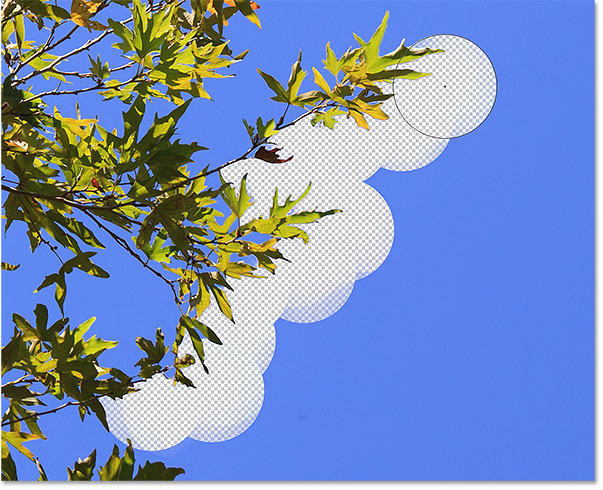
So, what about those isolated areas of blue sky in my image that I can't get to with either Contiguous or Find Edges? That's what the third Limits option, Discontiguous, is for:
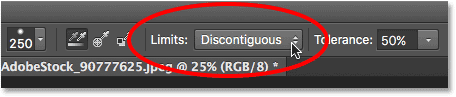
Discontiguous means that Photoshop is free to erase any pixels anywhere in the image that match our sampled color, whether they're touching the crosshair or not. As long as the pixels fall within the larger circle surrounding the crosshair, they're fair game. In my case, it means that once I've clicked the crosshair on an area of blue sky, I can simply drag the Background Eraser around inside the tree to easily erase any areas of sky showing through it. I also have my sampling option set to Once so Photoshop doesn't change the color being erased as I move over the tree:
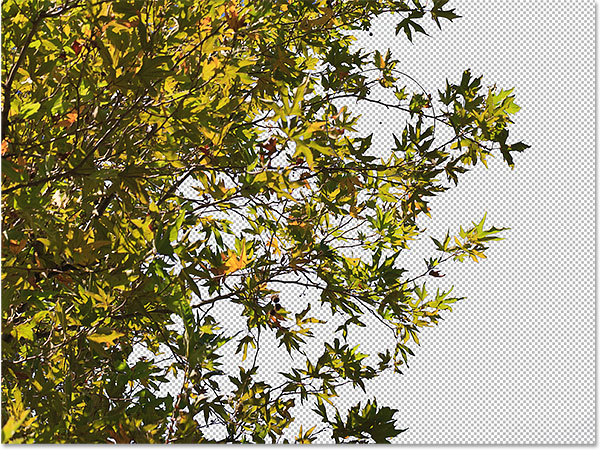
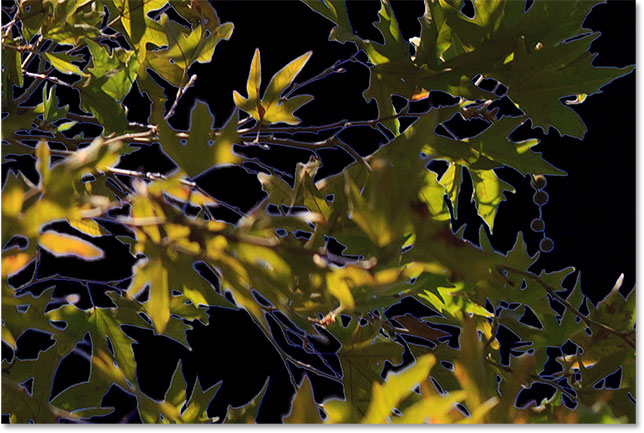
Unfortunately, if we look closely, we can see some darker blue areas of the sky remaining around the leaves and branches. I've added a black background behind the image to make it easier to see. Even with the Limits option set to Discontiguous, the Background Eraser still needs a little more help with this image. This brings us to the third important option for the Background Eraser, and one that can make all the difference when it comes to using the tool successfully - Tolerance. We'll look at it next:
Tolerance
The third of the three major options for the Background Eraser is Tolerance, which determines how different a pixel's color can be from the sampled color for Photoshop to erase it. You'll find the Tolerance option directly to the right of the Limits option in the Options Bar:

The default Tolerance value is 50% and that's usually a good place to start. But if the color of your background is too similar to your subject, causing part of your subject to be erased, try a lower Tolerance setting. If, on the other hand, you notice background color fringing around the edges, as I do here, try a higher Tolerance value.
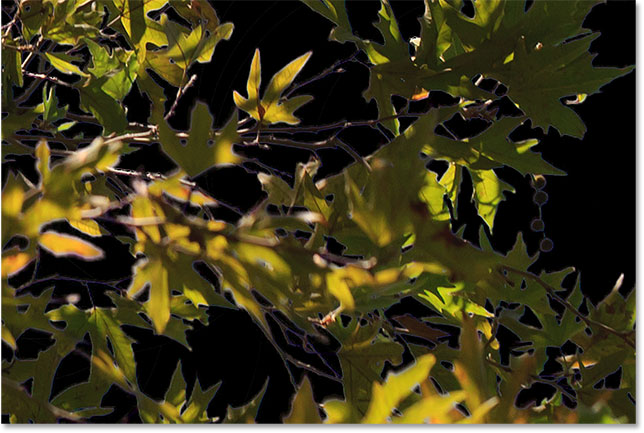
I'm going to undo my previous steps with the Background Eraser so I can try again, and since my sky is quite a bit different in color from the tree, I'll increase my Tolerance value to 70%. I'll click to sample an area of blue sky with the crosshair, and this time, with the higher Tolerance setting, the Background Eraser is able to do a much better job with cleaner results:
Protect Foreground Color
Finally, if you find that no matter what Tolerance setting you try, you just can't seem to get the Background Eraser to erase the background in your image without taking part of your subject along with it, try the Protect Foreground Color option. By default, it's turned off:

Protect Foreground Color allows us to sample a color from the image to set as our new Foreground color. Photoshop will then protect this color, preventing it from being erased (hence the name "Protect Foreground Color"). In this photo, the flowers are too similar to the background, causing the Background Eraser to erase part of the flowers along with the sky:
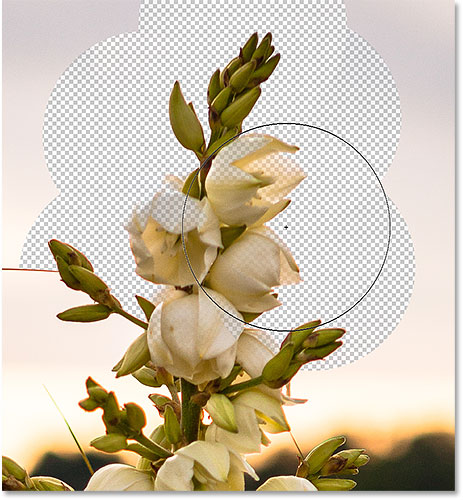
To overcome this problem, I'll first undo my last step by pressing Ctrl+Z (Win) / Command+Z (Mac). Then, I'll select the Protect Foreground Color option by clicking inside its checkbox:

To sample a color from the image, I'll press and hold the Alt (Win) / Option (Mac) key on my keyboard, which temporarily switches me to the Eyedropper Tool, then I'll click on one of the flowers to sample that color. This will become the color that Photoshop protects:
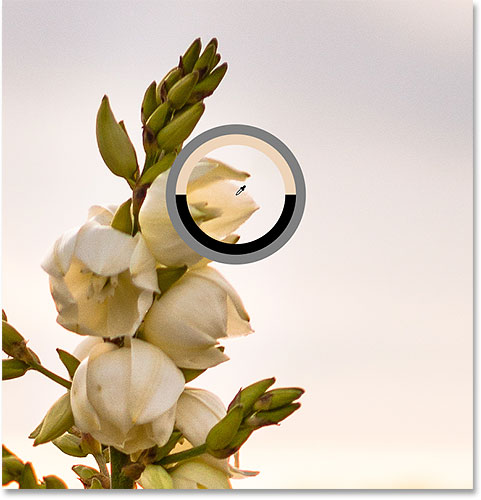
If you look at your Foreground color swatch near the bottom of the Tools panel, you'll see that the color you sampled has become your new Foreground color:

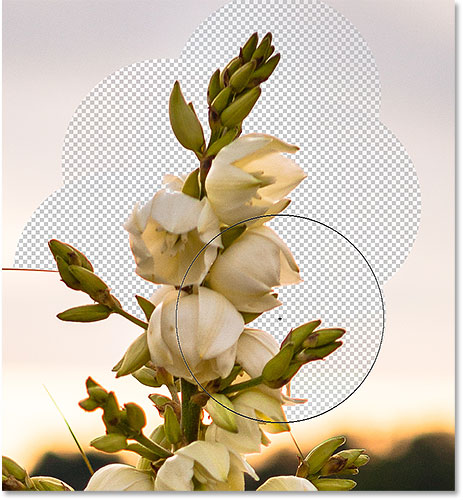
With that color now protected, I'll once again drag around the flowers with the Background Eraser to remove the sky, and this time, things work out much better. Photoshop is able to erase the sky and leave the flowers intact. Just remember to deselect the Protect Foreground Color option when you're done, otherwise the next time you go to use the Background Eraser, you could get unexpected results:
Photoshop Background Eraser Tool - Quick Summary
We covered a lot in this tutorial. Here's a summary of what we've learned:
- Photoshop's Background Eraser Tool can be used to easily remove unwanted areas of an image.
- To select the Background Eraser Tool, right-click (Win) / Control-click (Mac) on the standard Eraser Tool in the Tools panel, then select the Background Eraser Tool from the menu.
- To erase part of the image, position the crosshair in the center of the brush cursor over the color you want to erase, then click to sample the color. Keep your mouse button held down and drag the cursor over the image. Any pixels the cursor passes over that match the sampled color will be erased.
- Pixels that do not match the sampled color will be ignored.
- The Sampling Options in the Options Bar control the behavior of the Background Eraser Tool.
- Continuous (default) tells Photoshop to continuously sample the color under the crosshair as you drag the cursor.
- Once samples only the initial color you click on. No other colors will be sampled while your mouse button is held down, even if you pass the crosshair over different colors.
- Background swatch will erase pixels that match your current Background color.
- The Limits option in the Options Bar determines where Photoshop can look for pixels to erase.
- Contiguous (default) means that Photoshop can only erase pixels in areas that are physically touching the pixel under the crosshair. It will ignore pixels that match the sampled color but are separated by an area of a different color.
- Discontiguous will erase any pixels that match the sampled color that the crosshair passes over, even if they are separated by an area of a different color.
- Find Edges is similar to Contiguous but more precise and better at maintaining sharp edge detail.
- Tolerance determines how different a pixel's color can be from the sampled color for Photoshop to erase it. Use a lower Tolerance value when your subject and background colors are more similar. Higher Tolerance values can help remove edge fringing when your subject and background colors are more different.
- Protect Foreground Color prevents your current Foreground color from being erased. Press and hold Alt (Win) / Option (Mac) and click on your subject to sample a color and set it as your new Foreground color.
- If you make a mistake with the Background Eraser Tool, press Ctrl+Z (Win) / Command+Z (Mac) to undo your last brush stroke, then try again.
And there we have it! That's how to easily erase background areas of an image using the Background Eraser Tool in Photoshop! Check out our Photo Retouching section for more image editing tutorials!