
Digital Pixel Effect With Photoshop
In this Photoshop Effects tutorial, we'll learn how to create a "digital pixel" effect, which is often used in ads that sell anything to do with digital. We're going to first pixelate our entire image using a very simple filter, and then we'll experiment with a layer mask, the opacity setting and some layer blend modes to create different variations on our effect. At the end of the tutorial, we'll even see how something as simple as changing the blend mode of a layer can create an entirely new effect!
Here's the original image I'll be starting with:

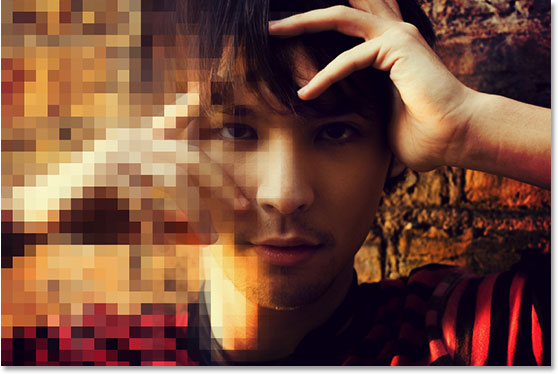
As I said, we'll be looking at a few different variations on the effect. Here's the first one we'll be working towards:
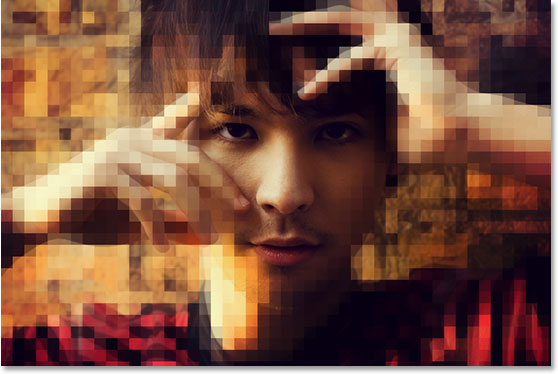
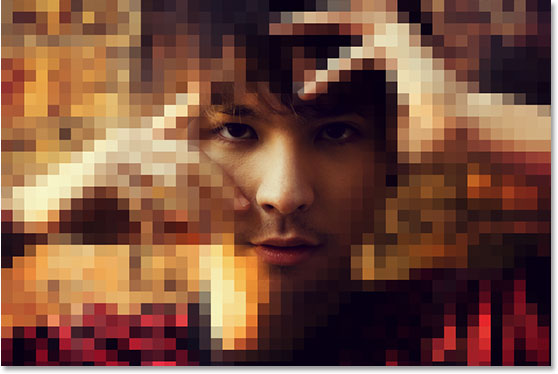
Here's the second one:
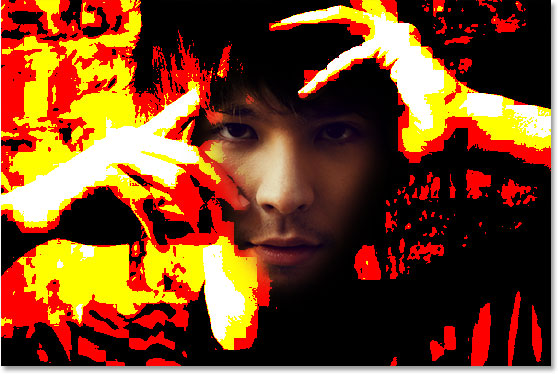
And just as an example of how easily we can create what seems like an entirely different effect simply by changing a layer's blend mode, we'll finish off with this one:
This tutorial is from our Photo Effects series. Let's get started!
Step 1: Duplicate The Background Layer
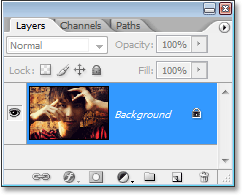
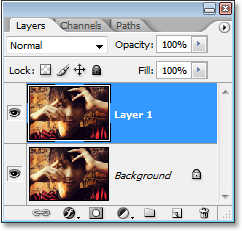
The first thing I need to do for this effect is to duplicate my Background layer. With my image open in Photoshop, I can see in my Layers palette that I currently have only one layer, the Background layer, which contains my image:
I'm going to duplicate that layer using the keyboard shortcut Ctrl+J (Win) / Command+J (Mac), and now I can see in my Layers palette that I have two layers, with the copy of the Background layer above the original. Photoshop has named it "Layer 1":
Step 2: Pixelate The Duplicate Layer
Next we need to pixelate the new layer, and we can do that by going up to the Filter menu at the top of the screen, choosing Pixelate, and then choosing Mosaic. This brings up the "Mosaic" filter's dialog box. Drag the slider bar at the bottom to change the Cell Size option, which increases or decreases the number and size of pixels that are created from the image. Dragging to the right creates fewer but larger pixels, while dragging to the left gives you more but smaller pixels. I'm going to set my Cell Size to about 18:
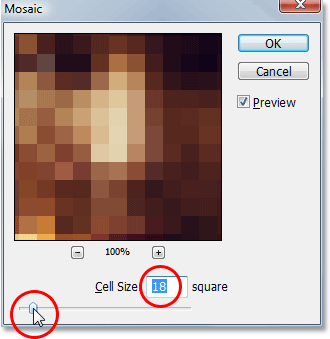
Click OK to exit out of the dialog box. Here's my image after applying the Mosaic filter:
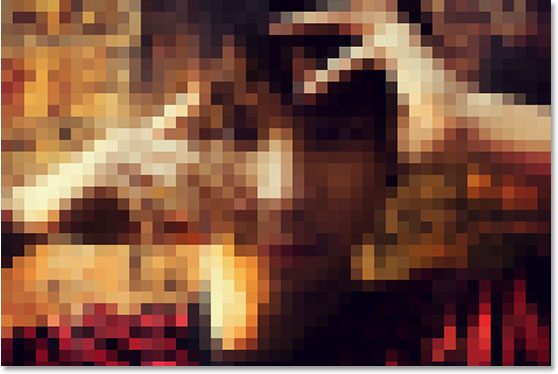
Now that we've pixelated the image, there's a few different things we can do with it, and we'll look at them next.
Step 3: Add A Layer Mask
I'm going to add a layer mask to the pixelated layer at this point. To do that, with "Layer 1" selected, I'm going to click on the Layer Mask icon at the bottom of the Layers palette:
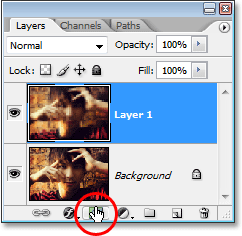
This adds a layer mask to "Layer 1", and if we look in the Layers palette, we can see that it also adds a layer mask thumbnail to the right of the layer content thumbnail:
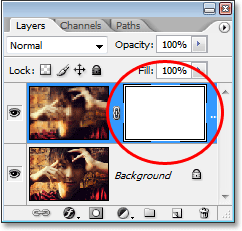
We can also tell that the layer mask, not the contents of the layer, is currently selected by the white highlight border appearing around the layer mask thumbnail.
Step 4: Select The Gradient Tool
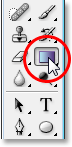
We're going to use our layer mask to blend the original image on the Background layer and the pixelated image on "Layer 1" together, and for that we need the Gradient Tool, so either select it from the Tools palette or press G on your keyboard:
Step 5: Reset Your Foreground And Background Colors If Needed
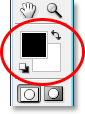
We want black as our Foreground color and white as our Background color. Normally those are Photoshop's default Foreground and Background colors, except when we have a layer mask selected, which we currently do. Whenever we have a layer mask selected, the default colors get swapped, with white becoming the default Foreground color and black becoming the default Background color. To quickly set our Foreground and Background colors to black and white respectively (remembering that we have a layer mask selected), press D on your keyboard to reset them to their defaults, and then press X to swap them. You'll see in the Tools palette that the Foreground color swatch is now showing black and the Background color swatch is now showing white:
Step 6: Select The "Foreground to Background" Gradient
With the Gradient Tool selected and our Foreground and Background colors set to black and white, look up in the Options Bar at the top of the screen to see which gradient you currently have selected. If the gradient preview area is showing a black to white gradient, you're all set:

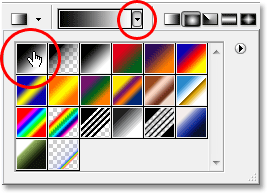
If it's showing some other gradient, click on the small, down-pointing arrow to the right of the gradient preview area. The Gradient Picker will appear below it. Select the "Foreground to Background" gradient in the top left corner, then click anywhere outside of the Gradient Picker to close out of it:
Step 7: Drag Out A Black To White Gradient On The Layer Mask
Now that we have our black to white gradient, we can use it to blend the Background layer and the pixelated layer together, creating our first variation on the effect. I want the transition area of my blend to appear across the guy's face, so half of his face (and half of the image as well) is pixelated and the other half is not. To accomplish that, I'm going to click below his right eye and then, holding down my Shift key to make sure I drag in a horizontal line, I'm going to drag my mouse all the way over to the left edge of his face:
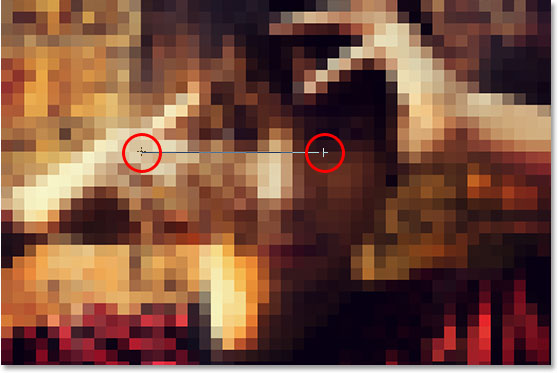
The area between where I started and finished my gradient is going to become the transition area between the pixelated image on "Layer 1" and the original image on the Background layer. When I release my mouse button, I get my transition effect:
Step 8: Fill The Layer Mask With White
Let's look at another variation on our "digital pixel" effect. First, we need to remove the gradient we added to the layer mask a moment ago. We could simply press Ctrl+Z (Win) / Command+Z (Mac) to undo it, but let's re-fill the layer mask with white instead. To do that, with the layer mask thumbnail selected in the Layers palette and white as our current Background color, use the keyboard shortcut Ctrl+Backspace (Win) / Command+Delete (Mac) to fill the layer mask with the Background color (white). The layer mask thumbnail will once again appear solid white, and the image will now appear completely pixelated once again:
Step 9: Select The Brush Tool
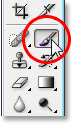
Select the Brush Tool from the Tools palette, or press B for the keyboard shortcut:
Step 10: Paint With Black To Reveal Parts Of The Image
Using a soft-edged brush and with black still as our Foreground color, I'm going to reveal the main part of his face by simply painting over it with my Brush Tool. Since I'm painting on the layer mask and not on the image itself, anywhere I paint with black will hide the pixelated layer and reveal the Background layer beneath it. I can resize my brush on the fly using the left and right bracket keys on my keyboard, and I can set my brush to a soft edge by holding down the Shift key and pressing the left bracket key a few times:
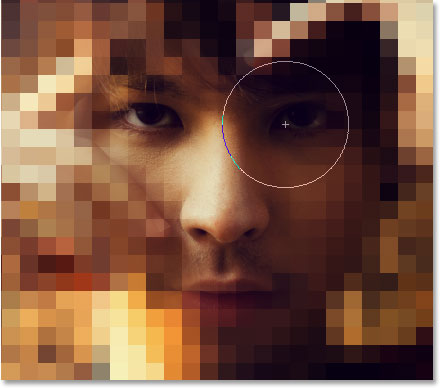
Here's my image after revealing the main areas of his face by painting over them with black, giving the impression that he is somehow looking through the pixels:
Step 11: Lower The Opacity Of The Pixelated Layer
I'm going to let the original image partially show through the pixelated image, and I can do that simply by going up to the Opacity option in the top right corner of the Layers palette and lowering the opacity value. I'm going to lower it to around 75%:
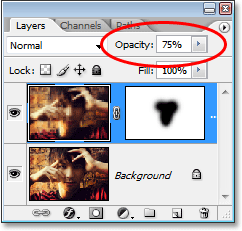
Here's my image after lowering the opacity of the pixelated layer, creating our second variation on the effect:
Step 12: Experiment With Different Blend Modes For The Pixelated Layer For Different Results
To create even more variations on the effect, experiment with different blend modes for the pixelated layer by going up to the blend mode options in the top left corner of the Layers palette and selecting different ones from the list. First, I'm going to set the Opacity of my pixelated layer back to a full 100%. Then, I'll going to change my blend mode of the layer from "Normal" to Darken:
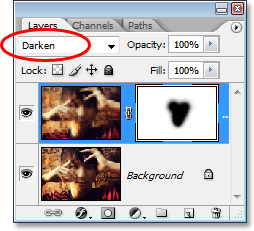
Here's the effect I get with the pixelated layer set to "Darken":
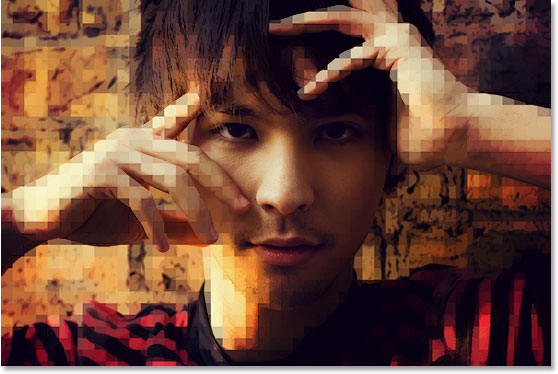
Let's try the Lighten blend mode, again by changing it in the top left corner of the Layers palette:
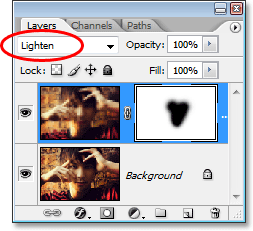
Here's the effect I get with the "Lighten" blend mode:
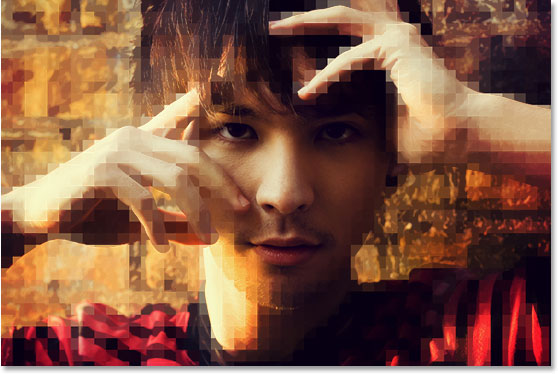
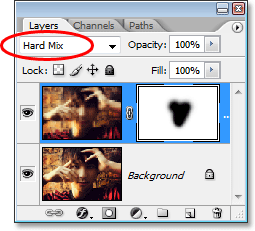
Just to show you how much different an effect can look simply by changing layer blend modes, we'll try one more. I'm going to change my blend mode this time to Hard Mix:
I think you'll agree that the effect now looks completely different, even though all we've done is changed the blend mode:
And there we have it! That's our look at how to create a simple "digital pixel" effect and a sample of how we can create different variations on the same effect, and even create entirely new effects, by experimenting with layer masks and blend modes in Photoshop.
Check out our Photo Effects section for more Photoshop effects tutorials!