
Photoshop Puzzle Effect
In this Photoshop Effects tutorial, we're going to look at how to easily create a Photoshop puzzle effect, allowing us to turn any photo into a jigsaw puzzle! Or at least, we'll be creating the illusion that the photo is made up of small puzzle pieces, although I suppose you could print the photo afterwards, cut around all the pieces with scissors and make an actual puzzle out of it, but as I like to say, why fumble around with reality when faking things in Photoshop is so much easier.
As we'll see, much of the work for our puzzle effect has already been done for us thanks to Photoshop's Texturizer filter and a free texture that Photoshop ships with, although we'll need to load the texture in ourselves, which we'll learn how to do. We're going to take things a bit further than that, though, and see how to make it look as if some of the pieces are still missing, giving our puzzle a "work in progress" appearance.
I should mention up front that while this photo effect is very easy to do, some of this tutorial involves using the Pen Tool, and since explaining how the Pen Tool works in Photoshop would require its own separate tutorial, I'm going to assume here that you're already familiar with how to use it. The good news is, the Pen Tool does have it's own separate tutorial, so if you do need help with the Pen Tool, be sure to check out our complete Making Selections With The Pen Tool tutorial which you can find in our Photoshop Basics section.
Here's the photo I'll be using for this tutorial, a little guy who's obviously pretty psyched about having his photo turned into a puzzle:

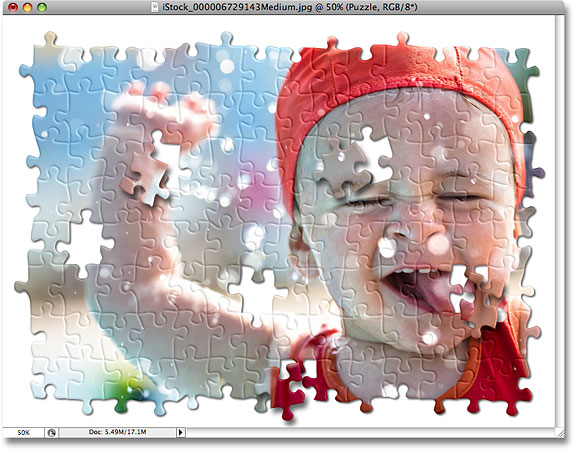
And here's how it will look with our Photoshop puzzle effect applied:
Step 1: Duplicate The Background Layer
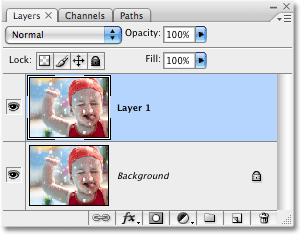
With our photo newly opened in Photoshop, the first thing we need to do is make a copy of our Background layer, which is the layer that contains our photo and is currently the only layer we have. Making a copy of this layer will allow us to do whatever we want to our image without harming it, since we'll always have the original on the Background layer to fall back on if needed. The easiest way to make a copy of a layer is by using the keyboard shortcut Ctrl+J (Win) / Command+J (Mac). If we look in our Layers palette after pressing the keyboard shortcut, we can see that we now have two layers. The original Background layer is on the bottom, and a copy of the layer, which Photoshop has automatically named "Layer 1", is sitting above it:
Step 2: Rename The New Layer "Puzzle"
An excellent habit to get into when working in Photoshop is to give your layers more descriptive names. This may not seem so important when you're only working with a few layers, but it's not uncommon to find yourself suddenly working with 50 layers, 100 layers or more, and if all of your layers have names like "Layer 1", "Layer 56" and "Layer 83 Copy 4", you'll be kicking yourself for not taking a few seconds to give your layers more helpful and descriptive names. In this case, we'll be using "Layer 1" as our main puzzle effect, so I'm going to double-click directly on the layer's name and rename it "Puzzle":
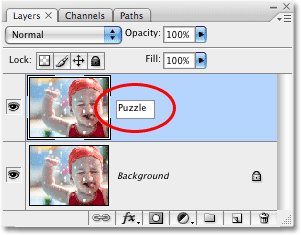
Press Enter (Win) / Return (Mac) when you're done to accept the name change.
Step 3: Add A New Blank Layer Below The "Puzzle" Layer
Next, we need to add a new blank layer below the "Puzzle" layer so it appears between the "Puzzle" layer and the Background layer. Currently, we have the "Puzzle" layer selected in the Layers palette. We know it's selected because it's highlighted in blue. Normally, whenever we add a new layer, Photoshop automatically places it above whichever layer is currently selected, so if we were to click on the New Layer icon at the bottom of the Layers palette right now, we'd end up with a new blank layer above the "Puzzle" layer. That's not what we want, so here's a handy trick. Hold down your Ctrl (Win) / Command (Mac) key and click on the New Layer icon:
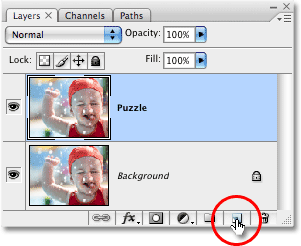
By adding the Ctrl/Command key to the step, we tell Photoshop to add a new layer and place it below the currently selected layer. We can see in the Layers palette now that we have a new blank layer, again named "Layer 1", sitting between the "Puzzle" and Background layers:
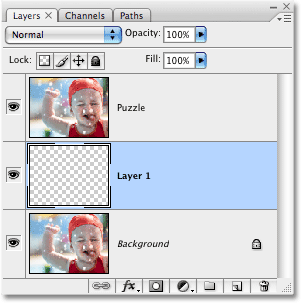
Step 4: Fill The New Layer With Black
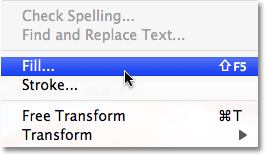
This layer is going to be used as the background for our effect, and I'm going to use black as my background color, at least for now, which means I need to fill this layer with black (Later on, we'll see how to change the background color if needed). Photoshop has a command built specifically for such a task, and it just happens to be called the Fill command. You'll find it by going up to the Edit menu at the top of the screen and choosing Fill:
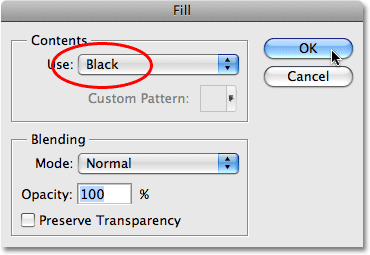
This brings up the Fill dialog box. Set the Contents option at the top of the dialog box to Black, then click OK to exit out of the dialog box:
Nothing will appear to have happened in our document window, since the photo on the "Puzzle" layer is blocking everything else from view at the moment, but if we look at the layer preview thumbnail for "Layer 1" in the Layers palette, which gives us a small preview of what's on the layer, we can see that "Layer 1" has in fact been filled with black:
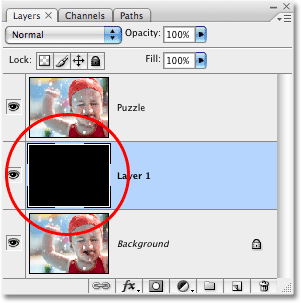
In keeping with what I said a moment ago about renaming layers, I'm going to double-click directly on this layer's name ("Layer 1") and rename it "Background color":
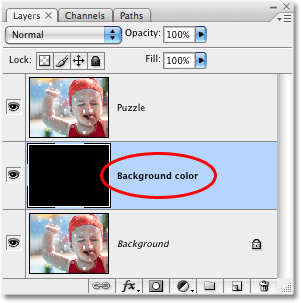
Step 5: Select The "Puzzle" Layer Once Again
We're going to be creating our puzzle pieces next, but we'll need to have the correct layer selected and at the moment, we don't. We have the "Background color" layer selected, but it's the "Puzzle" layer we need, so click on the "Puzzle" layer in the Layers palette to select it:
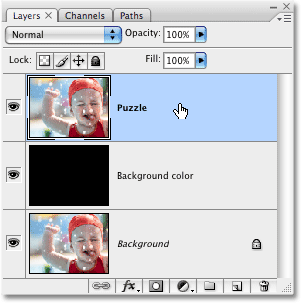
We're now ready to convert out photo into a puzzle!
Step 6: Open Photoshop's "Texturizer" Filter Dialog Box
As I mentioned at the beginning of this tutorial, most of the work of actually creating the puzzle pieces is already done for us thanks to one of the textures that are installed for free with Photoshop. Unfortunately, even though the texture is sitting on your hard drive ready for use, it's not actually loaded into Photoshop, at least not automatically. We'll need to load it in ourselves, but before we can do that, we'll need to bring up Photoshop's Texturizer filter, so go up to the Filter menu at the top of the screen, choose Texture, and then choose Texturizer:
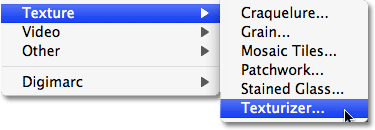
Step 7: Load The "Puzzle" Texture
This brings up the large Texturizer filter dialog box, with a preview window on the left and the options for the filter on the right. We need to load in the "Puzzle" texture that Photoshop has installed on your hard drive, so click on the small arrow to the right of the Texture selection option on the right of the dialog box, which brings up a menu with only one option, Load Texture. Click on it to select it:
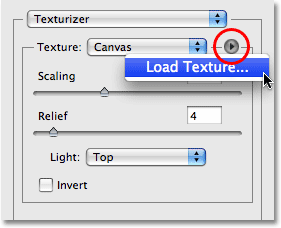
This opens the Load Texture dialog box, allowing us to navigate to our texture. The "Puzzle" texture we're looking for is located inside the Photoshop directory on your hard drive, wherever you happened to install Photoshop. On a PC (Windows), the default install location is on your C: drive, so first navigate to your C: drive, then open your Program Files folder. Inside the Program Files folder, you'll find an Adobe folder, and inside the Adobe folder, you'll find your Photoshop folder. The actual name of the Photoshop folder will depend on which version of Photoshop you're using. So, for example, if you're using Photoshop CS3 as I am here and you installed Photoshop to the default location, your Photoshop folder will be at C:\Program files\Adobe\Photoshop CS3.
On a Mac, things are a bit easier. You'll find your Photoshop folder inside your Applications directory on your hard drive. Again, the actual name of your Photoshop folder will depend on which version of Photoshop you're using.
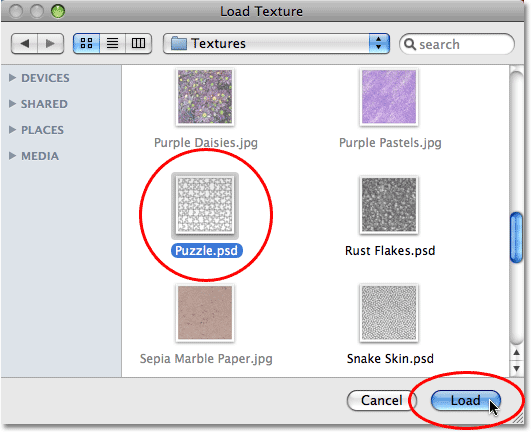
Once you've located your Photoshop folder, double-click on it to open it. Inside the folder, you'll find a Presets folder. Double-click on it to open it, and now look for a Textures folder. Double-click on it to open it, and you'll see all of the textures that Photoshop installed for us. There's quite a few of them to choose from, but the one we want for our puzzle effect is the Puzzle texture. Click on it to select it, then click on the Load button to load the texture:
Step 8: Adjust The Texture Options
With the Puzzle texture loaded, you should see that the Texture option in the Texturizer dialog box is now set to Puzzle. If, for some reason it isn't, select the Puzzle texture from the list. Then, using the preview window on the left of the dialog box as your guide, adjust the options for the texture. The settings you use will depend largely on your image and how big you want your puzzle pieces to appear. In my case, I want the puzzle pieces to appear as large as possible, so I'm going to raise my Scaling option all the way to 200%. The Relief option below it determines how strong of an appearance the puzzle pieces will have in the image. I'm going to set mine to 6. Again, the settings you use may be different. Finally, set the Light option, which determines the light source for the puzzle pieces, to Top Right:
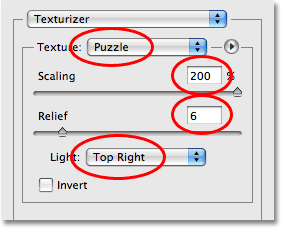
Click OK when you're done to exit out of the Texturizer dialog box and apply the texture to your image. Here's my photo with the puzzle texture applied:
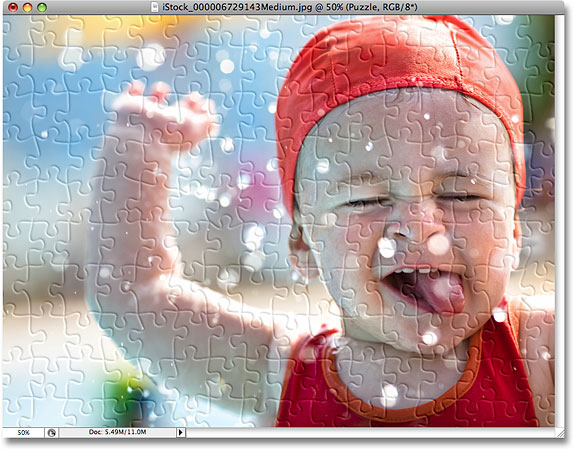
The basic puzzle effect is now complete, but let's take things a bit further and remove some of the pieces, as if the puzzle is still a work in progress. We'll do that next!
Step 9: Select The Pen Tool
This is the part of the tutorial where you'll need to know how to use the Pen Tool in Photoshop. The reason we'll be using the Pen Tool is because we need to be able to draw selections around individual puzzle pieces and the pieces have a lot of curves to them. You could try selecting the pieces with something like the Lasso Tool or the Polygonal Lasso Tool, but you'll most likely find that your results look sloppy and jagged, whereas the Pen Tool was designed specifically for drawing curves and will give you much better looking results.
If you're already comfortable using the Pen Tool, the rest of this tutorial will be easy, since the Pen really is a very simple tool to use once you get a feel for how it works. If terms like "paths", "anchor points" and "direction handles" are new to you or you're not quite sure you understand them, be sure to check out our complete Making Selections With The Pen Tool tutorial in our Photoshop Basics section where you'll find everything you need to know.
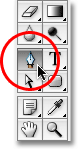
First, before we can use the Pen Tool, we need to select it, so either grab it from the Tools palette or simply press the letter P on your keyboard:
Step 10: Select The "Paths" Option In The Options Bar
With the Pen Tool selected, look up in the Options Bar at the top of the screen and make sure the Paths option is selected, since we need to draw a path with the Pen, not a vector shape or pixel-based shape:

Step 11: Draw A Path Around One Of The Puzzle Pieces
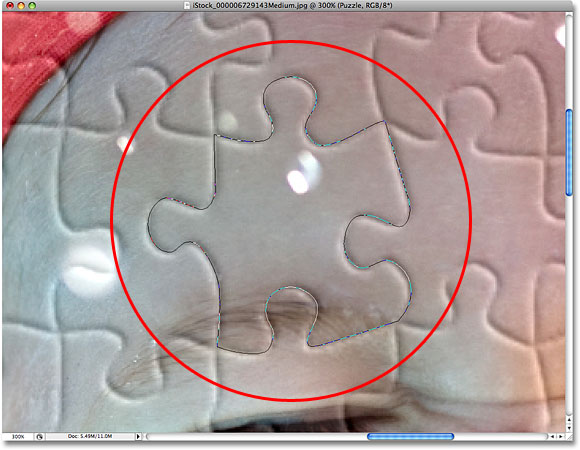
Use the Pen Tool to draw a path around one of the puzzle pieces. We're going to cut this piece out of the puzzle and have it appear to be floating just above the puzzle, ready to be snapped into place. It doesn't really matter which piece you choose. I'll choose a piece above the boy's right eye (his right, our left). Make your way around the piece adding anchor points and dragging direction handles until you've successfully drawn a path around the entire shape. You can zoom in on the piece if needed by pressing Ctrl+spacebar (Win) / Command+spacebar (Mac) to temporarily access the Zoom Tool, then clicking on the piece a few times to zoom in on it. A path can be a bit hard to see in a screenshot, so I've circled the piece that I've outlined:
Step 12: Convert The Path Into A Selection
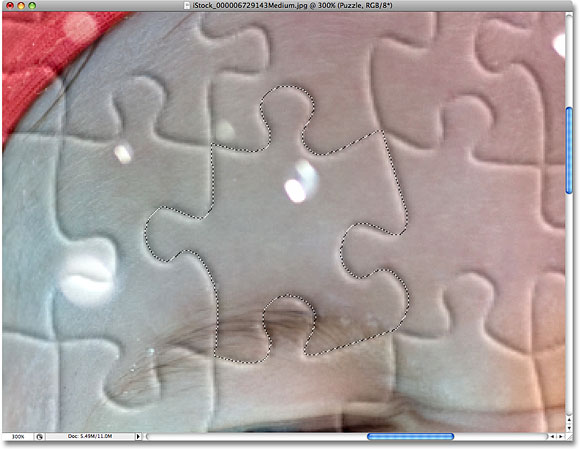
Once you've finished drawing your path around the first puzzle piece, press Ctrl+Enter (Win) / Command+Return (Mac) on your keyboard to convert the path into a shape. You'll see your solid path outline turn into a selection outline:
Step 13: Cut The Selection Onto Its Own Layer
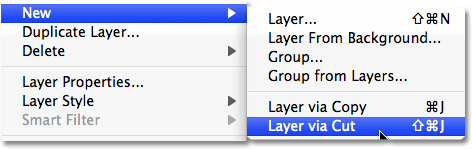
We're going to cut the selected puzzle piece out of the "Puzzle" layer and place it onto its own layer, leaving an empty hole in the "Puzzle" layer in its place. Make sure you still have the "Puzzle" layer selected in the Layers palette, then go up to the Layer menu at the top of the screen, choose New, and then choose Layer via Cut:
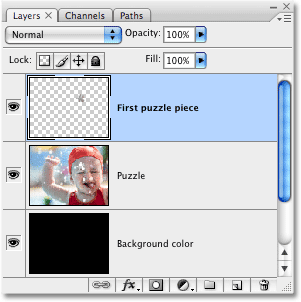
This cuts the piece out of the "Puzzle" layer and places it on its own layer above the "Puzzle" layer, which we can see in the Layers palette. The piece is now on the top layer, which Photoshop has once again named "Layer 1". I'm going to rename this layer "First puzzle piece":
Step 14: Move And Rotate The Puzzle Piece With Free Transform
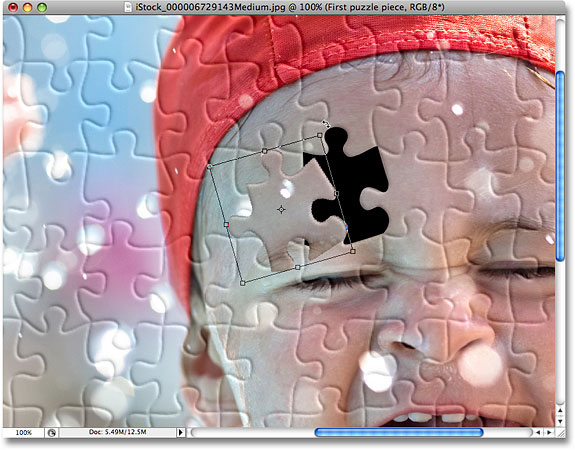
We're going to make this puzzle piece look like it's about to be snapped into place. Press Ctrl+T (Win) / Command+T (Mac) on your keyboard to bring up Photoshop's Free Transform box and handles around the puzzle piece, then click anywhere outside of the Free Transform box and drag your mouse to rotate the piece. Once you've rotated it, click anywhere inside the Free Transform box and drag your mouse to move the piece away from its original location. Remember that we want it to be obvious that this piece belongs in this spot, so don't move it too far or rotate it too much.
You'll notice as you move the piece that the spot there the piece was sitting a moment ago now appears to be filled with black. That's because we've cut a hole in the "Puzzle" layer and the black from the "Background color" layer below it is showing through:
Press Enter (Win) / Return (Mac) when you're done to accept the transformation and exit out of the Free Transform command.
Step 15: Add A Drop Shadow
To give the puzzle piece more of a 3D appearance so it looks like it's floating above the puzzle, let's add a drop shadow. Click on the Layer Style icon at the bottom of the Layers palette, then select Drop Shadow from the list:
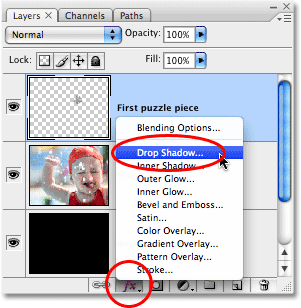
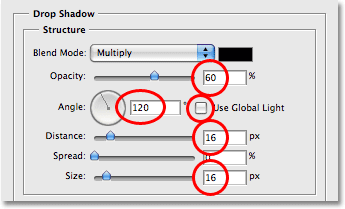
This brings up the Layer Style dialog box set to the Drop Shadow options in the middle column. Lower the Opacity of your drop shadow to around 60% so it's not quite so intense. Uncheck the Use Global Light option and set the Angle of the shadow to 120°. Increase the Distance to around 16 px, then increase the Size to around 16 px as well. As usual, you may need to make adjustments to these settings for your image:
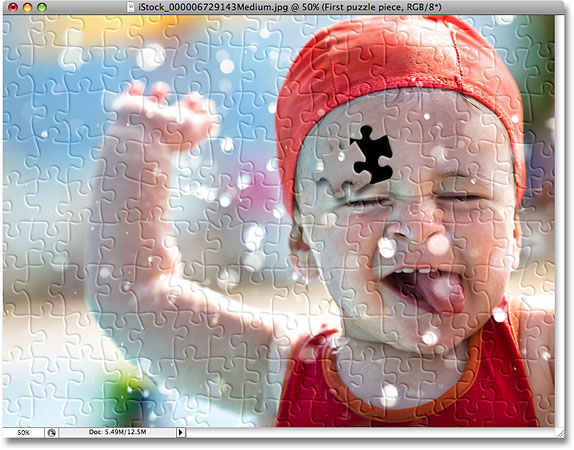
Click OK when you're done to exit out of the Layer Style dialog box. Here's my image after applying the drop shadow to the puzzle piece:
Step 16: Select The "Puzzle" Layer Once Again
We've cut one of the puzzle pieces out and have it floating above the puzzle. This time, let's remove one of the pieces completely. We need to have the "Puzzle" layer selected, so click on it in the Layers palette:
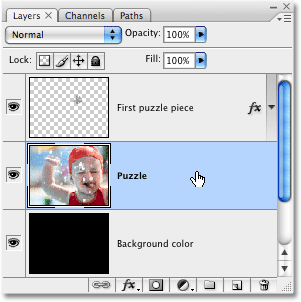
Step 17: Draw A Path Around Another Puzzle Piece With The Pen Tool
Choose a different puzzle piece and use the Pen Tool to draw a path around it, just as we did before:
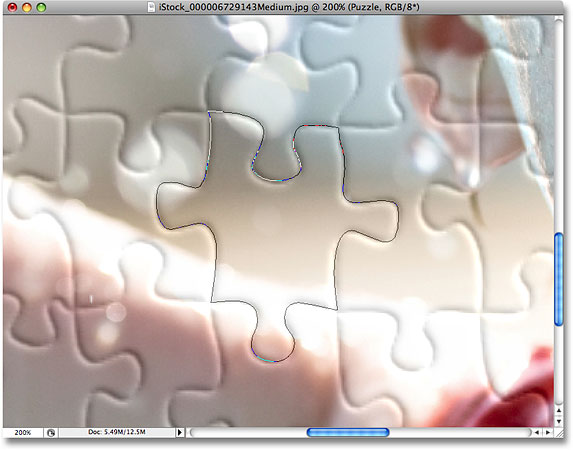
Step 18: Convert The Path To A Selection
Again as we did before, press Ctrl+Enter (Win) / Command+Return (Mac) to quickly convert the path into a selection:
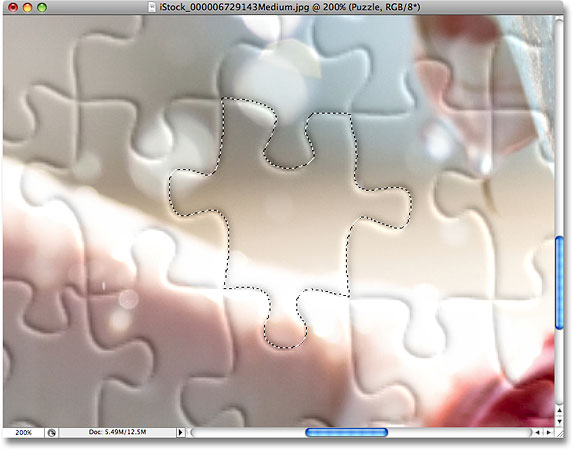
Step 19: Delete The Selection
All we're going to do with this piece is remove it completely from the puzzle, and for that, all we need to do is press Delete on the keyboard. This deletes the puzzle piece, leaving a hole in the "Puzzle" layer which allows the black background color to show through:
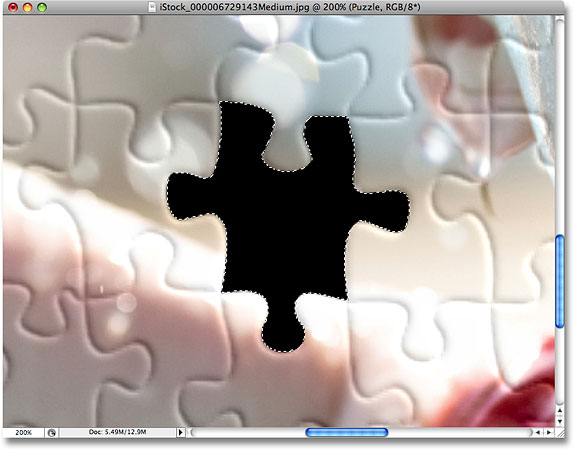
Press Ctrl+D (Win) / Command+D (Mac) to deselect your selection, removing the selection outline. Here's my photo after deleting the second puzzle piece:
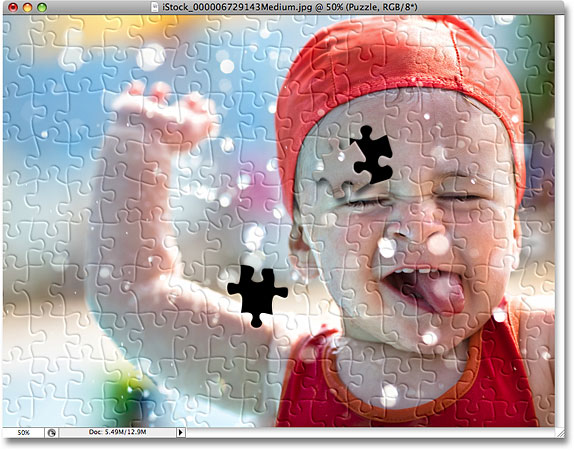
Continue removing a few more pieces from the puzzle, either by cutting a piece out and floating it above the puzzle (Steps 11-15) or by simply deleting the piece completely (Steps 16-19). Always make sure you have the "Puzzle" layer selected in the Layers palette each time you go to cut or delete a piece.
Here's my image after cutting out and deleting a few more puzzle pieces:
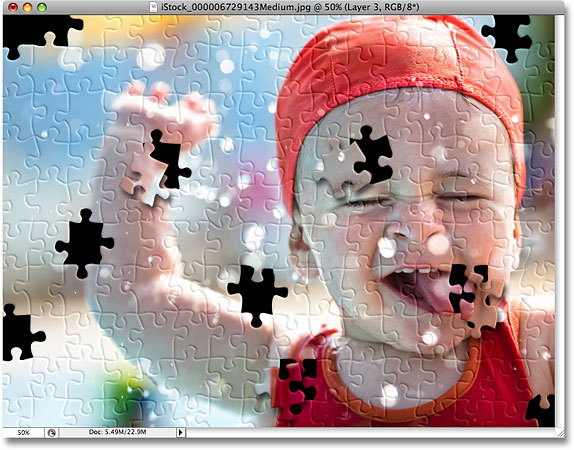
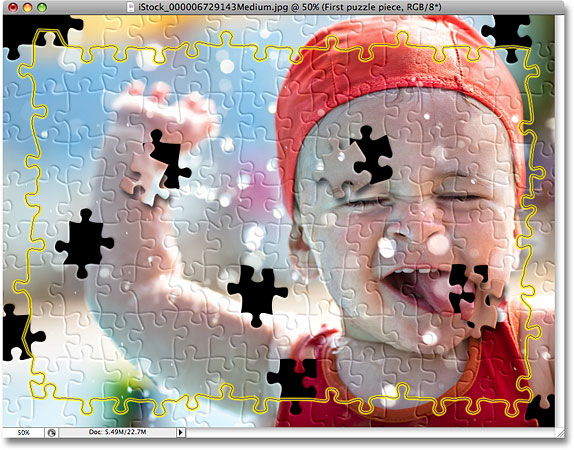
Step 20: Draw A Path Around All The Edge Pieces (Optional)
These last few steps are optional, but I'm going to give my photo a more interesting border by deleting all of the puzzle pieces along the edges. Again, this is optional, but if you want to follow along, use the Pen Tool to draw one continuous path along the inside edges of all the pieces that run along the edges of the photo, as I've done here. Since it's difficult to see a path in a screenshot, I've highlighted my path in yellow:
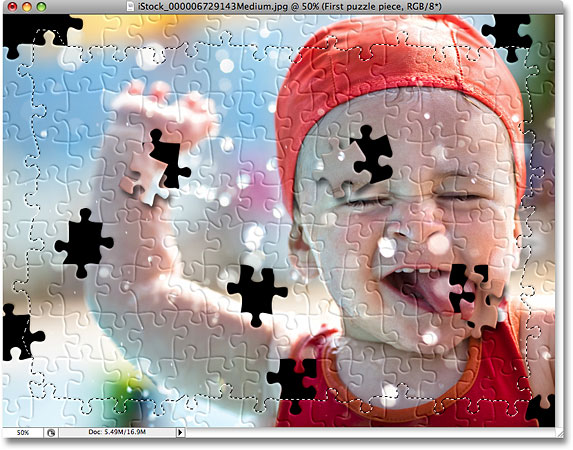
Step 21: Convert The Path Into A Selection
Once you've drawn your path, press Ctrl+Enter (Win) / Command+Return (Mac) to quickly convert the path into a selection:
Step 22: Invert The Selection
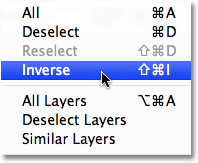
We want to delete all of the pieces that run along the edges of the puzzle, which means we need to have the edge pieces selected. At the moment, though, we have everything except the edge pieces selected. We need to invert our selection so that everything that's currently selected will be deselected and everything that is currently not selected will become selected. To do that, go up to the Select menu at the top of the screen and choose Inverse:
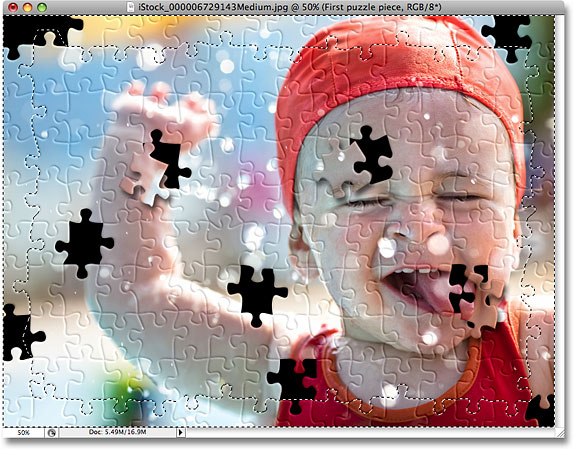
All of the puzzle pieces along the edges of the photo will now be selected:
Step 23: Delete The Edge Pieces
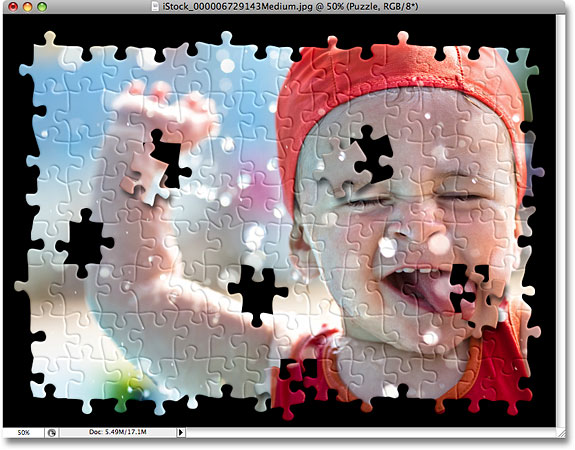
With the edge pieces now selected, make sure you have the "Puzzle" layer selected in the Layers palette, then press Delete on your keyboard to delete them. Press Ctrl+D (Win) / Command+D (Mac) to remove the selection outline:
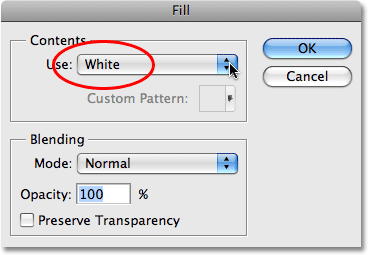
If you'd prefer to use white for the background instead of black, simply click on the "Background color" layer in the Layers palette to select it, then go up to the Edit menu at the top of the screen and choose Fill to bring up the Fill dialog box. Choose White for the Contents option instead of black, then click OK to exit out of the dialog box:
This fills the background with white:
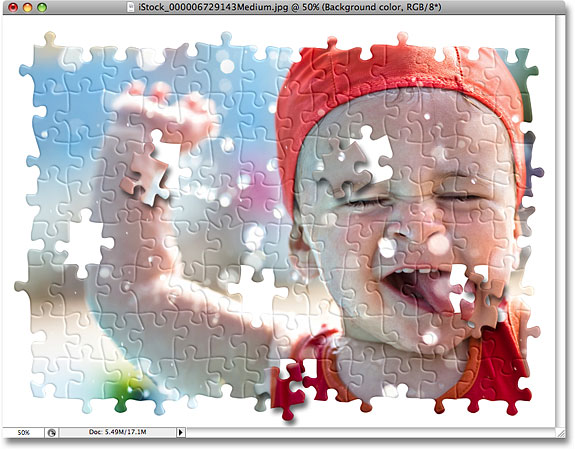
Step 24: Add A Drop Shadow To The Main Puzzle (Optional)
This final step is really only necessary if you've decided to use white for your background color instead of black. We're going to add a slight drop shadow to the main puzzle, and obviously, if your background color is black and the drop shadow is black, you won't be able to see the drop shadow, so you can skip this last step if you're still using black for your background.
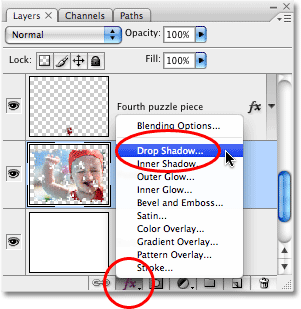
To add the drop shadow to the main puzzle, first select the "Puzzle" layer in the Layers palette, then click on the Layer Style icon at the bottom of the Layers palette and select Drop Shadow from the list:
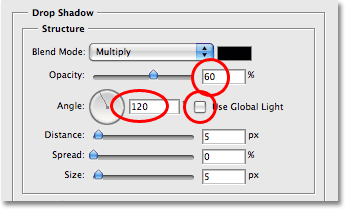
This once again brings up Photoshop's Layer Style dialog box set to the Drop Shadow options in the middle column. Lower the Opacity option down to 60% to reduce the intensity of the shadow, then uncheck the Use Global Light option and set the Angle to 120°. You can leave the rest of the options set to their defaults:
Click OK when you're done to exit out of the Layer Style dialog box, and we're done! Here, after applying a drop shadow to my main puzzle, is my final effect:
And there we have it! That's how to create a jigsaw puzzle effect with an image in Photoshop! Visit our Photo Effects section for more Photoshop effects tutorials!