
Three Image Photo Frame Template With Smart Objects In Photoshop
In this Photoshop photo effects tutorial, we'll learn how to create a simple three-image photo frame, and when we're done, we'll see how to easily convert the final result into a reusable template using Photoshop's Smart Objects! Smart Objects were first introduced in Photoshop CS2, which means you'll need Photoshop CS2 or higher for the final steps in the tutorial. I'll be using Photoshop CS4 myself. However, if you're using an earlier version of Photoshop, you can still create the actual photo frame itself. The only thing you won't be able to do is convert the images into Smart Objects at the end of the tutorial.
Here's the three-photo frame we'll be creating:
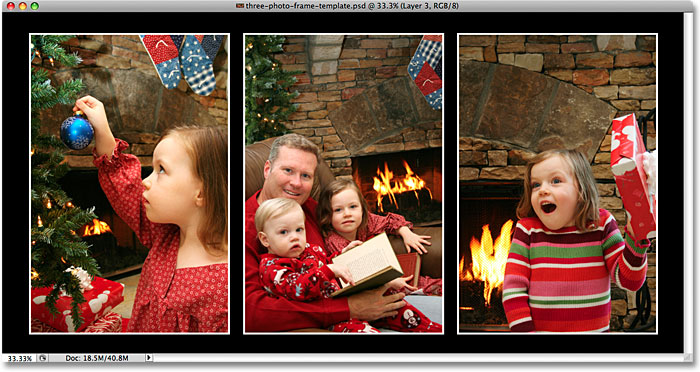
How To Create A Three Image Photo Frame
Step 1: Create A New Document
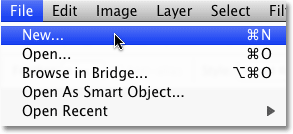
Let's begin by creating a new Photoshop document. Go up to the File menu in the Menu Bar at the top of the screen and choose New. Or, for a faster way to create a new document, simply press the keyboard shortcut Ctrl+N (Win) / Command+N (Mac):
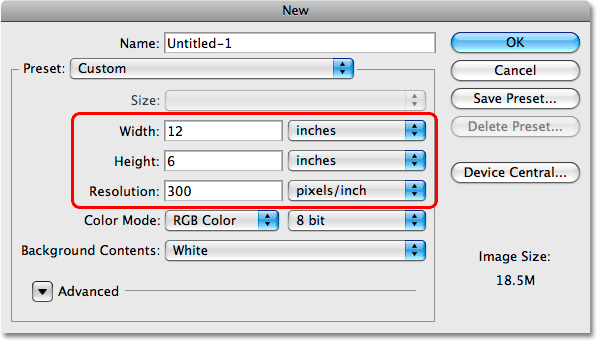
Either way you choose brings up Photoshop's New Document dialog box, which is where we set the options for our new document. Since I'm going to be placing three portrait-style images side by side each other in a row, I'll need a document that's quite wide, so I'll enter 12 inches for the Width and 6 inches for the Height, making sure that the measurement type is set to inches and not pixels. You may need to enter different values for the width and height if you have a specific document size you want to create. Since I'll want to print the frame effect when I'm done, I'll enter 300 pixels/inch for the Resolution:
Click OK when you're done to accept the settings and exit out of the dialog box. The new document appears on your screen:
Step 2: Fill The New Document With Black
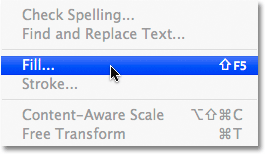
I want to use black for the background color, so I'll go up to the Edit menu at the top of the screen and choose Photoshop's Fill command, which allows us to fill a layer or selection with a color:
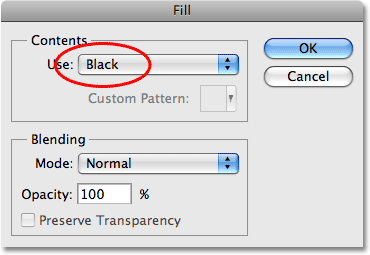
When the Fill dialog box appears, I'll set the Use option in the Contents section at the top of the dialog box to Black:
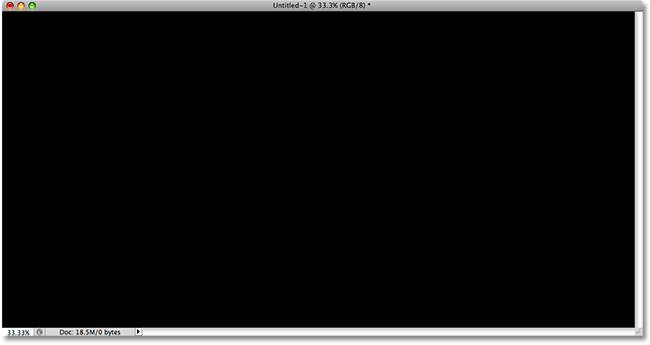
Click OK to exit out of the dialog box, and Photoshop fills the document with solid black:
Step 3: Add A New Blank Layer
We need to add a new blank layer. We'll be adding a placeholder for our first image on this new layer. Hold down your Alt (Win) / Option (Mac) key and click on the New Layer icon at the bottom of the Layers panel:
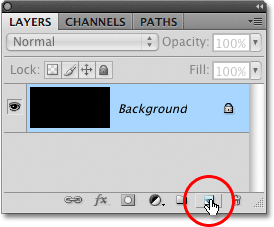
By holding down the Alt / Option key as we click on the New Layer icon, we tell Photoshop to pop open the New Layer dialog box before adding the new layer, and we can use the dialog box to give our new layer a name. Change the name of the new layer from its default "Layer 1" to placeholder left:
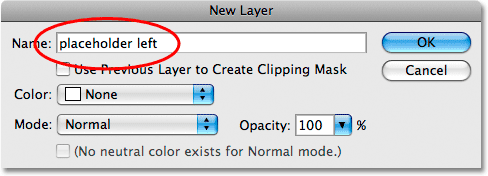
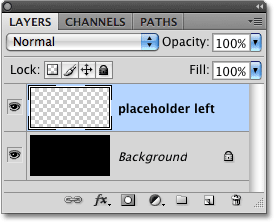
Click OK to accept the name change and exit out of the dialog box. If we look in the Layers panel, we can see that we now have a new blank layer named "placeholder left" sitting above the Background layer. The checkerboard pattern in the layer preview thumbnail to the left of the layer's name tells us that the layer is currently blank:
Step 4: Select The Rectangle Marquee Tool
Select Photoshop's Rectangular Marquee Tool from the top of the Tools panel, or press the letter M on your keyboard to quickly select it with the shortcut:
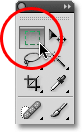
With the Rectangular Marquee Tool selected, the Options Bar at the top of the screen changes to show options for the Rectangular Marquee Tool. One of the options is Style. Change it from its default setting of Normal to Fixed Ratio, then enter 4 for the Width and 6 for the Height. This will force the shape of the selection we're about to draw into a 4x6 aspect ratio, which will make it easy for us to add some 4x6 photos to the document later:

Step 5: Draw A Rectangular Selection On The Left Side Of The Document
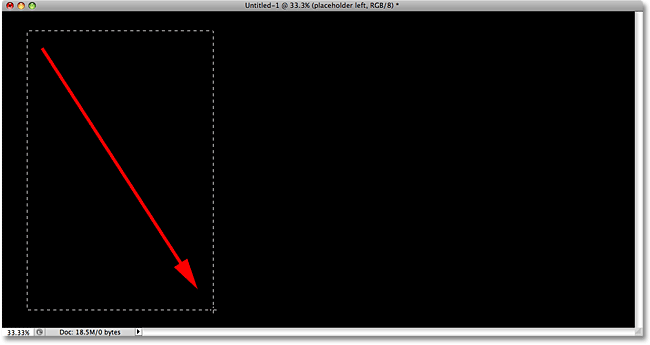
Drag out a rectangular selection on the left side of the document. This is where the photo on the left will appear. You'll notice that as you drag out the selection, the shape of it is constrained to the 4x6 aspect ratio we set in the Options Bar in the previous step. If you need to reposition the selection as you're dragging it out, simply hold down your spacebar, drag your mouse to move the selection into place, then release your spacebar and continue dragging. Make sure to leave enough room to fit two more photos inside the document:
Step 6: Fill The Selection With Gray
Once you've drawn the selection, go back up to the Edit menu and choose the Fill command again:
This time, when the Fill dialog box appears, change the Use option in the Contents section at the top of the dialog box to 50% Gray:
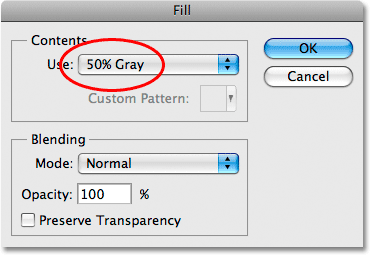
Click OK when you're done to exit out of the dialog box. Photoshop fills the selection with gray. There's no special reason why we've chosen gray here. We simply needed to fill the selection with color, and since we're using it only as a placeholder for an image, gray seemed like a natural choice. Press Ctrl+D (Win) / Command+D (Mac) to remove the selection outline from around the shape:
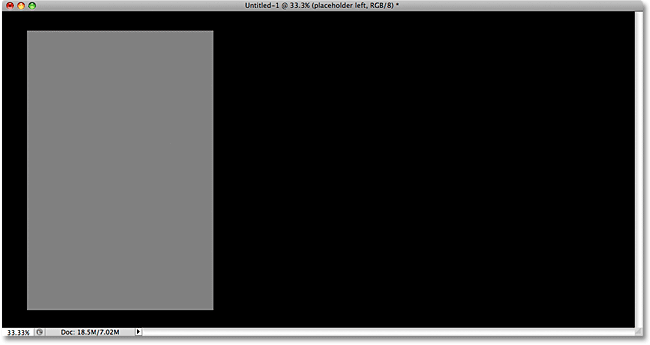
Step 7: Add A Thin White Stroke Around The Shape
Let's add a thin white border around the shape. Click on the Layer Styles icon at the bottom of the Layers panel and select Stroke from the bottom of the list of layer styles that appears:
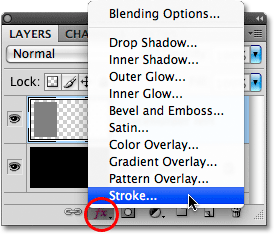
This brings up Photoshop's Layer Style dialog box set to the Stroke options in the middle column. First, change the color of the stroke by clicking on the small color swatch to the right of the word Color and choosing white from the Color Picker when it appears. Click OK to close out of the Color Picker when you're done. Increase the Size of the stroke to around 10 px (pixels), then change the Position to Inside:
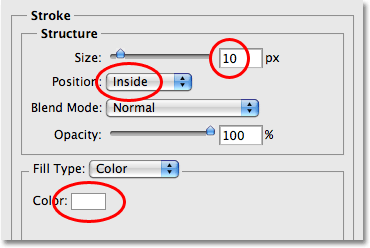
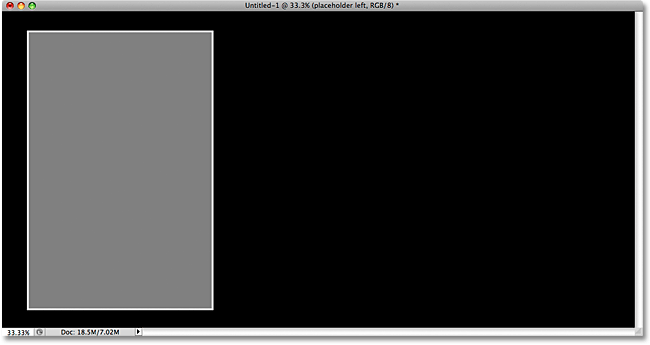
Once you've set the color, size and position of the stroke, click OK to exit to exit out of the dialog box. Here's my image with the thin white border now applied to the shape:
Step 8: Select The Move Tool
Select Photoshop's Move Tool from the Tools panel, or press the letter V on your keyboard to quickly select it with the shortcut:
Step 9: Drag A Copy Of The Shape Into The Center Of The Document
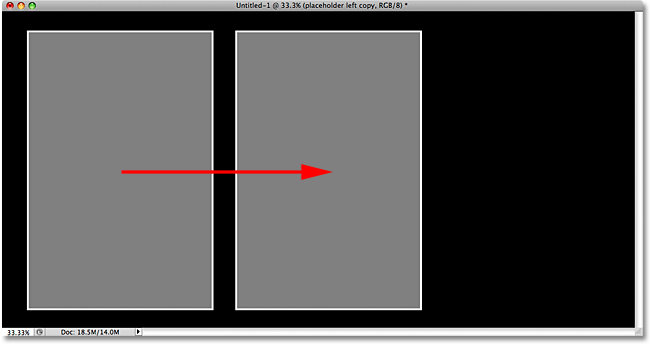
Press Shift+Alt (Win) / Shift+Option (Mac) and, while holding both keys down, click on your gray shape inside the document and drag it towards the right. The Alt / Option key tells Photoshop that we want to create a copy of the shape as we drag instead of moving the original shape, while the Shift key limits the direction that we can drag in, making it easy to drag in a straight line towards the right.
Drag the copy into the center of the image, which creates the placeholder for the middle photo that we'll be adding. Notice that the white stroke is also copied along with the shape:
Step 10: Rename The New Layer "Placeholder Middle"
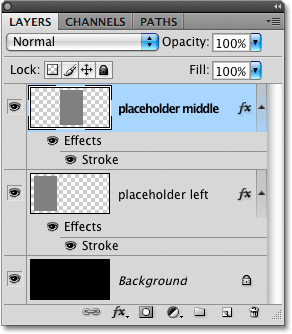
If we look in the Layers panel, we can see that the second shape has appeared on its own layer above the original shape. Photoshop has named the new layer "placeholder left copy". Double-click directly on the new layer's name and change it to placeholder middle. Press Enter (Win) / Return (Mac) when you're done to accept the change:
Step 11: Drag Another Copy Of The Shape Into The Right Side Of The Document
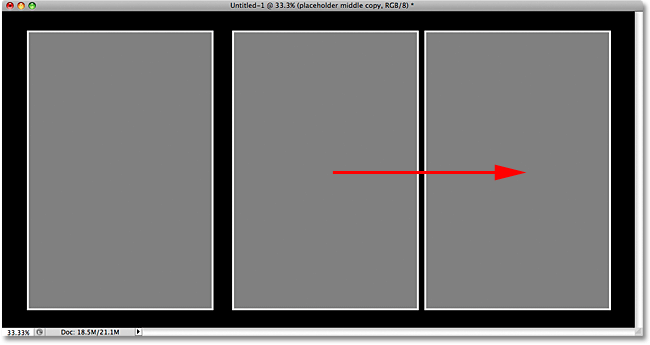
Once again hold down Shift+Alt (Win) / Shift+Option (Mac), click on the middle shape and drag a copy of it into the right side of the document. This will become the placeholder for the image that appears on the right. Again, the white stroke is copied along with the shape. Try to leave the same amount of room between the new shape and the right edge of the document as there is between the left shape and the left edge of the document. Don't worry for now if the shapes themselves are not evenly spaced apart, as mine clearly are not:
Step 12: Rename The New Layer "Placeholder Right"
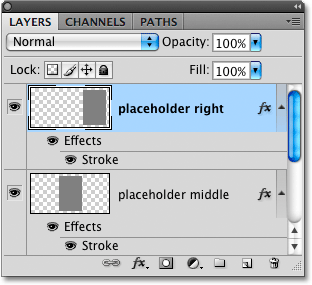
If we look again in the Layers panel, we can see that the third shape appears on its own layer above the other two shapes, and Photoshop has automatically named the new layer "placeholder middle copy". Double-click directly on the layer's name and change it to placeholder right. Press Enter (Win) / Return (Mac) to accept the change when you're done:
Step 13: Select All Three Placeholder Layers At Once
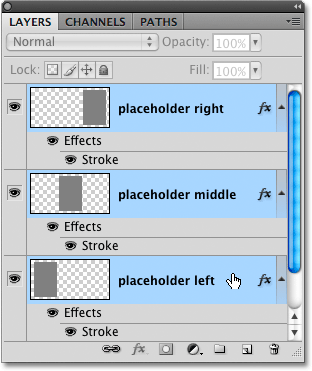
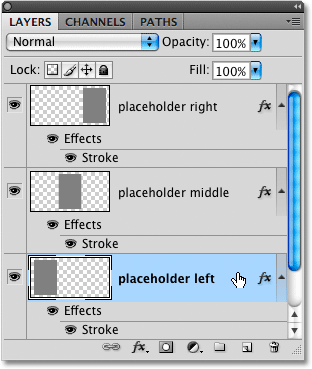
Let's align the three shapes so they're spaced evenly apart. With the top layer ("placeholder right") already selected, hold down your Shift key and click on the original shape's layer ("placeholder left") in the Layers panel. This will select all three placeholder layers at once (you'll see them all highlighted in blue which tells us they're selected):
Step 14: Click The "Distribute Horizontal Centers" Icon
With all three layers selected and the Move Tool still selected, you'll see a series of icons in the Options Bar at the top of the screen which give us various ways to align and distribute the layers. Click on the Distribute Horizontal Centers icon, which will space the shapes out horizontally:

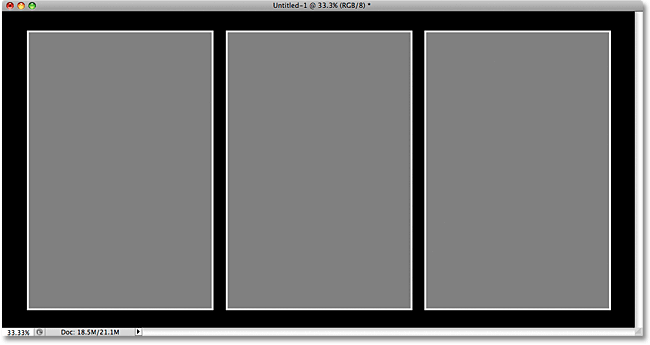
All three placeholder shapes should now be evenly spaced in the document:
We're ready to add some photos to the document. We'll do that next!
Step 15: Open The First Photo To Add To The Frame
Open the first image you want to add to the frame document. Here's the photo I'll be using:
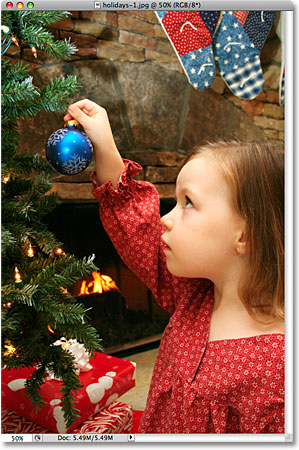
Step 16: Copy The Photo To The Clipboard
Press Ctrl+A (Win) / Command+A (Mac) to quickly select the entire photo. You'll see a selection outline appear around the image. Then press Ctrl+C (Win) / Command+C (Mac) to copy the image to the clipboard. You can close out of the photo's document window once you've copied the image to the clipboard.
Step 17: Select The "Placeholder Left" Layer
Switch back over to the frame document by clicking anywhere inside its document window, then click on the placeholder left layer in the Layers panel to select it:
Step 18: Paste The Photo Into The Frame Document
Press Ctrl+V (Win) / Command+V (Mac) to paste the photo into the frame document. Photoshop will place the photo on its own layer directly above the layer that was selected, and if we look in the Layers panel, we can see that sure enough, the photo appears on its own layer directly above the "placeholder left" layer that we selected in the previous step:
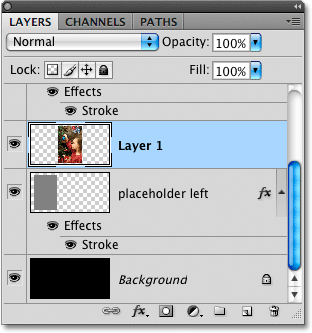
The only problem is that I want this photo to appear as the left image in the frame, but at the moment, not only is it appearing in the middle, it's hidden behind the middle shape due to the "placeholder middle" layer being above the photo in the Layers panel. All I can see of the image are the outer edges that extend beyond the shape:
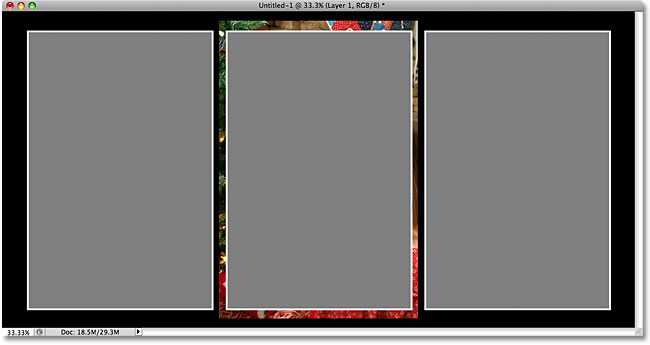
Step 19: Drag The Photo Over The "Placeholder Left" Shape
With the Move Tool still selected, click inside the document and drag the photo towards the left until it appears over top of the "placeholder left" shape:
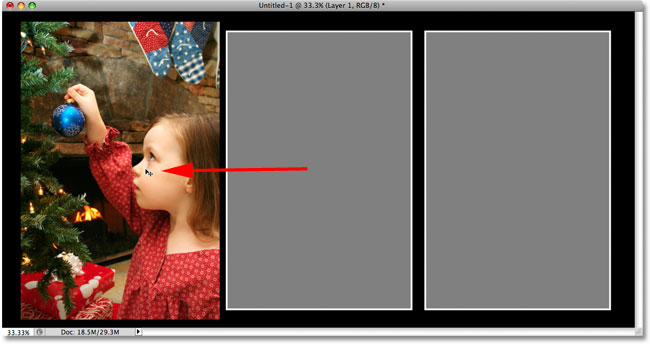
Step 20: Create A Clipping Mask
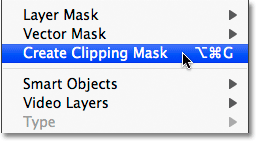
Once the photo is over top of the "placeholder left" shape, go up to the Layer menu at the top of the screen and select Create Clipping Mask:
Photoshop will "clip" the photo to the placeholder shape below it, allowing only the area of the photo that falls within the boundaries of the shape to remain visible. The rest of the photo that extends outside of the shape becomes hidden from view. The white stroke around the shape is now visible once again:
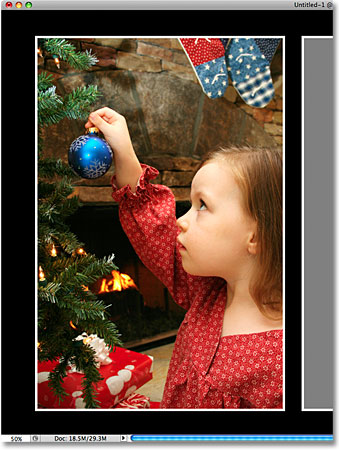
Step 21: Resize The Photo With The Free Transform Command
Let's resize the photo so that we can see the entire image rather than just whatever part happens to be over the placeholder shape. Press Ctrl+T (Win) / Command+T (Mac) to quickly bring up Photoshop's Free Transform box and handles around the image. Even though we can only see the area of the photo that's directly over the shape, the Free Transform handles appear around the actual dimensions of the image. If you can't see the Free Transform handles because your image is so large that the edges extend out beyond the visible area of the document window, press Ctrl+0 (Win) / Command+0 (Mac) to have Photoshop zoom out until everything fits inside the document window (known as the Fit on Screen view). Press it again when you're done resizing the image.
Drag the Free Transform corner handles (the little squares) inward until they line up with the corners of the placeholder shape so that both the shape and the photo are the same size. Of course, this assumes that you're using a photo with the same 4x6 aspect ratio as the placeholder shape, as I am here. If your photo uses a different aspect ratio, simply resize the image until as much of it fits within the shape as possible. Hold down your Shift key as you drag the handles to constrain the aspect ratio of the photo so you don't accidentally distort the look of it as you're resizing it. You can reposition the photo if needed by clicking anywhere inside the Free Transform box and dragging it around with your mouse:
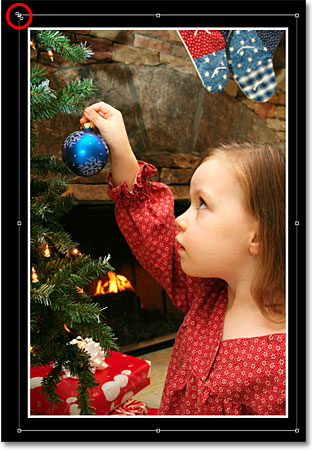
When you're done resizing the image, press Enter (Win) / Return (Mac) to accept the transformation and exit out of the Free Transform command:

Step 22: Add Two More Photos To The Frame
Follow the same steps to add two more photos to the frame document, one for the middle area and one for the right. First, open the photo you want to use. Press Ctrl+A (Win) / Command+A (Mac) to select it, then Ctrl+C (Win) / Command+C (Mac) to copy it to the clipboard. Close out of the photo's document window once you've copied the image to the clipboard. Switch back over to the frame document and click on either the placeholder middle or placeholder right layer in the Layers panel to select it (depending on which one you're adding the photo to).
Press Ctrl+V (Win) / Command+V (Mac) to paste the photo into the document. Photoshop will place the photo on its own layer directly above the placeholder layer you selected. Use the Move Tool to drag the photo over top of the placeholder shape if needed, then go up to the Layer menu at the top of the screen and choose Create Clipping Mask. Finally, press Ctrl+T (Win) / Command+T (Mac) to bring up the Free Transform box and handles around the image. Hold down your Shift key and drag the corner handles to resize the photo. Press Enter (Win) / Return (Mac) when you're done to exit out of Free Transform.
Here's my frame document after adding photos to the middle and right sections:
Step 23: Convert The Three Photos Into Smart Objects
For these remaining few steps, you'll need Photoshop CS2 or higher to follow along. We're going to see how easy it is to use our final result as a template, swapping other photos in and out of the frame as needed using Smart Objects which were first introduced in Photoshop CS2.
In the Layers panel, click on the layer than contains the first photo we added (the one directly above the "placeholder left" layer) to select it. It should be on a layer named "Layer 1":
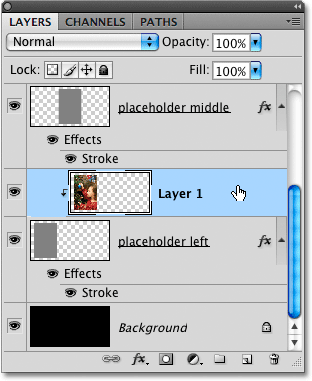
With the layer selected, Right-click (Win) / Control-click (Mac) on the layer's name and select Convert to Smart Object from the menu that appears:
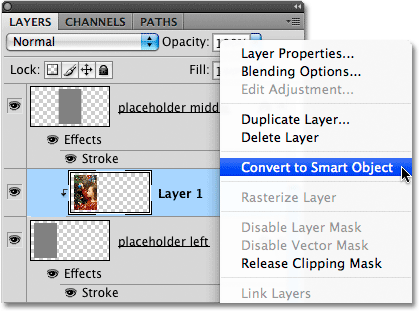
Nothing will seem to have happened in the document window, but if we look in the bottom right corner of the layer's preview thumbnail, we can see than a small Smart Object icon has appeared, letting us know that the photo is now a Smart Object:
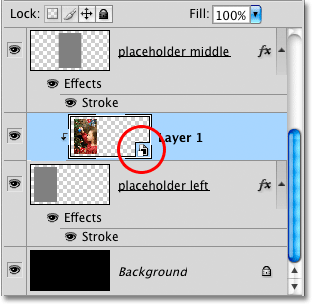
Do the same thing for the remaining two images (which you'll find on "Layer 2" and "Layer 3"), first clicking on the layer in the Layers panel, then Right-clicking (Win) / Control-clicking (Mac) on the layer's name and choosing Convert to Smart Object from the menu. When you're done, all three photos should have the Smart Object icon appearing in the bottom right corner of their layer's preview thumbnail.
Step 24: Replace The Contents Of Each Smart Object To Add Different Photos
With all three photo layers now converted into Smart Objects, click again on "Layer 1" in the Layers panel to select the photo on the left, then Right-click (Win) / Control-click (Mac) once again on the Layers name to pop open the same menu we saw a moment ago. This time, choose Replace Contents from the menu:
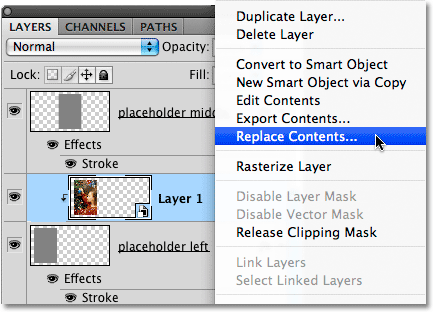
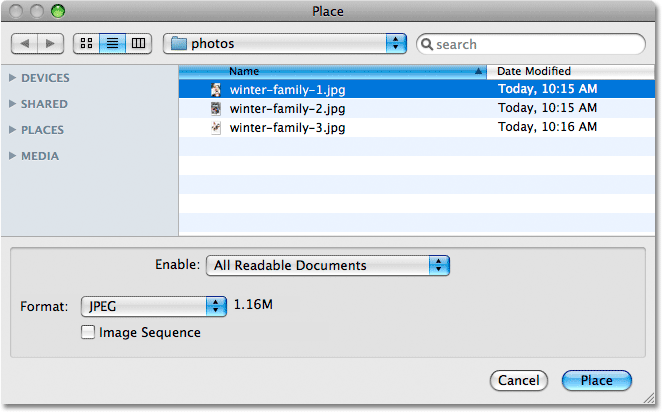
This opens Photoshop's Place dialog box. Navigate to the folder on your hard drive that contains the photo you want to replace the first image with. I have three new photos saved in a folder on my desktop. Click on the name of the photo you want to use, then click on the Place button:
As soon as you click the Place button, Photoshop swaps the original photo with the new photo in the document! If you need to resize the new image, press Ctrl+T (Win) / Command+T (Mac) to bring up the Free Transform handles, then drag the corner handles to resize it just as we did with the original photo, holding down your Shift key as you drag to constrain the aspect ratio. Again, if you can't see the handles because the image is too large to fit inside the document window, press Ctrl+0 (Win) / Command+0 (Mac) to switch to the Fit on Screen view mode. Press it again when you're done resizing the image:
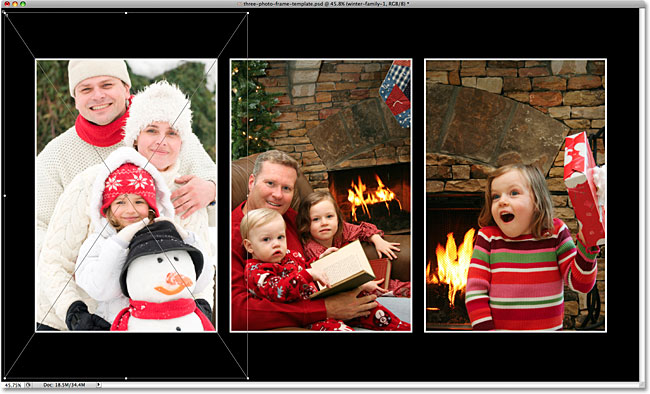
Press Enter (Win) / Return (Mac) when you're done to accept the transformation and exit out of Free Transform:
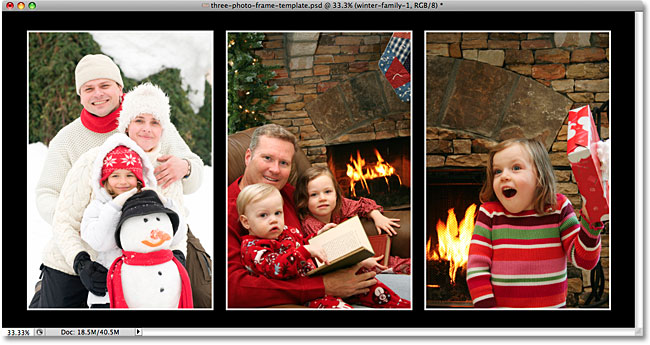
Do the same thing for the other two photos to swap them with other images. First select the photo's layer in the Layers panel ("Layer 2" or "Layer 3"), then Right-click (Win) / Control-click (Mac) on the layer's name and choose Replace Contents from the menu that appears. When the Place dialog box pops up, choose the new photo you want to use, then click on the Place button. If you need to resize the new image, press Ctrl+T (Win) / Command+T (Mac) and drag the Free Transform corner handles, holding down Shift as you drag. Press Enter (Win) / Return (Mac) when you're done to exit out of Free Transform.
Here is my result after replacing the middle and left photos with new images:
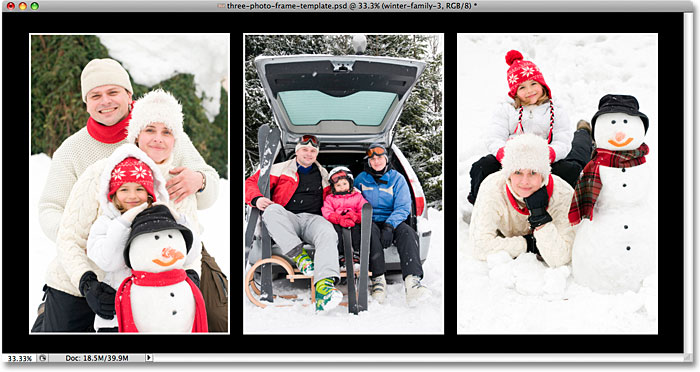
Make sure you save the document as a Photoshop .PSD file when you're done so you keep the layers and Smart Objects intact, ready for the next time you need to re-open the file and add new photos!