
Casting Light Through Window Blinds In Photoshop
In this Photoshop Effects tutorial, we're going to learn how to create the illusion that light is being cast on to the subject of your photo through window blinds, using a displacement map to bend and wrap the shadows of the blinds around the subject in a realistic 3D fashion. We'll also be using a Color Balance adjustment layer to create a more convincing light source.
Here's the image I'll be working with in this tutorial:

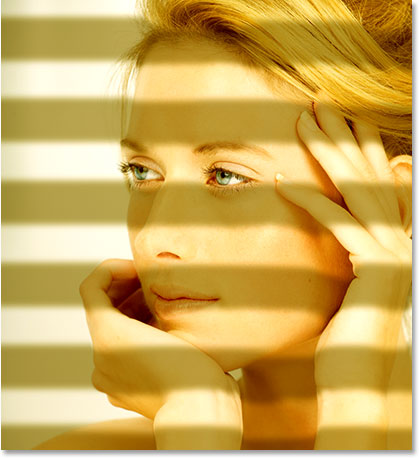
And here's how it will look when we're done:
Step 1: Convert The Image Into The Lab Color Mode
As I mentioned, we'll be using Photoshop's Displacement Map feature to wrap the shadows from the blinds around the natural curves of the woman's face, hands and hair, so the first thing we need to do is create our displacement map. A displacement map is nothing more than a black and white image which Photoshop uses to determine how to move and reposition pixels. I like to think of it as Photoshop moving pixels from "dis place" to "dis place". The first thing we need to do then is create a black and white version of our image. There's lots of different ways to do that, but one of my favorite ways is to use Photoshop's Lab color mode, which conveniently separates the luminosity (lightness) values of the image from the color.
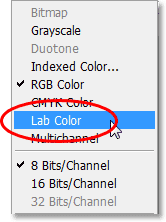
To convert the image to Lab color, go up to the Image menu at the top of the screen, choose Mode, and then choose Lab Color from the list:
Step 2: Select The "Lightness" Channel
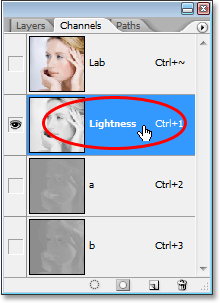
When you convert your image to the Lab color mode, nothing will seem to have happened to it in your document window, but something has most definitely happened. We've now separated the lightness values from the color in the image, and to see exactly what's happened, switch over to your Channels palette, which you'll find grouped in beside the Layers palette. You'll see four channels listed - "Lab", "Lightness", "a", and "b". The "Lightness" channel contains all of the lightness values in the image, while the colors have been separated into the "a" and "b" channels. The top "Lab" channel isn't really a channel at all. It's just the composite of the Lightness and color channels.
Click on the "Lightness" channel to select it:
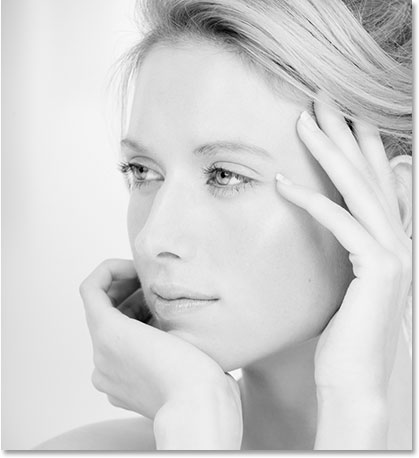
As soon as you select the "Lightness" channel, you'll see your image in the document window change to black and white:
Step 3: Create A New Document From The "Lightness" Channel
We need our displacement map to be a separate document from our original image, so Right-click (Win) / Control-click (Mac) directly on the "Lightness" channel in the Channels palette and select Duplicate Channel from the menu that appears:
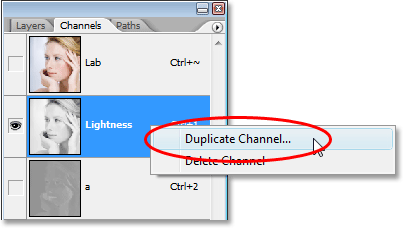
This brings up Photoshop's Duplicate Channel dialog box. Change the Document option to New so we create a new document from the channel rather than simply duplicating the channel in the same document, then click OK to exit out of the dialog box:
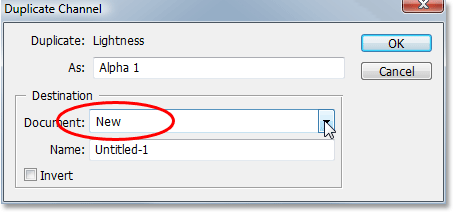
You'll now have two documents open on your screen, one containing the original image and one containing the duplicate "Lightness" channel. We're going to work on the duplicate "Lightness" channel document for a few minutes to prepare it for use as our displacement map.
Step 4: Increase Image Contrast With Levels
Displacement maps tend to work best when the image you're using as a displacement map has a strong amount of contrast to it, so let's boost the contrast of our new document using Photoshop's Levels command. Use the keyboard shortcut Ctrl+L (Win) / Command+L (Mac) to quickly bring up the Levels dialog box.
In the center of the Levels dialog box, you'll see a large black graph called a histogram which shows us the current tonal range of the image. Below the histogram are three small sliders - a black slider on the bottom left, a white slider on the bottom right, and a gray slider in the middle. Click on the black slider and drag it towards the right until you're just beyond where the left edge of the histogram begins. This will darken the darkest parts of the image. Then, click on the white slider and drag it towards the left until you're just beyond where the right edge of the histogram begins. This will lighten the lightest parts of the image:
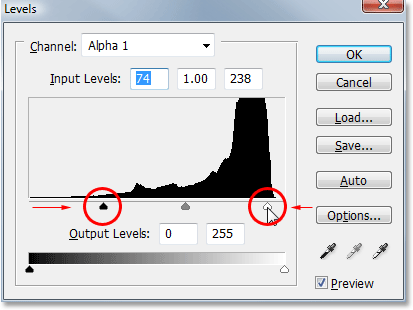
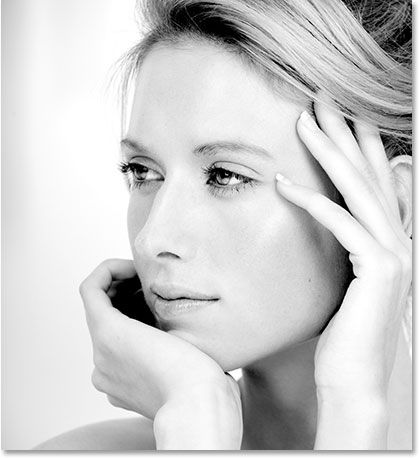
Click OK when you're done to exit out of the dialog box. Your image will now appear with stronger contrast:
Step 5: Select The Area Around The Subject
For my image, I want the shadows from the window blinds to bend and wrap around the woman's face, hands and hair, but I don't want the area behind her to be affected by the displacement map. I want the shadows from the blinds to remain perfectly horizontal in those areas, as if the light from the window is shining onto a flat wall behind the woman. To prevent the displacement map from bending the shadows in those areas, I'm going to fill those areas with solid white. To do that, we'll need to select them, so use the selection tool of your choice (Lasso Tool, Pen Tool, etc.) to select everything around the woman. In other words, select everything except for her. Don't worry about selecting around any lose strands of hair, since they won't make a noticeable difference in the effect:
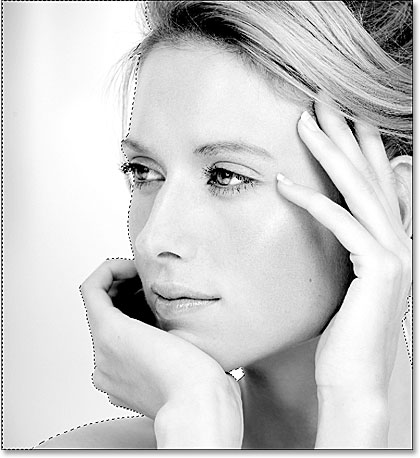
Step 6: Fill The Selection With White
With the area around the woman now selected, go up to the Edit menu at the top of the screen and choose Fill, or use the keyboard shortcut Shift+F5. Either way brings up Photoshop's Fill dialog box. Set the Use option in the top half of the dialog box to White:
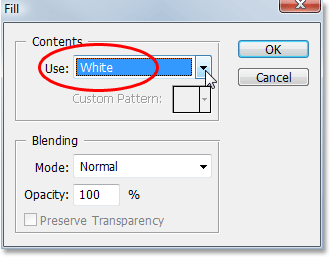
Make sure the Mode option is set to Normal and the Opacity option is set to 100%, then click OK to exit out of the dialog box and fill the selection with white:
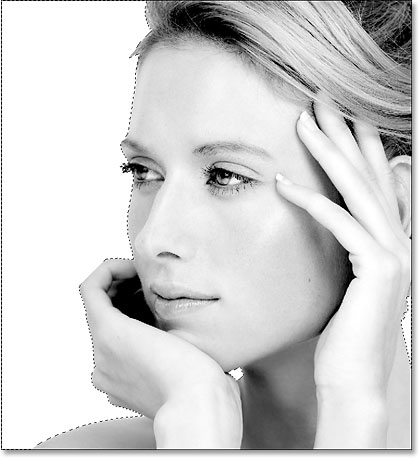
Press Ctrl+D (Win) / Command+D (Mac) to deselect the selection.
Step 7: Blur The Image With The "Gaussian Blur" Filter
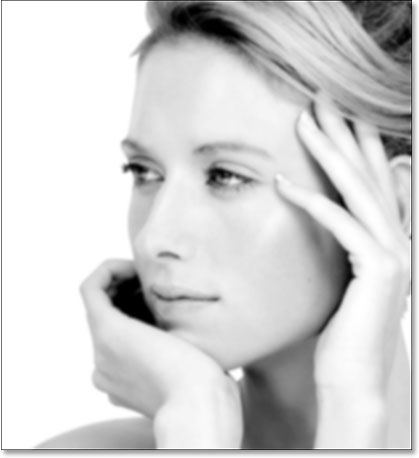
We're almost done preparing our image for use as a displacement map. The only thing left to do is remove any harsh transitions between light and dark areas by applying a small amount of blur to the image. For that, we'll use Photoshop's classic Gaussian Blur filter. Go up to the Filter menu at the top of the screen, choose Blur, and then choose Gaussian Blur. This brings up the Gaussian Blur dialog box. Drag the Radius slider at the bottom of the dialog box to the right to increase the amount of blurring. I'm going to set my Radius value to around 4 pixels, which softens the image nicely. For a higher resolution image, try somewhere around 6-7 pixels:
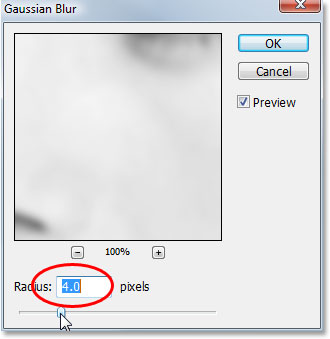
Click OK to exit out of the dialog box. Here's my image after applying the Gaussian Blur filter:
Step 8: Save The Image As A Photoshop .PSD File
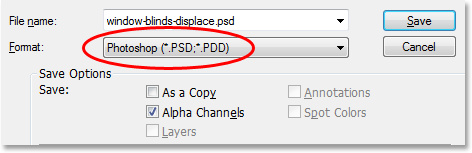
At this point, we're done with our displacement map image. All we need to do now is save it, so press Ctrl+S (Win) / Command+S (Mac) to quickly access Photoshop's Save command. Since this is the first time we're saving the file, Photoshop will pop up the Save As dialog box instead, allowing us to name the file, choose a file type, and decide where we want to save it. I've created a folder on my desktop called "Displacement Maps" so I'm going to save the file in that folder. I'll name it "window-blinds-displace", but of course you can name your file whatever makes sense to you. Finally, make sure you save the file as a Photoshop .PSD file, since those are the only files we can use as displacement maps:
You can close out of the displacement map document once you've saved it, since we no longer need to have it open.
Step 9: Convert The Original Image Back To RGB Color
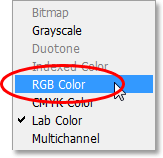
Now that we've finished working on our displacement map, we can start creating our window blinds effect in the original image. Before we do that though, we need to convert the image from Lab color back to RGB color, which is the color mode it was in initially. To do that, go back up to the Image menu at the top of the screen, choose Mode, and then choose RGB Color:
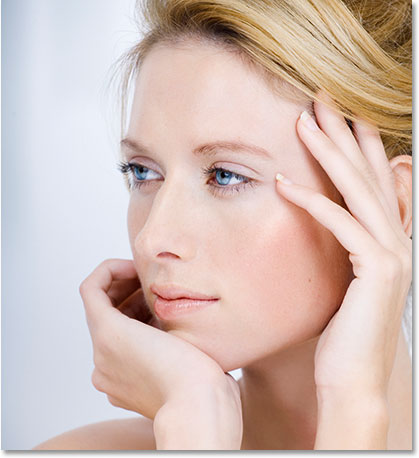
As soon as you switch back to RGB color, you'll see the color return to your image:
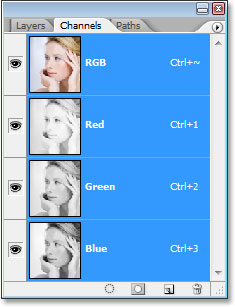
If you look in your Channels palette, you'll see that the "Lightness", "a" and "b" channels have been replaced with a "Red", "Green", and "Blue" channel, and the composite "Lab" channel at the top has been replaced with a composite "RGB" channel:
Switch back over to the Layers palette at this point, since we no longer need to work with the individual channels.
Step 10: Add A New Blank Layer
We're going to create our window blinds on their own separate layer, so click on the New Layer icon at the bottom of the Layers palette:
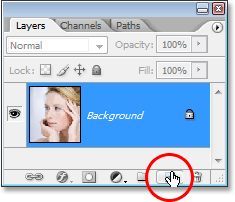
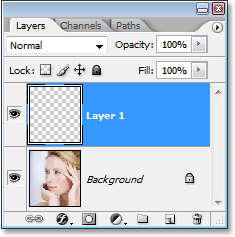
This adds a new blank layer named "Layer 1" above the Background layer, which is the layer that contains our original photo:
Step 11: Select The Rectangular Marquee Tool
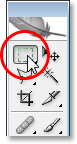
We're going to create our first window blind shadow. Since the shadows will be long, narrow rectangles, the easiest way to create them will be to use the Rectangular Marquee Tool, so select it from the Tools palette or simply press M on your keyboard to select it:
Step 12: Drag Out A Thin Rectangular Selection Horizontally Across The Image
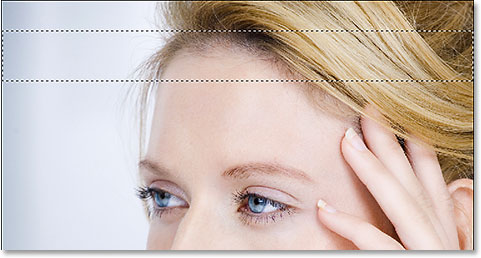
With the Rectangular Marquee Tool selected, drag out a narrow selection across the image from left to right, somewhere near the top:
Step 13: Fill The Selection With Black
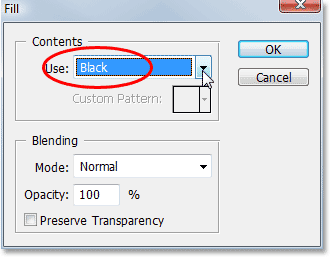
Once you've dragged out your selection, go back up to the Edit menu at the top of the screen and once again choose Fill. We're going to fill our selection with black, so set the Use option to Black:
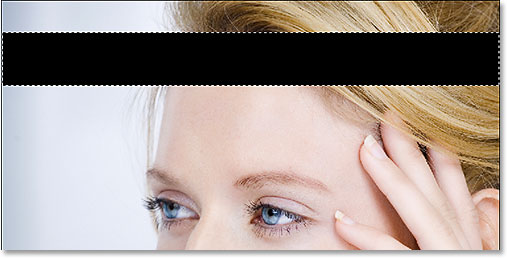
Click OK to exit out of the dialog box and Photoshop will fill the selection with black:
Step 14: Select The Move Tool
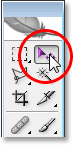
We've drawn our first window blind shadow, even though at the moment it looks like nothing more than a black rectangle. Before we do anything fancy with it, let's use this first rectangle to create the rest of our shadows. First, select Photoshop's Move Tool from the Tools palette, or simply press V on your keyboard:
Step 15: Drag A Copy Of The Black Rectangle Below The Original
We're going to create a copy of this first rectangle and drag it below the original, and we can do both of these things at the same time. With the Move Tool selected, hold down your Alt (Win) / Option (Mac) key. You'll see your Move Tool cursor change into two arrows, one black and one white. This tells us we'll be creating a duplicate of the rectangle as we drag it. Hold down your Shift key as well which will force us to drag the rectangle straight down, preventing us from accidentally moving it sideways. Then simply drag down with your mouse and as you drag, you'll see that you're dragging out a duplicate of the black rectangle rather than dragging the original. Make sure you still have your selection active around the original rectangle before you begin dragging, since this will keep both rectangles on the same layer. Position the new rectangle below the original where you want the second shadow to appear:
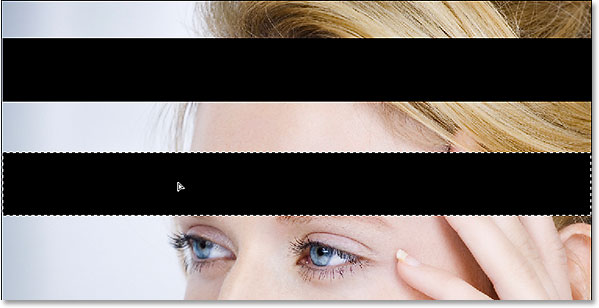
Step 16: Continue Dragging Out The Rest Of The Shadows
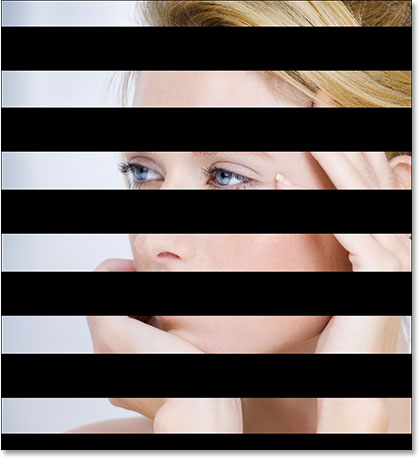
Continue dragging out duplicates of the rectangle all the way down the photo until you have all of your shadows created, then press Ctrl+D (Win) / Command+D to deselect the selection. Your image should now look something like this:
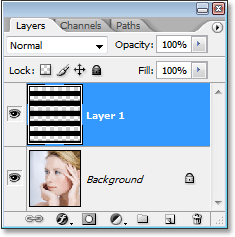
If we look in our Layers palette, we can see that all of our rectangles are on the same layer, "Layer 1":
Step 17: Apply The "Gaussian Blur" Filter To The Rectangles
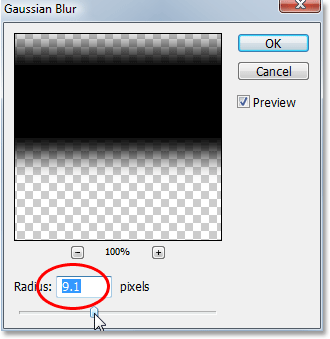
At the moment, our rectangles still look like basic rectangles. To make them look more like shadows, we need to soften their edges. For that, we'll use the Gaussian Blur filter once again. Go back up to the Filter menu at the top of the screen, choose Blur, and then choose Gaussian Blur. When the Gaussian Blur dialog box pops up, drag the Radius slider at the bottom towards the right to blur and soften the edges of the rectangles, just like we did a moment ago when we were preparing our displacement map image. I'm going to drag my Radius value to around 9 pixels. We can see in the preview area of the dialog box that this softens the edges nicely:
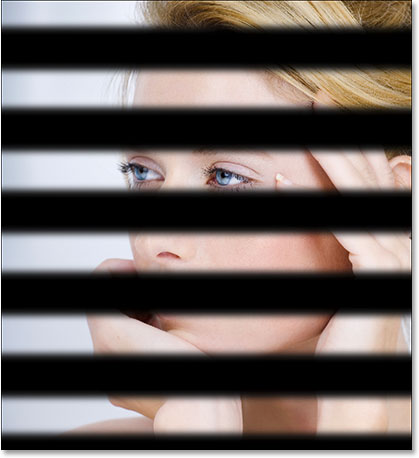
Click OK to exit out of the dialog box when you're done. Here's my image with the edges of the rectangles now much softer:
Step 18: Apply The "Displace" Filter
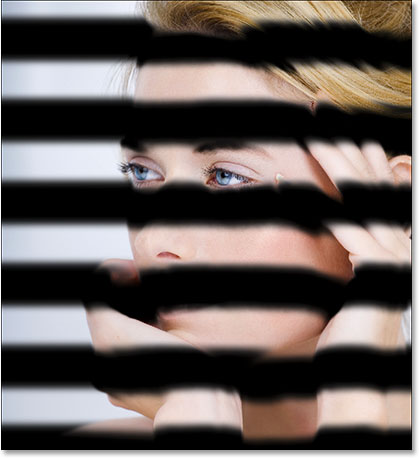
The edges of the rectangles now look better, but the shadows still don't look realistic. One of the reasons, besides the fact that they're completely blocking the photo underneath them from view, is that they're simply running horizontally across the photo. To give them a sense of realism, we need them to be bending around the woman's face, hands and hair. This is where we get to use the displacement map we created earlier.
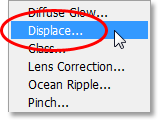
With "Layer 1" selected in the Layers palette, go up to the Filter menu at the top of the screen once again, and this time choose Distort and then Displace:
This brings up the first of two dialog boxes for the Displace filter. This first one lets us decide how much of an impact the displacement map will have on the image, and we do this by entering values for the Horizontal Scale and Vertical Scale options. The higher the values, the further Photoshop will move the pixels. In our case, we don't need to move the pixels horizontally at all, so enter 0 for the Horizontal Scale option. We do need to move them vertically, so enter a value of around 20 for the Vertical Scale option. You may need to experiment with this value to see what works best with your image. Make sure that you have the Stretch To Fit and Repeat Edge Pixels options selected as well:
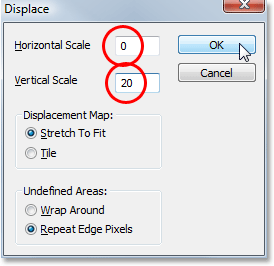
Click OK to accept your changes and exit out of this first dialog box. We'll choose our displacement map next.
When you click OK to exit out of the first Displace filter dialog box, Photoshop pops up a second dialog box, this time asking you which file you want to use as the displacement map. Navigate to where you saved the displacement map file on your computer and select it:
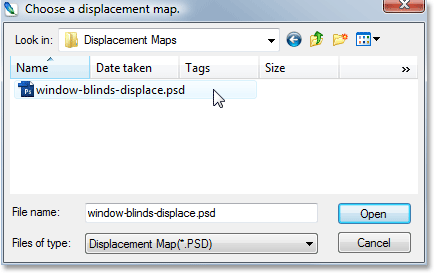
Click Open to exit out of the dialog box and have Photoshop apply your displacement map to the shadows, which now bend and wrap much more realistically around the woman:
Step 19: Lower The Opacity Of The Shadows
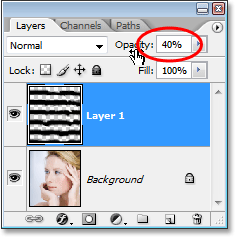
The only problem remaining with the shadows is that they're too strong. In fact, they're completely blocking the woman from view. All we need to do to fix that is lower the opacity of "Layer 1". Go up to the Opacity option in the top right corner of the Layers palette and lower the value to around 40%:
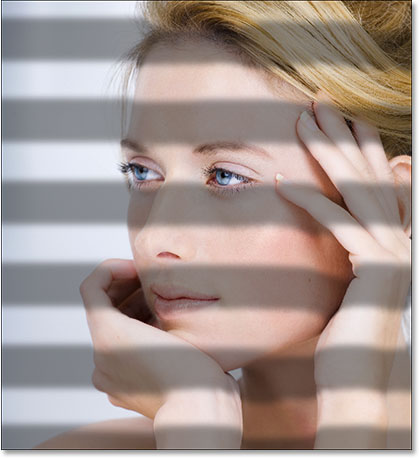
With the opacity lowered, the shadows look much more natural:
Step 20: Add A "Color Balance" Adjustment Layer
And with that, we've successfully created our window blind shadows! To finish off the effect, let's add some warm sunlight to the image, as if the morning sun is shining through the window. Click on the New Adjustment Layer icon at the bottom of the Layers palette and select Color Balance from the list of adjustment layers that appears:
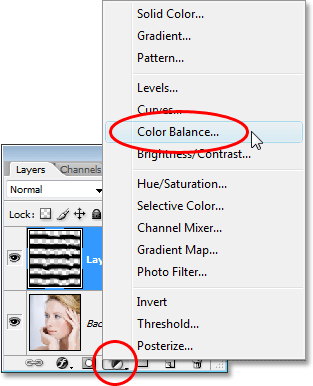
The Color Balance adjustment allows us to adjust the colors in the shadows, midtones and highlights of the image. It's divided into two main sections - the Color Balance section on top which is where we adjust the colors, and the Tone Balance section on the bottom which is where we switch between the shadows, midtones and highlights. Start by selecting the Shadows option at the bottom of the dialog box, then drag the bottom slider in the Color Balance section above it towards the left to add more yellow to the shadows in the image. Once you've added some yellow, drag the top slider towards the right to add a bit of red as well:
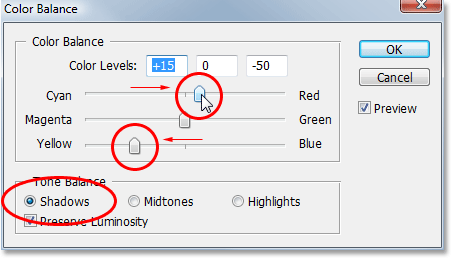
When you're done with the shadows, select Midtones at the bottom of the dialog box and again drag the bottom and top sliders to add yellow and a bit of red to the midtones of the image. Then select Highlights and add yellow and some red to the highlights. Click OK when you're done to exit out of the dialog box.
If you need to fine-tune the amount of color you've added to the image, simply lower the opacity value of the Color Balance adjustment layer in the Layers palette just as we did a moment ago when we lowered the opacity of the shadows layer.
And with that, you're done! Here, after adding some warm sunlight with the Color Balance adjustment layer, is my final result:
And there we have it! That's how to add a window blinds lighting effect to an image with Photoshop! Visit our Photo Effects section for more Photoshop effects tutorials!