
Create A Wood Picture Frame In Photoshop
In this Photo Effects tutorial, we're going to learn how to easily create a simple wood picture frame using a layer mask, a couple of layer styles, and one of Photoshop's built-in patterns!
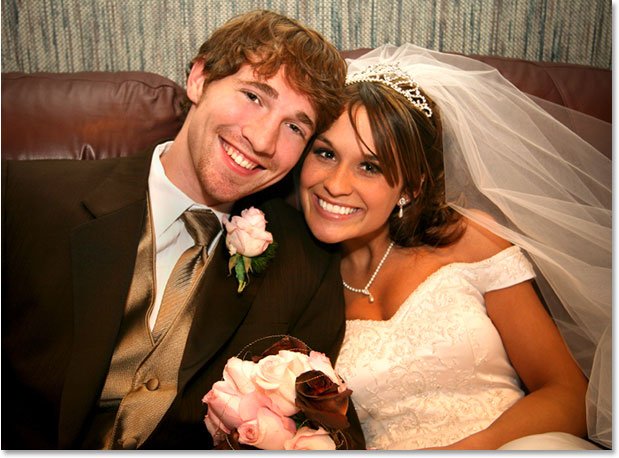
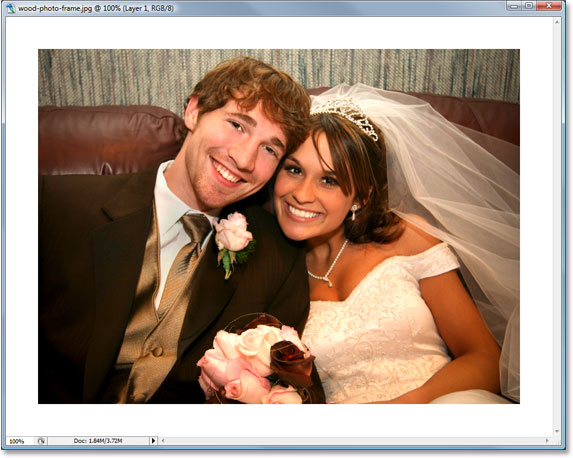
Here's the image I'll be using for this Photoshop tutorial:
Step 1: Duplicate The Background Layer
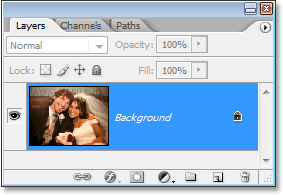
The first thing we need to do to create our picture frame is duplicate our Background layer. The Background layer is the layer which contains our original image, and if we look in our Layers palette, we can see that it's currently the only layer we have:
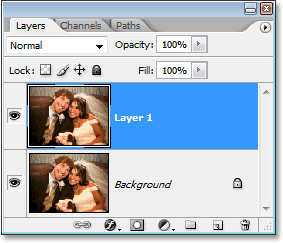
Let's duplicate the layer using the handy keyboard shortcut, Ctrl+J (Win) / Command+J (Mac). If we look back in our Layers palette, we can see that we now have a copy of the Background layer, which Photoshop has named "Layer 1" for us, above the original:
Step 2: Add Extra Canvas Space Around The Image
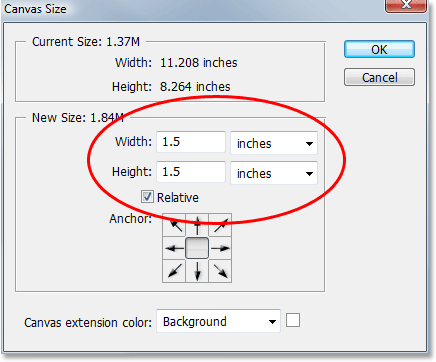
We need to add some extra space around our photo. The extra space is going to become our picture frame. The amount of space you add depends on how large you want your frame to be. Go up to the Image menu at the top of the screen and choose Canvas Size. When the Canvas Size dialog box appears, enter how much space you want to add around the image. I want a fairly thick frame for my photo, so I'm going to enter a value of 1.5 inches for both the Width and Height options. Make sure you have the Relative option checked as well:
Click OK in the top right corner of the dialog box to exit out of it and have Photoshop add the extra canvas space. You'll see the extra space appear around your photo in your document window:
Step 3: Add A New Blank Layer
Next, we need to add a new blank layer above our two existing layers. With "Layer 1" (the top layer) selected, click on the New Layer icon at the bottom of the Layers palette:
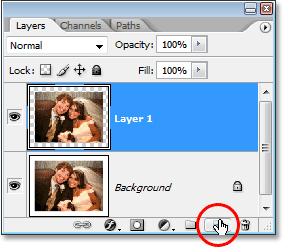
Nothing happens in the document window, but we can see in the Layers palette that Photoshop has added a new blank layer for us and gave it the descriptive name "Layer 2":
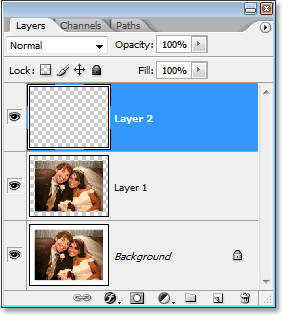
Step 4: Fill The New Layer With Photoshop's Wood Pattern
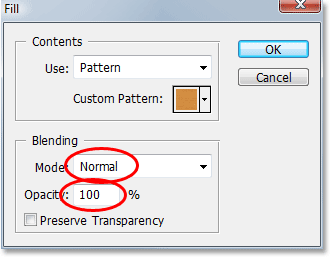
To make our frame look as if it's made out of wood, we could go through the hassle of creating our own wood texture, but we don't need to since Photoshop comes with a wood pattern already built in! With "Layer 2" selected, go up to the Edit menu at the top of the screen and choose Fill. You can also use the keyboard shortcut, Shift+F5. Either way brings up the Fill dialog box. For the Contents option at the top, choose Pattern from the drop-down menu to the right of the word "Use". Then click on the little pattern thumbnail to the right of the words Custom Pattern and select the Wood texture from the selection box that appears (it's the fourth one from the left, top row):
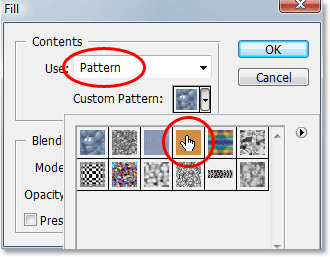
Then, in the Blending section in the bottom half of the dialog box, set the Mode option to Normal and make sure the Opacity option is set to 100%:
Click OK to exit out of the dialog box. Photoshop will fill the entire layer with the wood texture, temporarily blocking the photo from view:
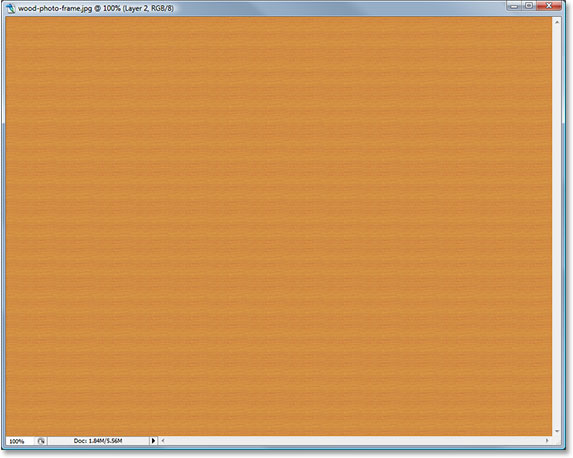
We now have the wood for our frame. We'll make it look more like an actual frame and bring back our photo next.
Step 5: Select The Photo On "Layer 1"
We're going to cut a hole in our wood pattern so we can see our photo once again, and to do that, we'll use a layer mask. Hold down your Ctrl (Win) / Command (Mac) key and click directly on the preview thumbnail for "Layer 1" in the Layers palette:
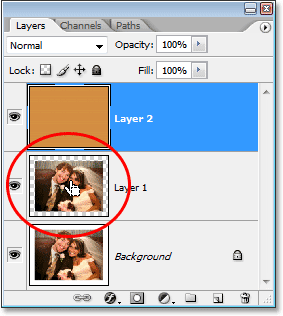
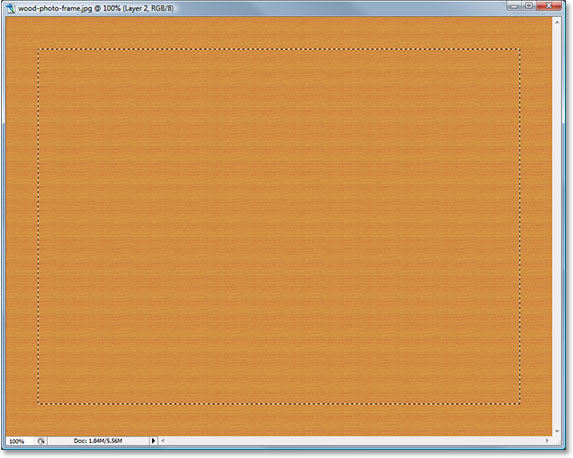
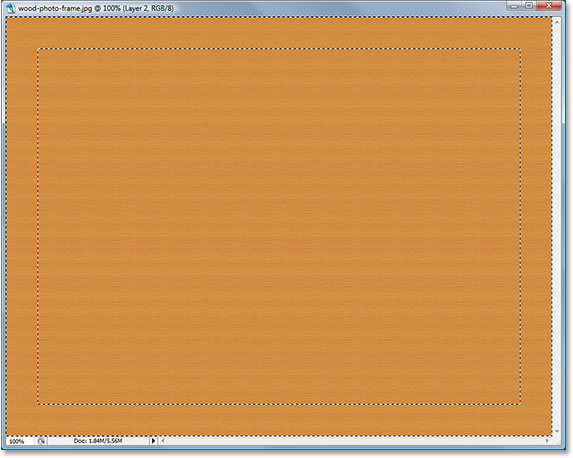
This loads a selection around the photo in the document window. We still can't see the photo itself, but we can see the selection box where the photo should be:
Step 6: Invert The Selection
We've selected the area where the photo should appear, but what we really need selected is the area around the photo (the frame), so we need to invert our selection. To do that, go up to the Select menu at the top of the screen and choose Inverse, or use the quick keyboard shortcut Shift+Ctrl+I (Win) / Shift+Command+I (Mac). Either way inverts the selection, and if you look closely in the document window, you'll still see the same selection box around the photo as before but now you'll also see a selection box around the edges of the document window, letting us know that we now have the frame area around the photo selected:
Step 7: Add A Layer Mask
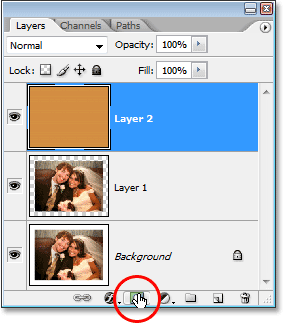
Now that we have the frame area selected, click on the Layer Mask icon at the bottom of the Layers palette:
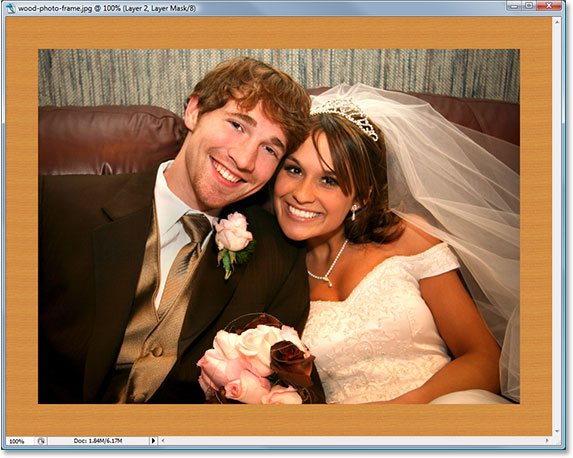
This adds a layer mask to "Layer 2", and now the only part of the layer that remains visible in the document window is the area we had selected, which is the frame area around the photo. The part that was not selected - the area where the photo should appear - is now hidden from view, allowing us to see our photo once again:
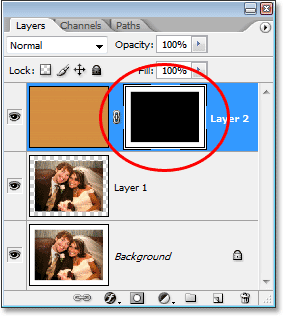
If we look in our Layers palette, we can see that a layer mask thumbnail has been added to the right of the layer's preview thumbnail:
For more information on layer masks, check out our Understanding Layer Masks tutorial in the Photoshop Basics section of the website.
Step 8: Deselect The Layer Mask And Select The Contents Of "Layer 2"
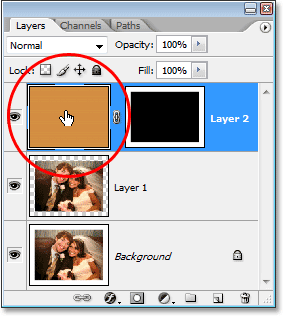
At the moment, our picture frame is looking a little flat. We need to give it some depth, and we can do that easily using Layer Styles, which we'll do in a moment. First though, we need to select the frame. Currently, we have the layer mask selected, not the layer itself. We can see which one we have selected by looking at the layer's thumbnails in the Layers palette. Whichever thumbnail has the white highlight box around it is the one that's selected. The layer mask thumbnail is currently showing the highlight box, which tells us that we have the layer mask selected. We need to have the contents of the layer (the frame) selected, so click on the layer's preview thumbnail to select the frame itself:
Step 9: Add A "Bevel and Emboss" Layer Style
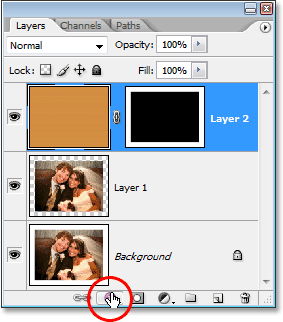
With the frame itself now selected, click on the Layer Styles icon at the bottom of the Layers palette:
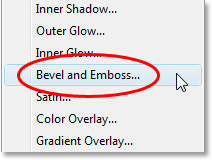
Then select Bevel and Emboss from the list of layer styles that appears:
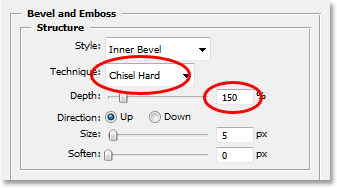
This brings up Photoshop's Layer Style dialog box set to the "Bevel and Emboss" options in the middle column. In the "Structure" section at the top, change the Technique option to Chisel Hard, then raise the Depth value to around 150%:
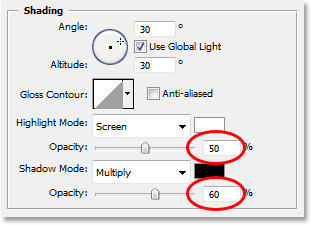
Then, in the "Shading" options at the bottom of the dialog box, lower the Opacity of the Highlight Mode down to about 50%, then lower the Opacity of the Shadow Mode to around 60%:
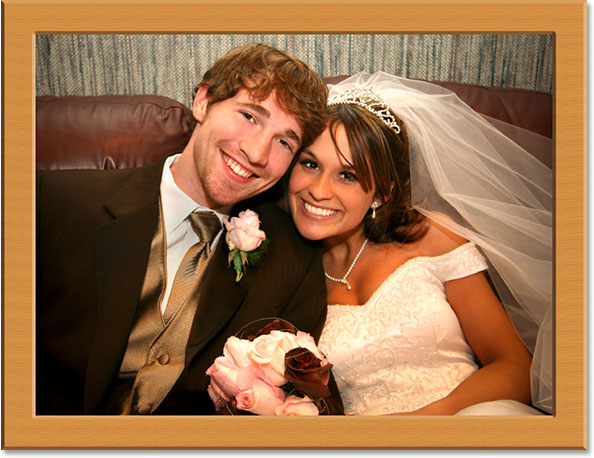
This gives our frame more of a 3D look to it:
Step 10: Add A "Color Overlay" Layer Style
If you're happy with the color of the picture frame, you can skip this next step. If, like me, you'd prefer a darker color to the wood, here's how to change it. Click directly on the words Color Overlay on the left of the Layer Style dialog box. Make sure you click directly on the words themselves and not just inside the checkbox. Clicking inside the checkbox will turn on the Color Overlay layer style but it won't give us access to the options for it. We want the options, so click directly on the words themselves:
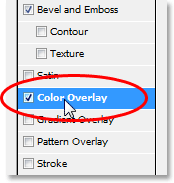
This changes the middle column of the Layer Style dialog box to the Color Overlay options. To change the color of the frame, click on the color swatch to the right of the Blend Mode options:
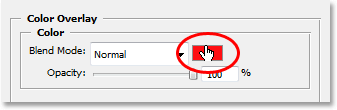
This brings up Photoshop's Color Picker. I want to change my frame color to a darker brown, so I'll choose that color from the Color Picker:
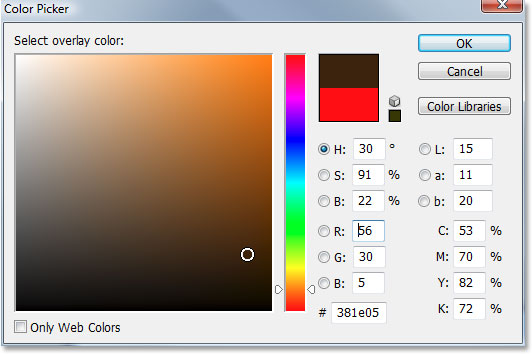
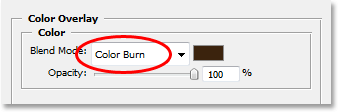
Click OK to exit out of the Color Picker. You'll see the new color applied to your frame, but the frame now appears as a solid color. We've lost the wood texture. To bring the wood texture back, change the Blend Mode of the Color Overlay to Color Burn:
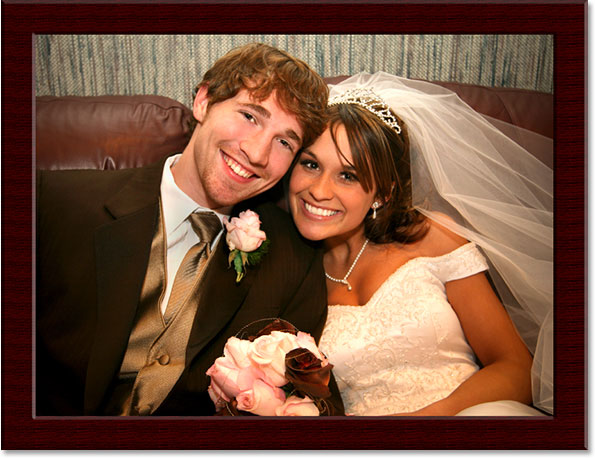
Click OK to exit out of the Layer Style dialog box. Here's my frame after changing its color to a darker brown and setting the Blend Mode to "Color Burn":
We're almost done! We have one more simple layer style to add, and we'll do that next!
Step 11: Select "Layer 1"
We need to select our photo once again, so click on "Layer 1" in the Layers palette to select it:
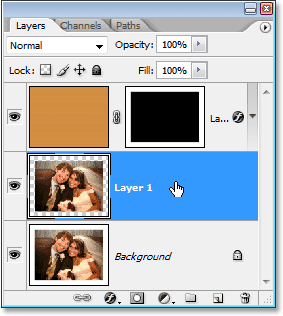
Step 12: Add An "Inner Shadow" Layer Style
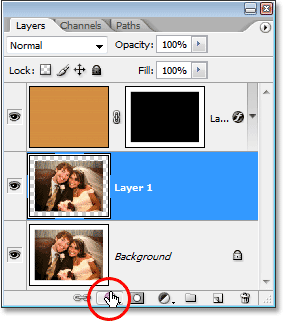
We're going to finish things off by adding a bit of a shadow to our photo, which is going to give the frame even more of a 3D look to it. With "Layer 1" selected, click once again on the Layer Style dialog box at the bottom of the Layers palette:
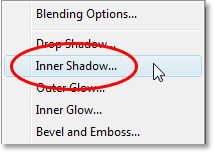
This time, choose Inner Shadow from the list of layer styles that appears:
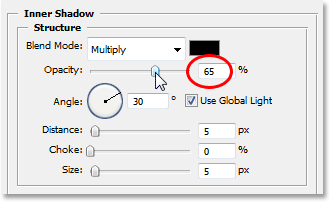
This brings up Photoshop's Layer Style dialog box once again, this time set to the "Inner Shadow" options in the middle column. All we need to do here is lower the Opacity of the shadow so it's not quite as intense. Lower the Opacity option down to around 65%:
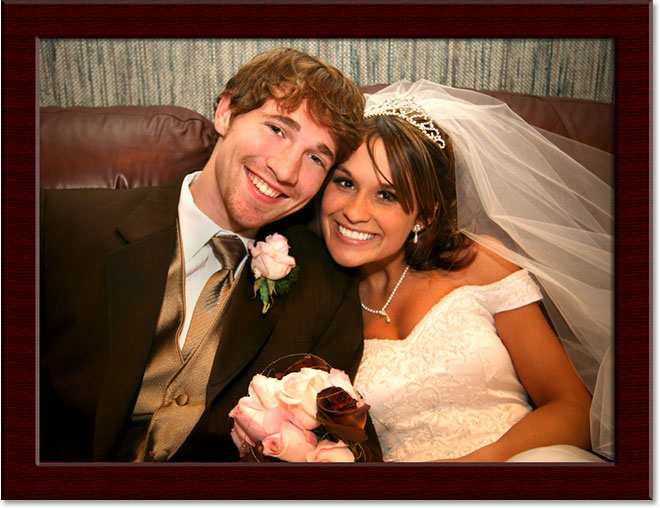
Click OK to exit out of the Layer Style dialog box, and we're done! Here, after adding a a bit of a shadow to my photo, is my final wood picture frame:
And there we have it! That's how to create a simple wood photo frame in Photoshop! Visit our Photo Effects section for more Photoshop effects tutorials!