Create Flaming Hot Fire Text in Photoshop
In this tutorial, I'll show you step-by-step how to create a fire text effect in Photoshop, engulfing your letters in burning hot flames. We'll start by adding some initial text, and then we'll set the text on fire using Photoshop's Wind filter, the Liquify filter, adjustment layers and layer effects! We'll blend the text into the flames using the Brush Tool and a layer mask. And we'll enhance the fire effect using a couple of textures we'll create from scratch.
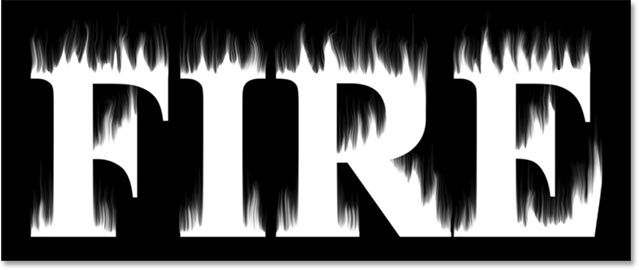
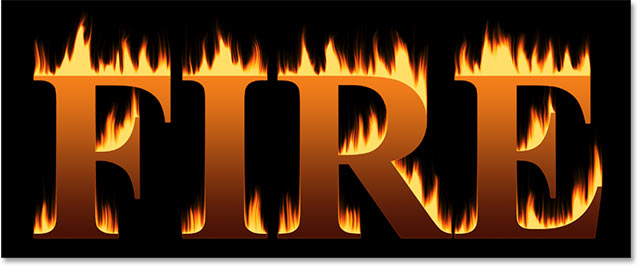
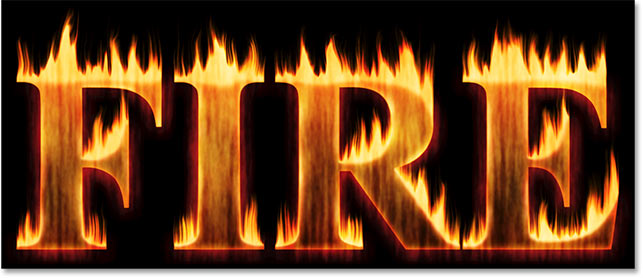
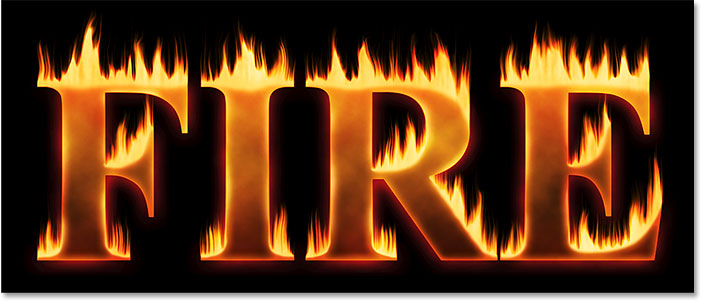
Here's what the fire text effect will look like when we're done:
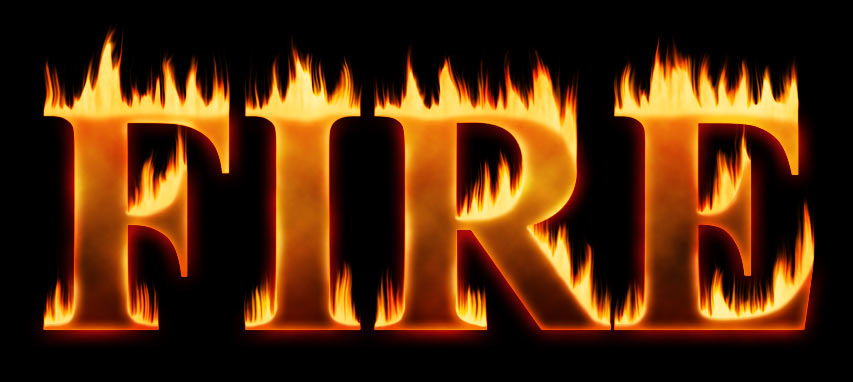
Let's get started!
Which version of Photoshop do I need?
I'm using Photoshop CC but every step is fully compatible with Photoshop CS6. Get the latest Photoshop version here.
Part 1: Adding the text
We'll start by creating a new document and adding the initial text.
Step 1: Create a new Photoshop document
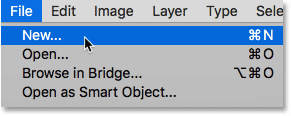
Start by creating a new Photoshop document. Go up to the File menu in the Menu Bar and choose New:
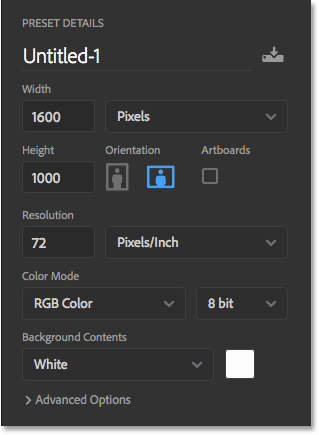
For this tutorial, set the Width of your document to 1600 pixels, the Height to 1000 pixels, and the Resolution to 72 pixels/inch. Leave the Background Contents set to white for now. And then to create the document, click Create or OK depending on which version of Photoshop you're using:
Step 2: Fill the new document with black
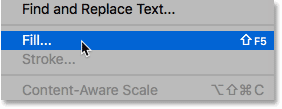
Change the background of the document from white to black by going up to the Edit menu and choosing Fill:
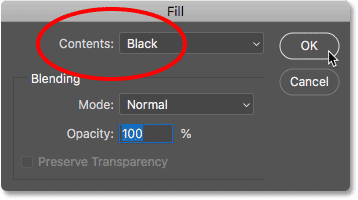
In the Fill dialog box, set the Contents to Black, and then click OK:
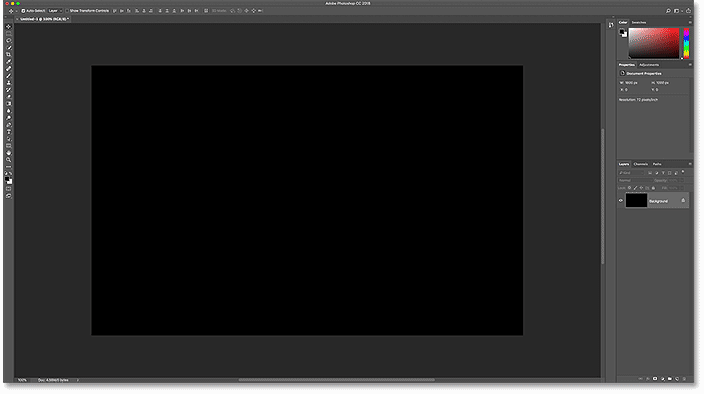
Photoshop fills the background with black:
Step 3: Add your text
To add the text, grab the Type Tool from the Toolbar:
In the Options Bar, choose your font. I'll go with something simple like Times New Roman Bold. Set the size of the type to 72 pt just to give us the largest preset size for now:

Still in the Options Bar, set the type color to white by clicking the color swatch:

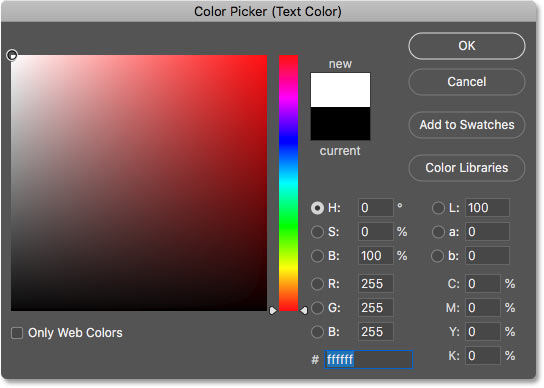
And then choosing white in the Color Picker. Click OK to close it:
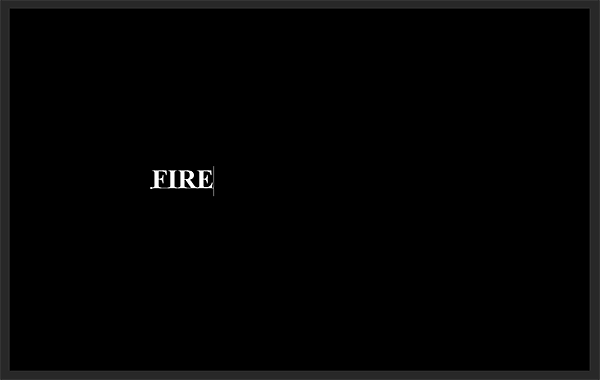
With your font and type color chosen, click inside the document and add your text. I'll type the word "FIRE". The text will look too small but we'll fix that next:
To accept it, click the checkmark in the Options Bar:
Step 4: Resize and move the text with Free Transform
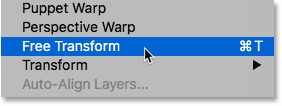
To resize the text, go up to the Edit menu and choose Free Transform:
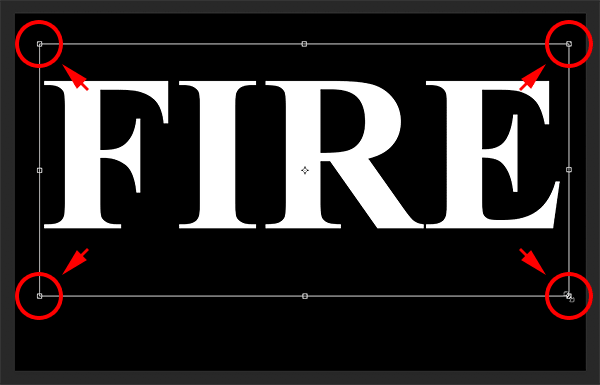
Then press and hold your Shift key and drag any of the corner handles outward. Holding the Shift key locks the shapes of the letters in place so you don't distort them. When you're done, release your mouse button, and then release your Shift key:
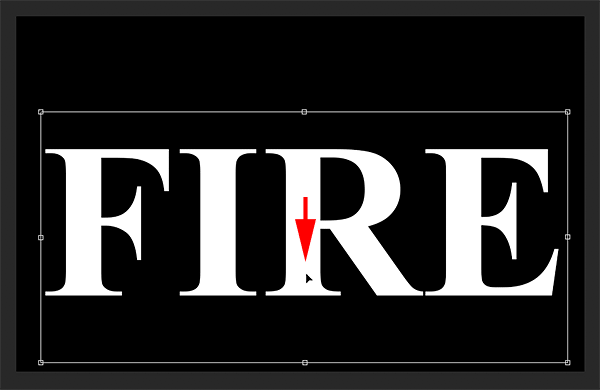
To move the text, click inside the Free Transform box and drag it into place. Make room for the flames along the top of the letters by dragging the text downward into the lower half of the document:
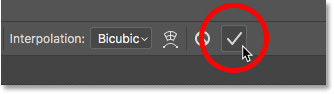
To accept it, again click the checkmark in the Options Bar:
Part 2: Drawing the flames around the text
Step 5: Rasterize the type
In the Layers panel, we see our text on a Type layer above the Background layer:
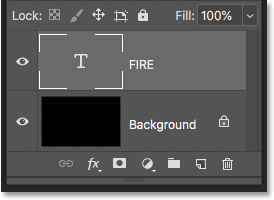
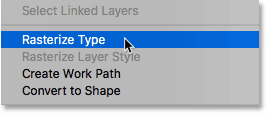
Convert the text into pixels by right-clicking (Win) / Control-clicking (Mac) on the Type layer and choosing Rasterize Type from the menu:
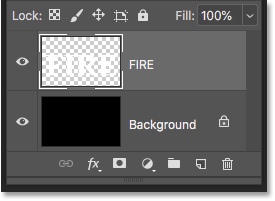
Photoshop converts the text into a normal layer:
Step 6: Duplicate the text layer
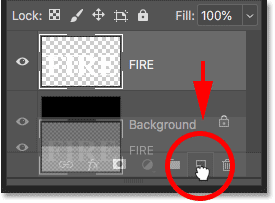
Make a copy of the layer by dragging it down onto the New Layer icon at the bottom of the Layers panel:
Step 7: Turn the copy off
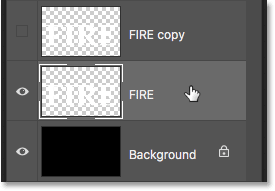
A copy appears above the original. Turn the copy off for now by clicking its visibility icon:

Step 8: Select the original text layer
Then click on the original text layer to select it:
Learn all about Layers with our complete Learning Guide!
Step 9: Rotate the text 90° clockwise
We're ready to create our flames, and we'll start by applying Photoshop's Wind Filter. Problem is, the Wind filter only works from left to right, or right to left. It doesn't work vertically, and we need our flames to look like they're rising up above the letters. So, before we apply the filter, we first need to rotate the text. Go up to the Image menu, choose Image Rotation, and then choose 90° Clockwise:
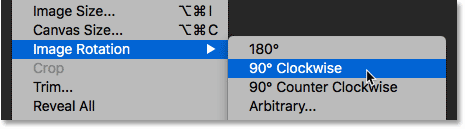
This rotates the entire document, including the text, onto its side:

Step 10: Apply the Wind filter
With the text rotated, go up to the Filter menu, choose Stylize, and then choose Wind:
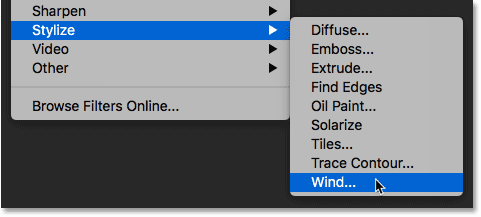
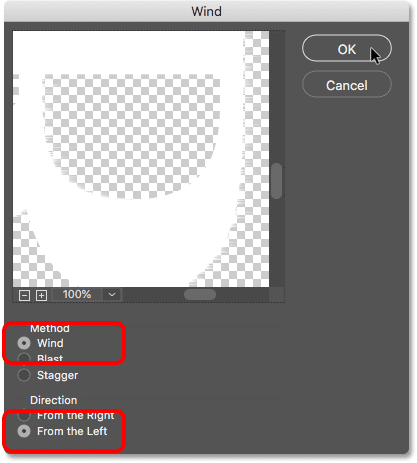
In the Wind dialog box, set the Method to Wind and the Direction to From the Left, and then click OK:
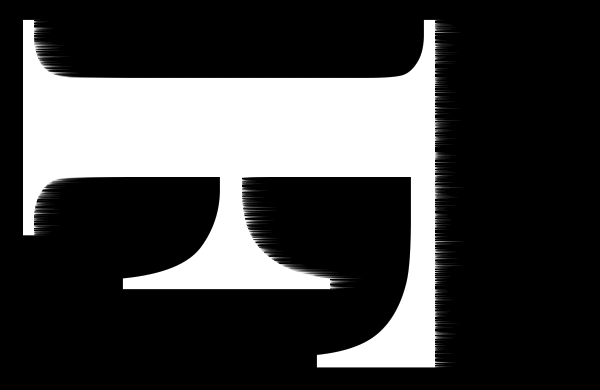
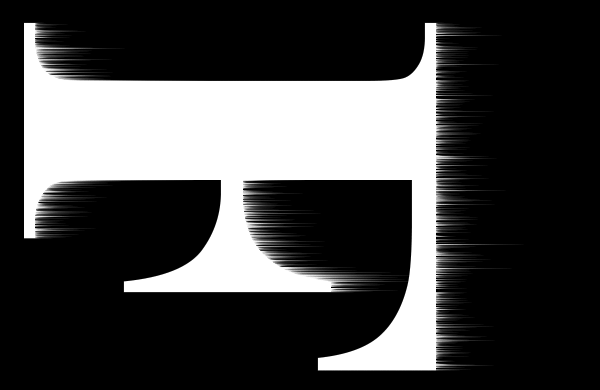
If you look closely, you'll see little streaks or spikes extending outward along the right edges of each letter. Here I've zoomed in on the letter F to make them easier to see:
Step 11: Re-apply the Wind filter two more times
To make the streaks longer, apply the Wind filter again. Go back up to the Filter menu, and because Wind was the last filter we applied, you'll find it at the top of the list:

After running it a second time, the streaks are more visible:
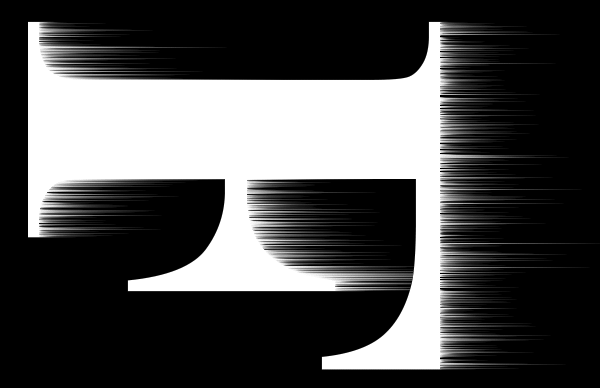
Apply the Wind filter a third time by again choosing it from the top of the Filter menu:
And now the streaks are as long as we need:
Step 12: Rotate the text 90° counter clockwise
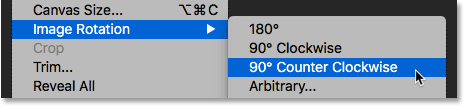
We're done with the Wind filter, so rotate the text back to its original orientation by going up to the Image menu, choosing Image Rotation, and this time, choosing 90° Counter Clockwise:
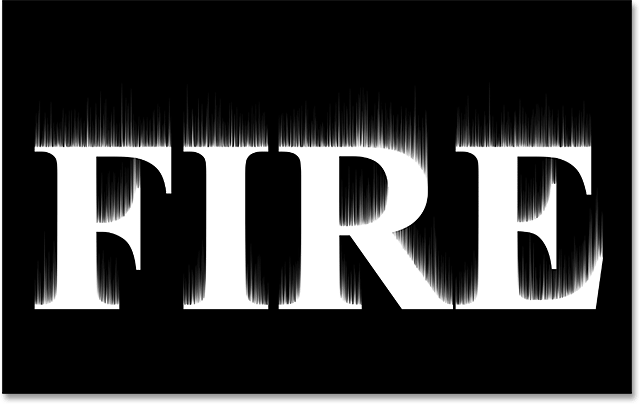
With the text rotated, the streaks now rise upward towards the top:
Step 13: Apply the Gaussian Blur filter
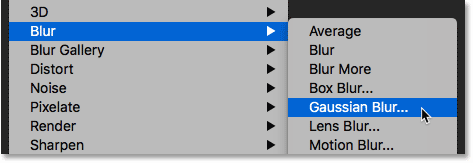
To soften the streaks, apply some blurring. Go up to the Filter menu, choose Blur, and then choose Gaussian Blur:
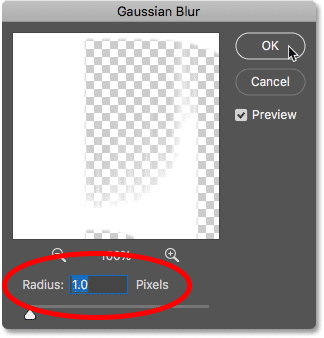
In the Gaussian Blur dialog box, choose a low Radius value of around 1 pixel, and then click OK:
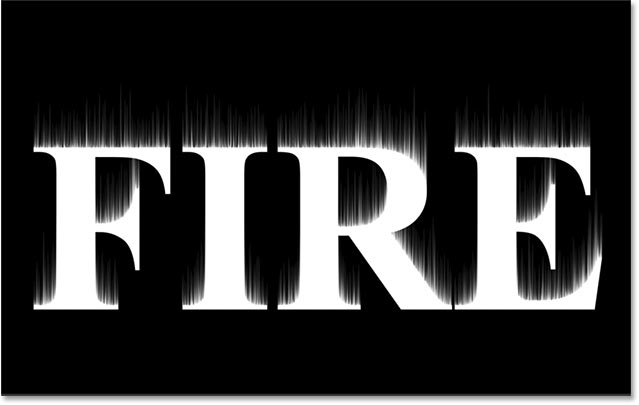
The streaks now have a softer look to them:
Step 14: Duplicate the Background layer
Back in the Layers panel, make a copy of the Background layer by dragging it down onto the New Layer icon:
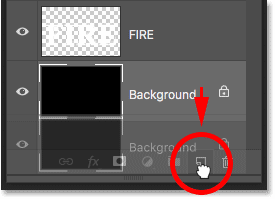
A copy appears above the original:
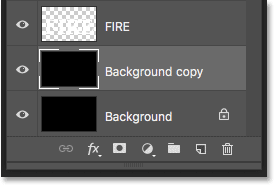
Step 15: Merge the text and Background copy layers
Merge the text layer with the "Background copy" layer by clicking on the text layer to select it:
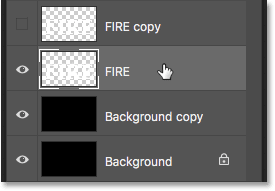
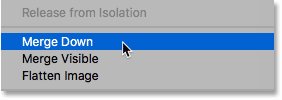
And then right-clicking (Win) / Control-clicking (Mac) on the layer and choosing Merge Down from the menu:
This merges both layers onto a single layer:
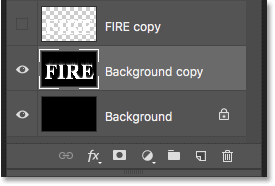
Step 16: Rename the merged layer "Flames"
Double-click on the name "Background copy" to highlight it, and then rename the layer "Flames". Press Enter (Win) / Return (Mac) to accept it:
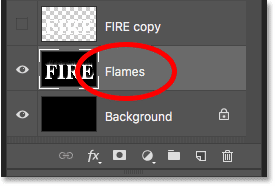
Step 17: Draw flames with the Liquify filter
With the "Flames" layer selected, go up to the Filter menu and choose Liquify:
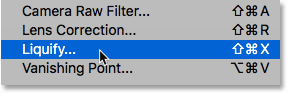
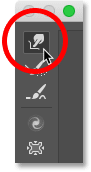
Select the Forward Warp Tool
In the Liquify filter dialog box, make sure the Forward Warp Tool is selected in the toolbar along the left:
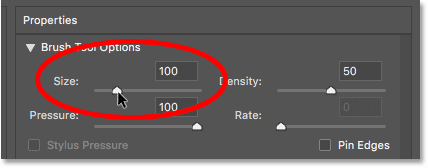
Set the brush size
Then, in the Brush Tool Options on the right, set the Size of your brush to around 100 pixels:
Warp the streaks
The first thing we need to do is give the streaks we created with the Wind filter more of a wispy look to them. Click inside the streaks at different spots and drag your mouse a short distance, either left or right, to gently warp them and create subtle, random curves. Just click, drag, release your mouse button, and then click and drag again in a different area. Try not to click inside the letters themselves for now. Just warp and wiggle the streaks:
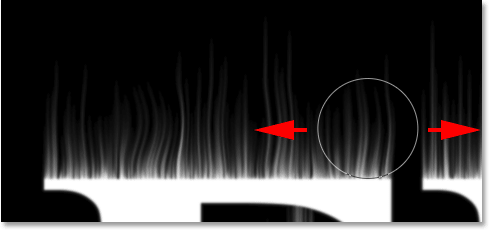
Fix mistakes with the Reconstruct Tool
If you make a mistake, undo your last step by pressing Ctrl+Z (Win) / Command+Z (Mac). Or, select the Reconstruct Tool from the toolbar and then paint over the area to undo the warping that was applied. Once you've cleared away the mistake, switch back to the Forward Warp Tool and continue warping the streaks:
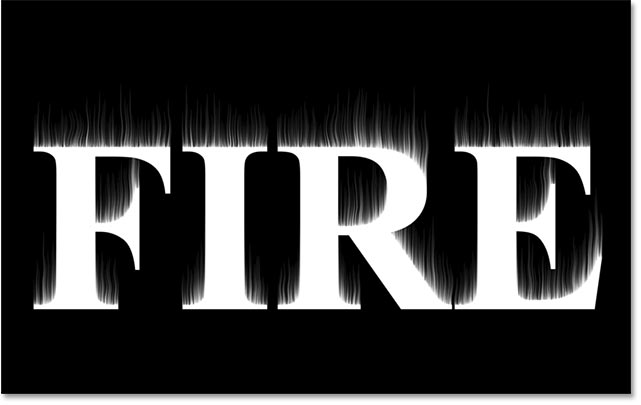
Don't forget to include the streaks in the middle and bottom sections of the letters. If you need to adjust your brush size, press the left and right bracket keys on your keyboard. The left bracket ( [ ) makes the brush smaller and the right bracket ( ] ) makes it larger. When you're done, you should end up with something similar to what I have here:
Lower the brush size and draw small flames
Back in the Brush Tool Options, lower the Size of your brush to around 20 pixels:
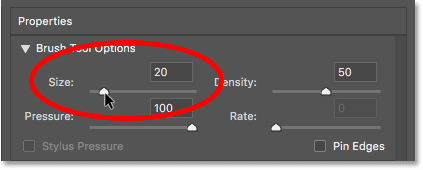
This time, to create small flames, click inside the letters and drag upward into the streaks. Try to drag in different directions for variety, or even follow the path of the streaks for added effect:
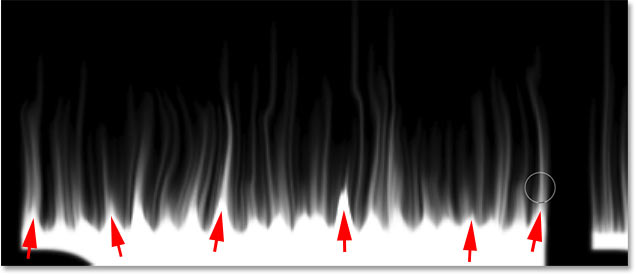
Again if you make a mistake, press Ctrl+Z (Win) / Command+Z (Mac) to undo your last step. When you're done with the tops of the letters, do the same thing with the bottom and middle sections. The result should look something like this:
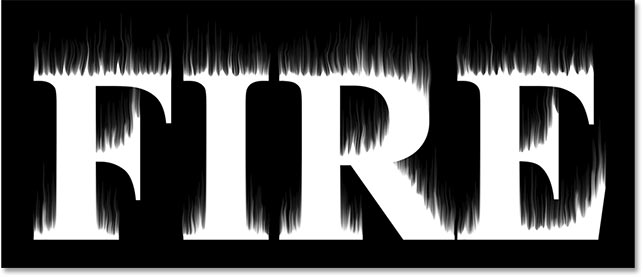
Increase the brush size and draw larger flames
Increase your brush size to around 50 pixels:
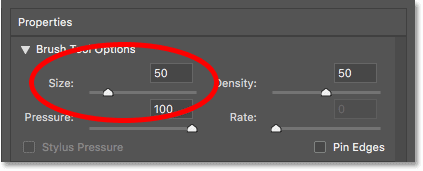
Then click on random spots inside the letters and drag upward to create larger flames. Again drag in different directions for variety:
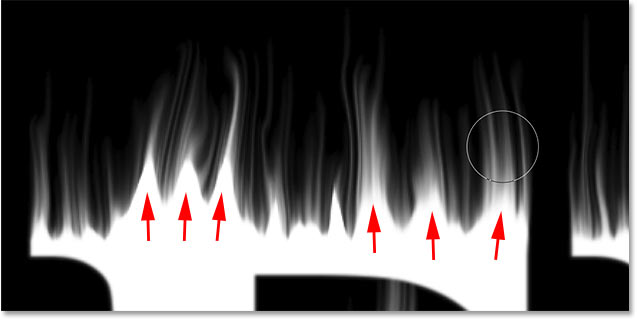
Here's my result after adding the larger flames:
Increase the brush size and draw the largest flames
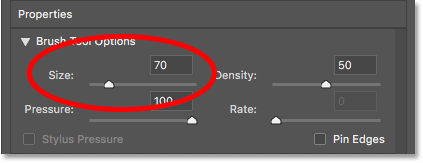
Finally, increase your brush size to around 70 pixels:
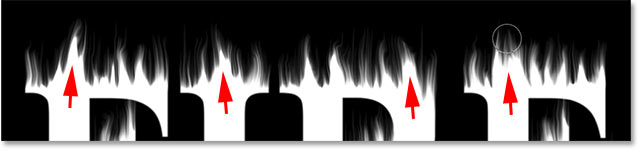
And then click and drag to add a few even larger flames along the tops. One per letter should do it:
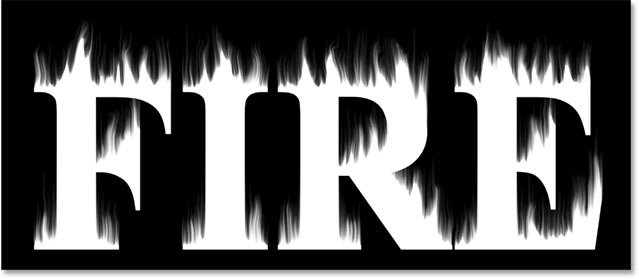
When you're done, click OK to close the Liquify filter, and here's my result:
Part 3: Coloring the flames
Step 18: Add two Hue/Saturation adjustment layers
At the moment, our flames are just white, so let's add some color to them.
Add the first Hue/Saturation adjustment layer
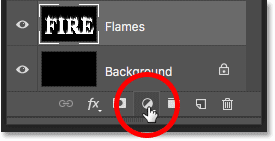
In the Layers panel, click the New Fill or Adjustment Layer icon at the bottom:
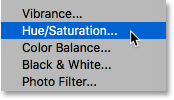
Then choose Hue/Saturation from the list:
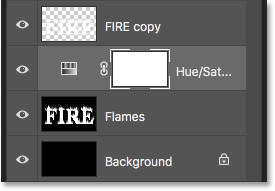
The adjustment layer appears directly above the "Flames" layer:
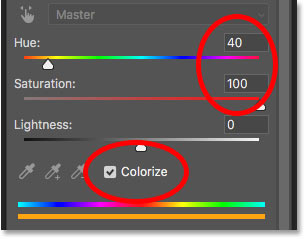
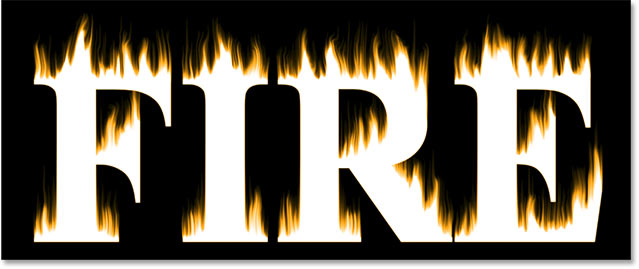
And the controls and options for the adjustment layer appear in Photoshop's Properties panel. First, turn on the Colorize option. Then set the Hue value to 40 and the Saturation to 100:
This adds a warm yellow to the tops of the flames:
Add a second Hue/Saturation adjustment layer
Add a second Hue/Saturation adjustment layer by again clicking the New Fill or Adjustment Layer icon in the Layers panel:
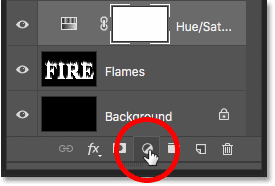
And choosing Hue/Saturation from the list:
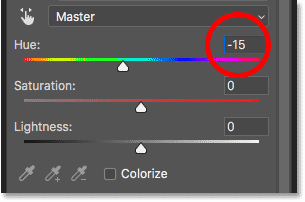
In the Properties panel, this time leave the Colorize option unchecked, and just set the Hue value to -15:
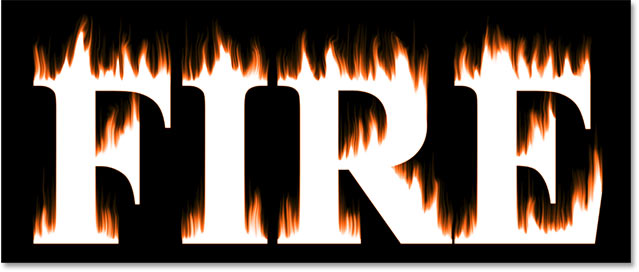
This changes the color of the flames from yellow to orange:
Step 19: Change the blend mode to Overlay
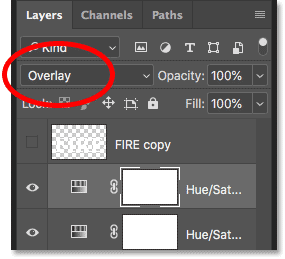
To blend the colors from the two Hue/Saturation adjustment layers together, change the blend mode of the second one from Normal to Overlay:
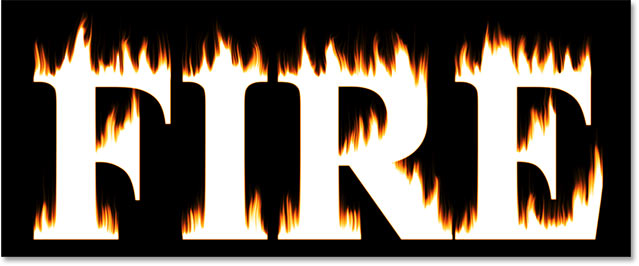
This blends both the orange and the yellow together:
Step 20: Add a Levels adjustment above the "Flames" layer
To change the remaining white areas to yellow, select the "Flames" layer:
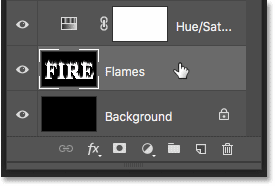
Then click the New Fill or Adjustment Layer icon:
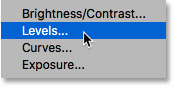
And this time, choose Levels:
Photoshop adds the Levels adjustment layer directly above the "Flames" layer:
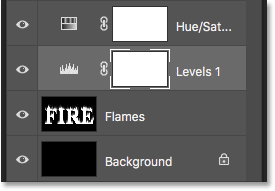
Step 21: Lower the max-brightness Output level
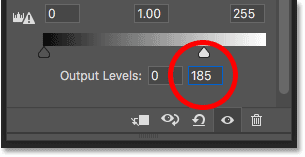
In the Properties panel, you'll see two values for the Output Levels; one set to 0 and the other to 255. The first value controls the minimum brightness level of the layers below the adjustment layer, and the second controls the maximum brightness. To fade the flames and the text from white to yellow, lower the second value from 255 down to 185:
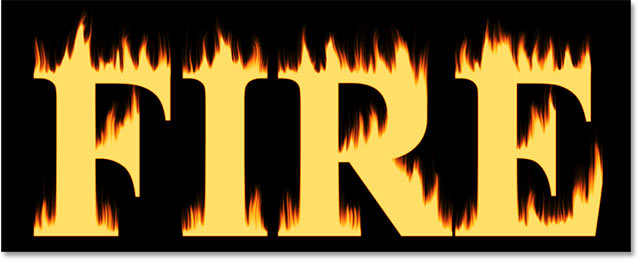
And here's the result. The white areas are now yellow, but the orange highlights still remain along the tops of the flames:
Part 4: Coloring the text
Now that we've added some color to the flames, let's color the text itself. And we'll do that using Photoshop's layer effects.
Step 22: Select and turn on the top layer
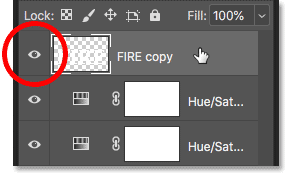
Back in the Layers panel, click on the top layer (the "FIRE copy" layer) to select it, and then turn the layer on by clicking its visibility icon:
Step 23: Rename the layer
Since this is our main text layer, double-click on its name to highlight it, and then rename the layer "Text". Press Enter (Win) / Return (Mac) to accept it:
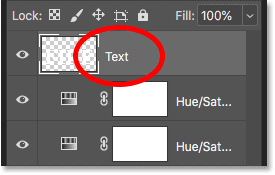
Step 24: Add a Gradient Overlay layer effect
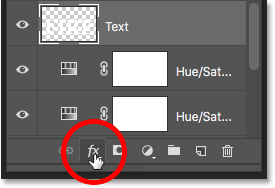
With the "Text" layer selected, click on the Layer Styles icon (the "fx" icon) at the bottom of the Layers panel:
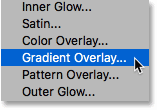
And then choose Gradient Overlay from the list:
Resetting the gradient defaults
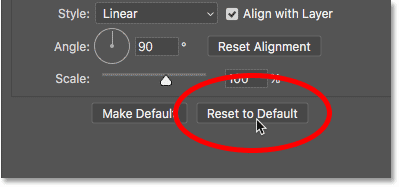
This opens Photoshop's Layer Style dialog box set to the Gradient Overlay options. First, click the Reset to Default button to make sure we're starting from the default settings:
Editing the gradient
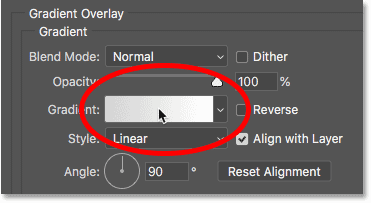
To edit the gradient, click the color swatch:
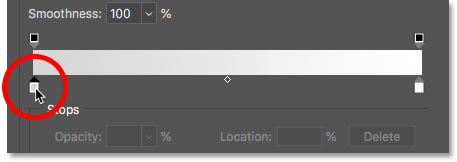
In the Gradient Editor, double-click on the color stop below the left end of the gradient:
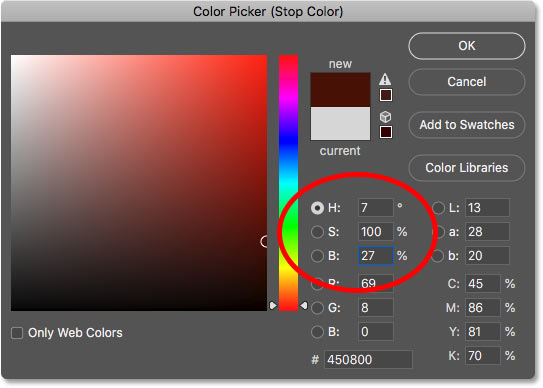
Then, in the Color Picker, choose a dark red by setting the Hue (H) value to 7, the Saturation (S) value to 100 and the Brightness (B) value to 27. Click OK to close the Color Picker:
Back in the Gradient Editor, double-click on the color stop below the right end of the gradient:

And in the Color Picker, choose a brighter orange by setting the Hue to 30, the Saturation to 95 and the Brightness to 96:
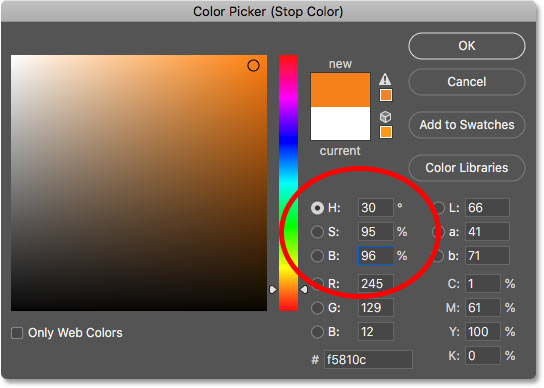
Click OK to close the Color Picker, and then click OK to close the Gradient Editor, but leave the Layer Style dialog box open. The text is now colored with the gradient:
Step 25: Add an Outer Glow layer style
In the Layer Style dialog box, choose Outer Glow from the list of effects along the left:
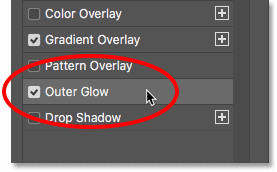
Then, in the Outer Glow options, click the color swatch to change the glow's color:
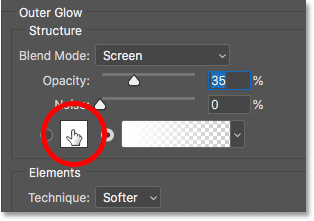
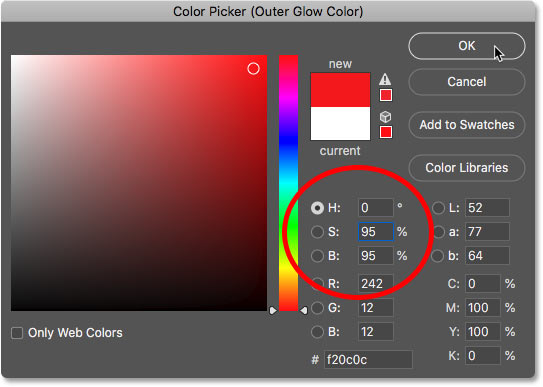
And in the Color Picker, choose a bright red. I'll set my Hue value to 0, the Saturation to 95, and the Brightness also to 95. Then click OK to close the Color Picker:
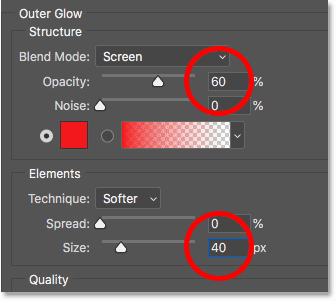
Back in the Outer Glow options, adjust the Opacity to control the brightness of the glow, and the Size to control the distance that the glow extends outward from the text. I'll set my Opacity to 60% and the Size to 40 pixels:
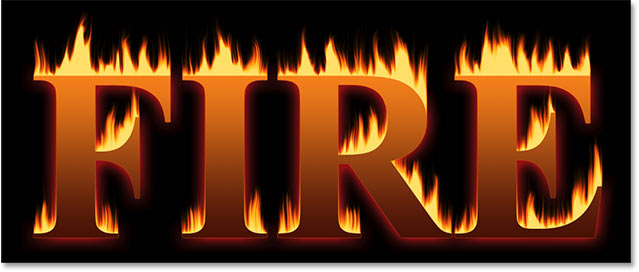
Here's the effect with the red glow applied around the letters:
Step 26: Add an Inner Glow
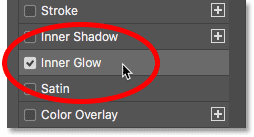
Still in the Layer Style dialog box, select Inner Glow on the left:
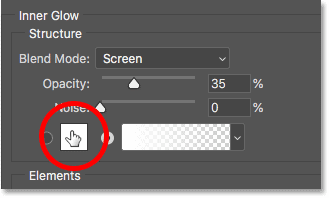
In the Inner Glow options, click the color swatch:
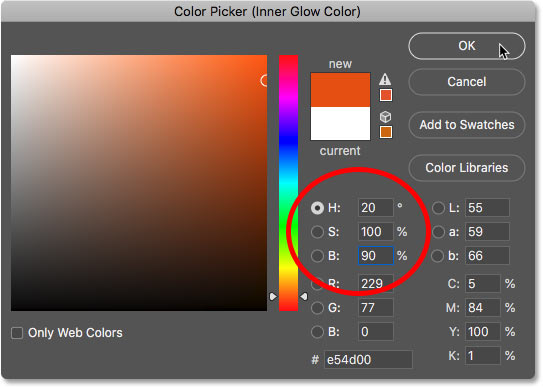
And in the Color Picker, choose a bright orange. I'll set the Hue to 20, the Saturation to 100 and the Brightness to 90. Click OK when you're done to close the Color Picker:
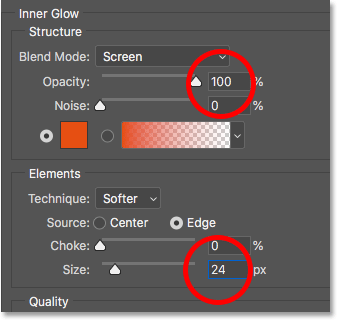
And finally, back in the Inner Glow options, increase the Opacity all the way to 100%, then set the Size to around 24 pixels:
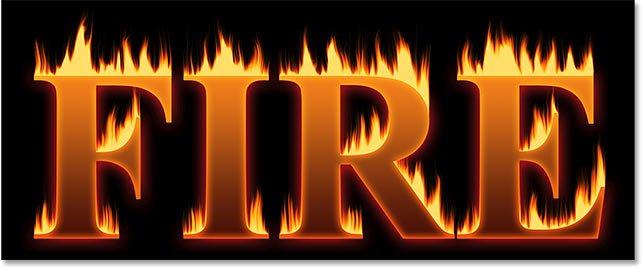
We're done with our layer styles, so click OK to close the Layer Style dialog box. Here's the result with all three layer effects applied to the text:
Part 5: Blending the text with the flames
At the moment, the text looks like it's sitting in front of the flames. We'll blend the text into the flames using a layer mask.
Step 27: Add a layer mask to the text layer
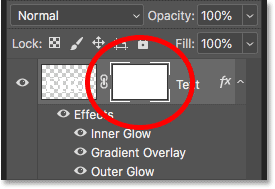
With the "Text" layer still active, click the Add Layer Mask icon at the bottom of the Layers panel:
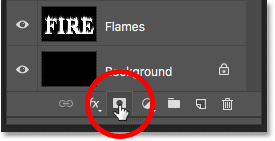
A white layer mask thumbnail appears next to the "Text" layer's preview thumbnail:
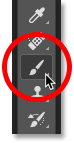
Step 28: Select the Brush Tool
Grab the Brush Tool from the Toolbar:
Step 29: Set your brush color to black
We need to paint on the layer mask with black, so make sure your Foreground color (the brush color) is set to black:

Step 30: Paint along the letter edges to blend in the flames
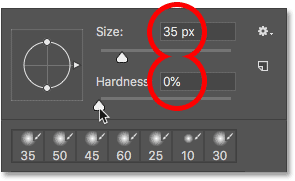
Right-click (Win) / Control-click (Mac) inside the document to bring up the brush options. Then lower the Hardness to 0% so you're painting with a soft brush, and set the Size to between 30-40 px. Press Enter (Win) / Return (Mac) to close the brush options:
Then, start by painting along the tops of the letters. The sharp edges of the text will disappear into the flames. Try to paint with more of a wavy line rather than a straight line:
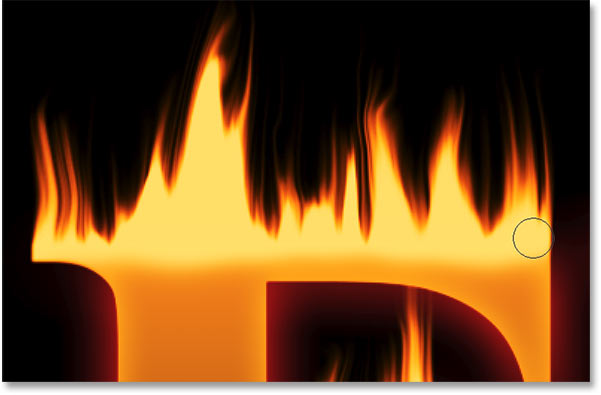
If you make a mistake, press Ctrl+Z (Win) / Command+Z (Mac) to undo it. Then continue painting until the top of each letter looks like it's melting in the fire:
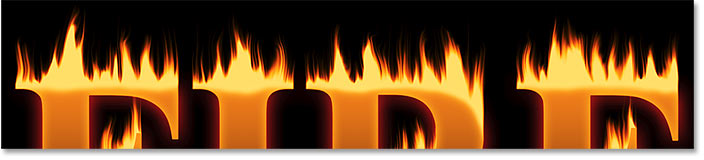
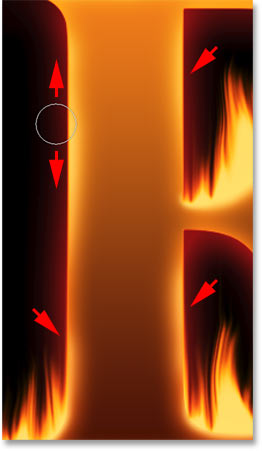
When you've finished with the tops, do the same thing with the middle and bottom edges of the letters, painting along them to blend them into the flames. Use the left and right bracket keys on your keyboard if you need to adjust the brush size:

To add to the effect, use a larger brush (press the right bracket key a few times) and paint along other edges of the letters to add a glow to those areas. Keep most of your brush cursor outside the letter so only the outer edge passes over it:
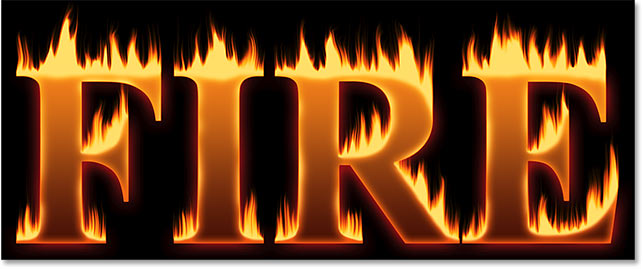
Here's my result after painting along the edges. We're almost done:
Part 6: Adding texture to the effect
Let's add some texture, both to the text itself and to the flames.
Step 31: Add a new layer
With the "Text" layer still active, click the New Layer icon at the bottom of the Layers panel:
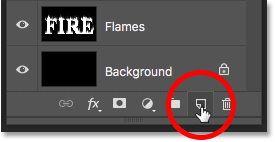
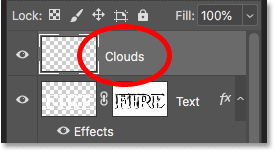
A new blank layer appears above the "Text" layer. We're going to create a texture using Photoshop's Clouds filter, so double-click on the layer's name to highlight it, and then rename it "Clouds". Press Enter (Win) / Return (Mac) to accept it:
Step 32: Apply the Clouds filter
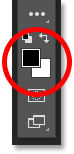
In the Toolbar, make sure your Foreground and Background colors are set to their defaults (black and white). If they're not, press D on your keyboard to reset them:
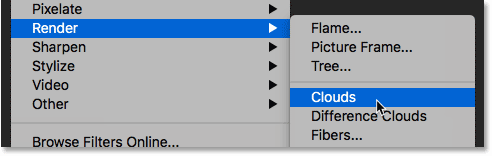
Then go up to the Filter menu, choose Render, and then choose Clouds:
Photoshop fills the layer with random black and white "clouds", temporarily blocking the text from view:
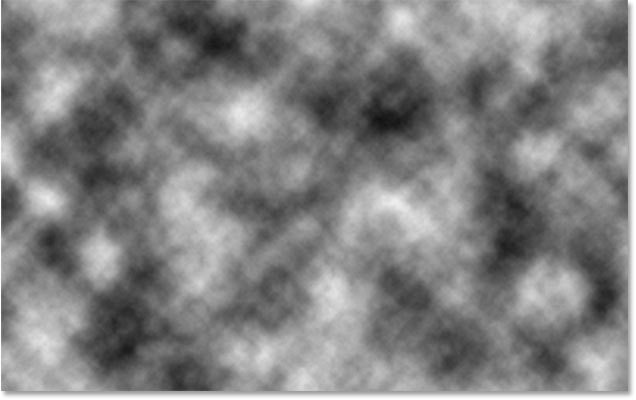
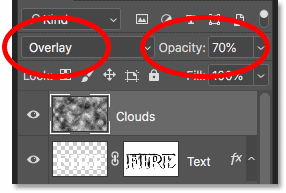
To blend the cloud texture in with the text and flames, change the blend mode of the "Clouds" layer from Normal to Overlay. Then adjust the intensity of the texture by lowering the layer's opacity to around 70%:
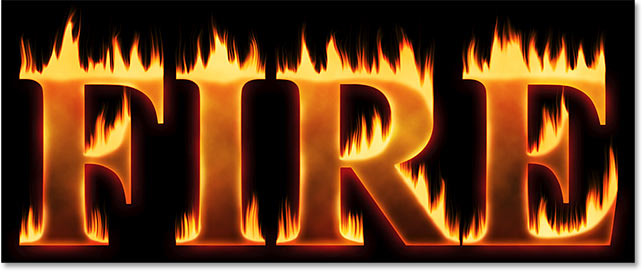
And here's the result with the texture added. It's mostly visible in the text, but you can also see subtle highlights and shadows in the flames:
Step 33: Add another new layer
We'll add one more texture, this time to enhance the flames. Click again on the New Layer icon at the bottom of the Layers panel:
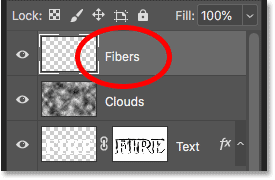
The new layer appears above the "Clouds" layer. We'll create this second texture using Photoshop's Fibers filter, so rename this layer "Fibers":
Step 34: Apply the Fibers filter
Make sure your Foreground and Background colors are still set to black and white:
Then go up to the Filter menu, choose Render, and then choose Fibers:

In the Fibers dialog box, just accept the default settings and click OK:
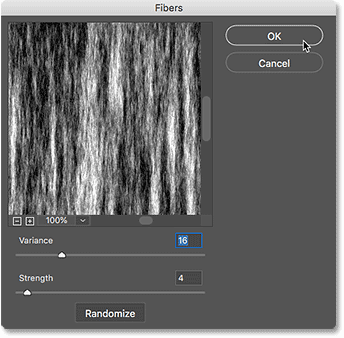
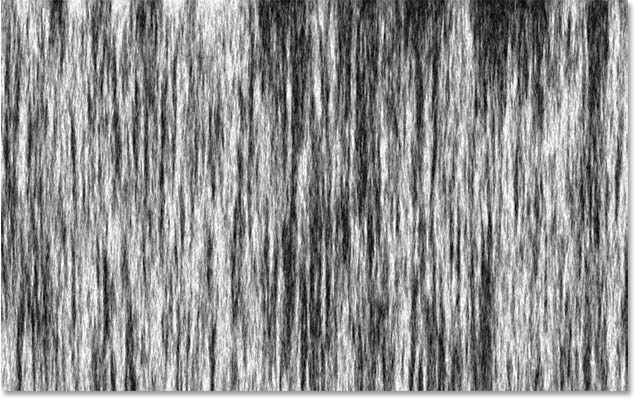
Photoshop fills the layer with a random fiber pattern, again blocking the text effect from view:
Step 35: Blur the texture with Gaussian Blur
Soften the texture by going up to the Filter menu, choosing Blur, and then choosing Gaussian Blur:
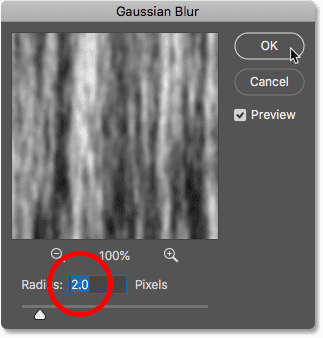
In the Gaussian Blur dialog box, set the Radius value to 2 pixels, and then click OK:
Step 36: Change the blend mode to Soft Light
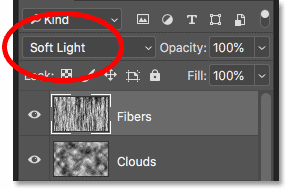
Then, to blend the fibers in with the flames, change the blend mode of the "Fibers" layer to Soft Light:
Problem is, this blends the texture not only with the flames but also with the text, which doesn't look right:
Step 37: Add a black-filled layer mask
To fix that, press and hold your Alt (Win) / Option (Mac) key and click the Add Layer Mask icon in the Layers panel:
This adds a layer mask to the "Fibers" layer and fills the mask with black, which hides the entire texture from view:
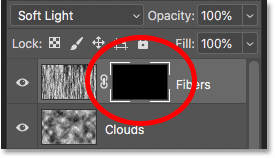
Step 38: Paint back the texture in the flames
Change your brush color from black to white by pressing the X key on your keyboard to swap your Foreground and Background colors:

Then use the left or right bracket keys on your keyboard to change the size of your brush as needed, and paint over the flames to bring back the fibers texture:
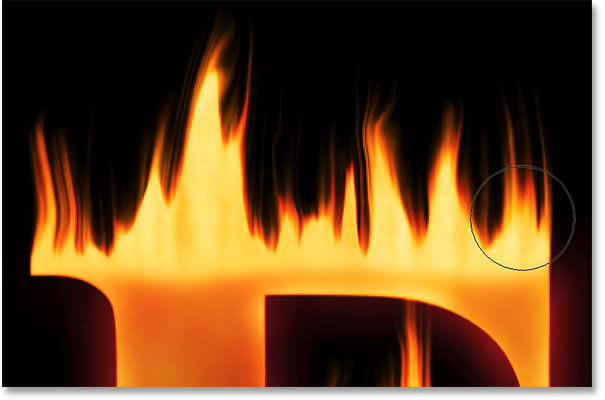
If you make a mistake and accidentally paint into the text, press X to swap your brush color from white to black and then paint over the mistake to hide it. Then press X again to swap the brush color back to white and continue painting over the flames. And here, after painting back the texture, is my final "fire text" result:
And there we have it! You can also learn how to turn text into gold, how to create 80s retro text, how to create delicious candy cane text, and more in our Photoshop Text Effects section!