
Fun, Easy Gel Text Effect With Layer Styles In Photoshop
In this Photoshop text effects tutorial, we're going to learn how to use Layer Styles to easily create a gel text effect. The great thing is that you can have lots of fun playing around with the Layer Style settings to create your own custom gel text effect, or if you prefer, you can use the settings I'm using in the tutorial. When we're done creating the effect, we're going to save it as a preset style which we can then apply to other text instantly, and at the end, we'll see how to change the color of the effect, which may not be quite as straightforward as you think.
Here's the gel text effect we're going for:
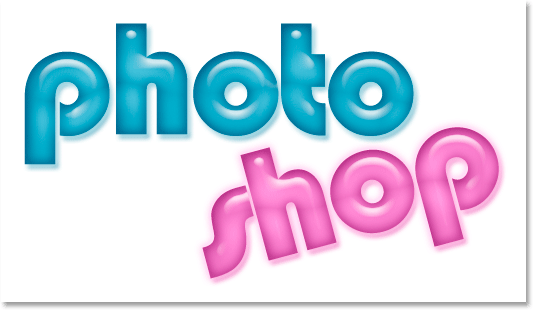
Let's get started!
Step 1: Open A New Photoshop Document
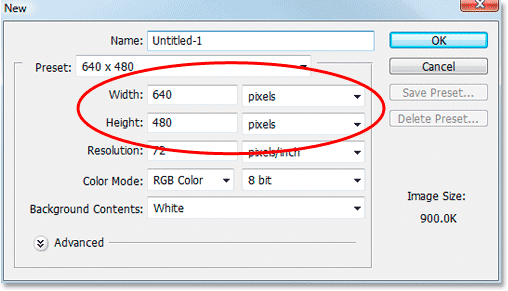
Go up to the File menu at the top of the screen and choose New... to bring up Photoshop's New Document dialog box and enter a width and height for your document. I'm going to use a preset size of 640x480 pixels. Click OK to create your new document:
Step 2: Choose A Color For Your Text
Select the Type tool from the Tools palette:
You can also press T on your keyboard to quickly select it. Then, with the Type tool selected, go up to the Options Bar at the top of the screen and click on the text color swatch:

This will bring up Photoshop's Color Picker. Choose a color for the text. I'm going to choose a light blue for mine:
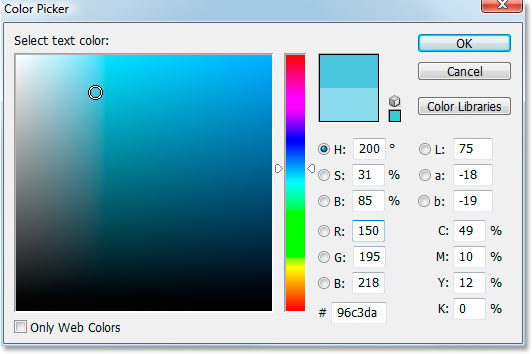
Click OK once you've chosen a color to exit out of the Color Picker.
Step 3: Enter Your Text
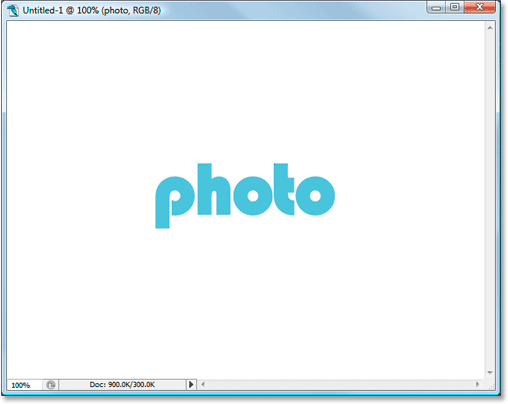
Choose a font from the Options Bar. I'm using "Bauhaus 93". Then click inside your Document Window and enter your text. I'm going to type the word "photo":
Step 4: Use "Free Transform" To Resize The Text If Needed
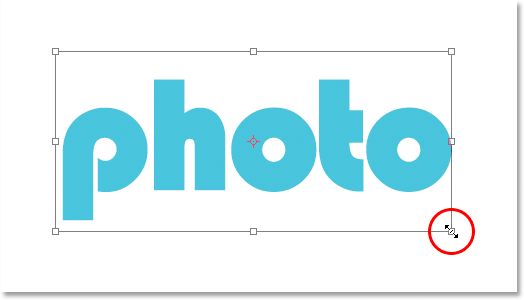
I'm going to enlarge my text a little using Photoshop's Free Transform command. With my text layer selected in the Layers palette, I'm going to use the keyboard shortcut Ctrl+T (Win) / Command+T (Mac) to bring up the Free Transform box and handles around my text. Then I'm going to hold down Shift+Alt (Win) / Shift+Option (Mac) and drag out one of the corner handles to enlarge my text. Holding Shift constrains the text proportions, and holding Alt/Option forces the text to resize from the center:
Step 5: Select The "Drop Shadow" Layer Style
We're going to head into the wacky world of Layer Styles at this point, and the first Layer Style we're going to add to the text is a drop shadow.
Before we continue, I just want to say again that you should feel free to experiment with the different settings we're using for this effect. You don't have to use the specific settings I'll be using. There's lots of wiggle room to play around with in creating this gel text effect.
Now let's add our drop shadow. Click on the Layer Style icon at the bottom of the Layers palette:

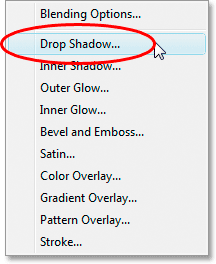
Select Drop Shadow from the list:
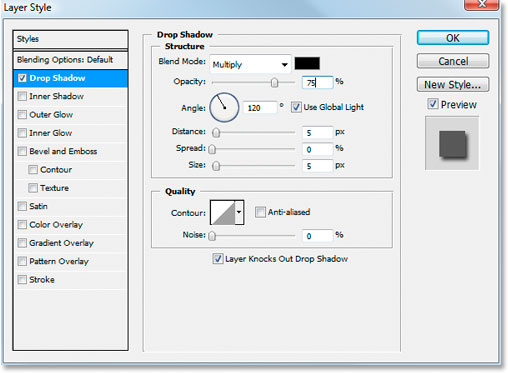
This brings up Photoshop's Layer Style dialog box set to the Drop Shadow options in the middle column:
Step 6: Choose A Color For The Drop Shadow And Apply It
Click on the Drop Shadow color swatch:
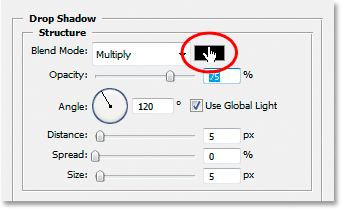
This will bring up the Color Picker. Rather than choosing a color in the Color Picker, hover your mouse over the text, which will turn your mouse cursor into the Eyedropper, and click on the text to sample its color:

Then go to the Color Picker and select a darker shade of that color to use for the drop shadow:
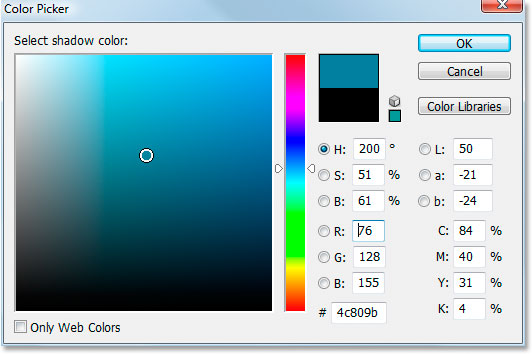
Click OK to exit out of the Color Picker, and your drop shadow will appear in the color you selected:

Don't click OK in the Layer Style dialog box yet. We've only just begun.
Step 7: Apply An "Inner Shadow" Layer Style
Click directly on the words Inner Shadow in the Layer Style menu on the left of the Layer Style dialog box, directly below "Drop Shadow":
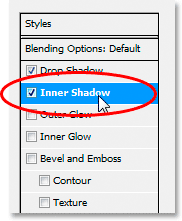
The first thing we're going to do here is select a color to use for the Inner Shadow, just as we did for the Drop Shadow. Click on the Inner Shadow color swatch:
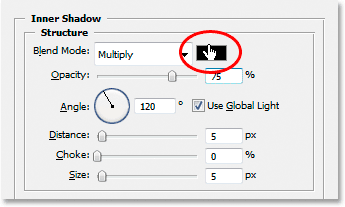
This will bring up Photoshop's Color Picker. Just as we did with the Drop Shadow, rather than selecting a color directly in the Color Picker, move your mouse over the text and click on it to sample the text color:

Then select a darker shade of the color in the Color Picker to use for the Inner Shadow:
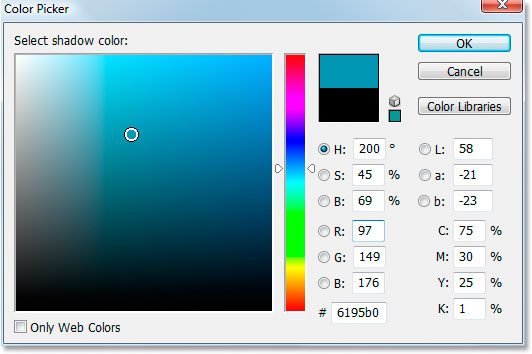
Click OK to exit out of the Color Picker once again. The inner shadow will appear in the color you selected:

I'm going to increase the size of my Inner Shadow effect by clicking on the Size slider and dragging it to the right. I'll increase mine to about 16 pixels:
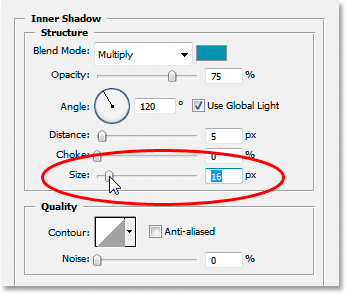
Here's the result after increasing the Inner Shadow size:

Step 8: Apply An "Outer Glow" Layer Style
Click directly on the words Outer Glow in the Layer Style menu on the left of the Layer Style dialog box, directly below "Inner Shadow":
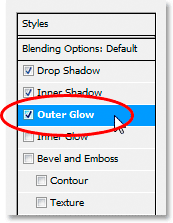
Once again, the first thing we're going to do is select a color for our Outer Glow, the same way we've done it for the Drop Shadow and Inner Glow. First, click on the Outer Glow color swatch:
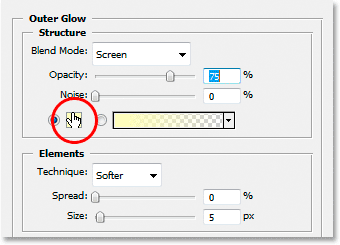
This brings up the Color Picker. Click directly on the text once again to sample the color. Then go back to the Color Picker, but this time, rather than choosing a darker shade of the color, choose a lighter shade:
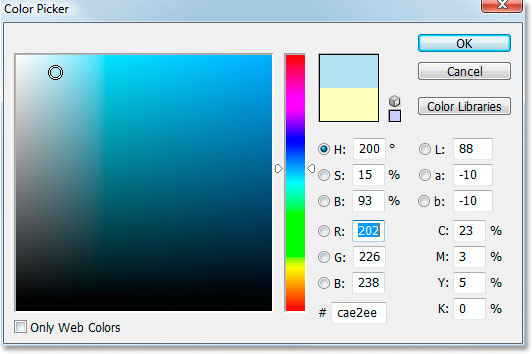
Click OK to exit out of the Color Picker.
With my color applied, I'm going to change a few of the other Outer Glow options. Again, feel free to experiment here on your own, but if you want to follow along, here's the settings I'm using. First, lower the Opacity value at the top to around 60%. Then, in the "Elements" section in the middle, increase the Spread to around 15% and the Size to about 10 pixels:
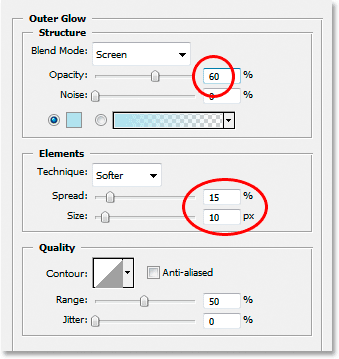
Here's my result after making the changes:

Step 9: Apply An "Inner Glow" Layer Style
Click directly on the words Inner Glow in the Layer Style menu on the left of the Layer Style dialog box, directly below "Outer Glow":
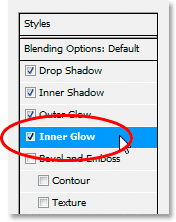
What are we going to do first? Yep, we're going to pick a color to use for the Inner Glow. Go ahead and click on the Inner Glow color swatch:
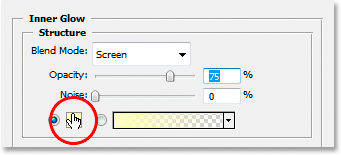
This brings up the Color Picker. This time, rather than clicking on the text color itself and then selecting a darker shade in the Color Picker, just click on one of the darker areas in the text. We'll use that color for the Inner Glow:
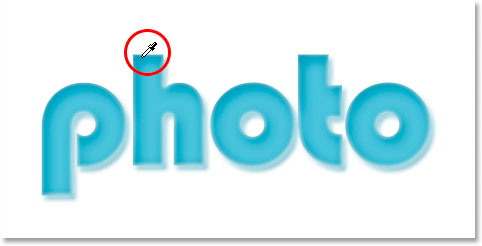
Click OK in the Color Picker to exit out of it once you've sampled your color.
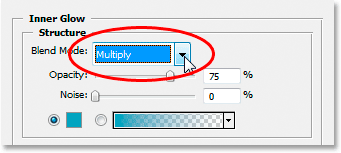
We have our darker color selected, but by default, the blend mode for the Inner Shadow is set to "Screen", which means we're not going to see our darker color. Basically, we need to change the effect from an inner "glow" to an inner "shadow", and for that, all we need to do is change the blend mode from "Screen" to Multiply:
I'm going to change a few other options here as well for the Inner Glow. First, I'm going to lower the Opacity value to around 50%. Then, in the "Elements" section in the middle, I'm going to raise the Choke value to about 10% and the Size value to 13 pixels:
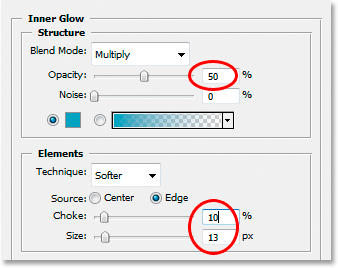
Again, feel free to experiment with those values on your own.
Here's my effect so far with the Inner Glow applied:

Step 10: Apply The "Bevel and Emboss" Layer Style
We're going to add the Bevel and Emboss style next, so click directly on the words Inner Glow in the Layer Style menu on the left of the Layer Style dialog box, directly below "Inner Glow":
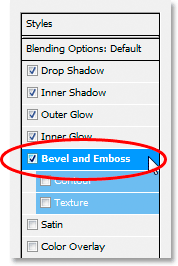
This time there's no colors to choose. Instead, there's a few options that need to be changed. I know I've already said it a few times, but you don't need to use these specific settings for your effect. In fact, you'll probably need to play around with them a little if you're using a different font type or size. However, having said that, here's the settings I've used in the Bevel and Emboss options:
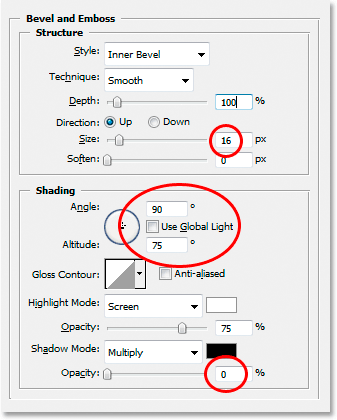
First, I increased the Size to about 16 pixels. Then, in the "Shading" section, I unchecked Use Global Light, set the Angle to 90° and set the Altitude to 75°. Then, at the very bottom, I dragged the slider bar for the Shadow Mode option all the way to the left to set its value to 0%, since we already have more than enough shadows in the effect.
We're going to add the "Contour" effect in here as well, so click directly on the word Contour in the menu on the left. It's below "Bevel and Emboss":
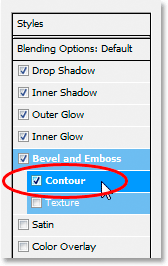
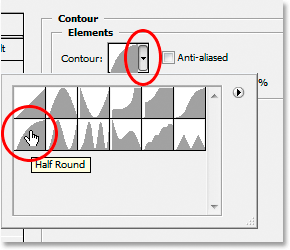
In the Contour options, click on the down-pointing arrow to the right of the Contour preview thumbnail, then click on the Half Round option to select it (it's the first one on the left, bottom row):
Here's my text after applying the Bevel and Emboss filter:

Step 11: Apply The "Satin" Layer Style
One more layer style to apply, and it's the "Satin" style, so click directly on the word Satin in the Layer Style menu on the left of the Layer Style dialog box, directly below "Texture":
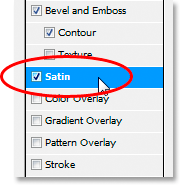
We're back to choosing a color once again, this time for the Satin effect, so click on the Satin color swatch:

Then click in the text to sample a darker shade of the text color. If the colors in your text turned strange when you clicked on the word "Satin" in the menu on the left, don't worry. Just click once anywhere on the text and the colors will revert back to the way they should be. Then click on any darker area to sample that color:

As soon as you click your mouse to sample a color, you'll see the Satin effect apply itself using that color. If you want, you can keep clicking around inside the text to choose a different color, and the Satin effect will be updated each time you click, so you can keep clicking until you find a dark shade you're happy with. It's basically a live preview of the effect.
Once you have your color selected, click OK in the Color Picker to exit out of it, then make the changes I've circled below:
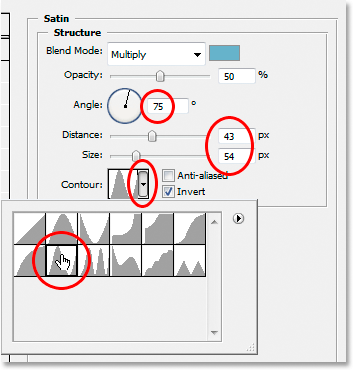
In the case of the Satin effect, you're really going to want to experiment with these settings yourself, but for the sake of following along, first I changed the Angle to 75°. Then I increased the Distance to 43 pixels and the Size to 54 pixels. Finally, I clicked on the down-pointing arrow to the right of the Contour preview thumbnail and chose the Ring contour, which is the second one from the left, bottom row.
Here's my text after applying the Satin filter:

Step 12: Save The Layer Style
We're done adding layer styles at this point, but before you close out of the Layer Style dialog box, click the New Style button on the right:
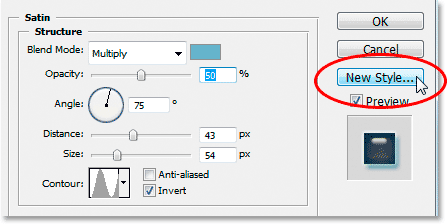
We're going to save this gel effect style so that we can re-use it whenever we want. When you click the button, Photoshop pops up the New Style dialog box. I'm going to name my new style "Gel effect":
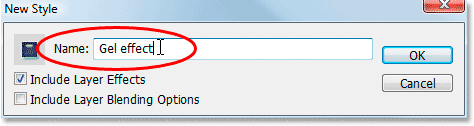
Then I'll click OK and I now have my style saved in Photoshop. Let's see how we can instantly apply it to something else.
Since I already have the word "photo" entered into my document window, I'm going to grab my Type tool once again from the Tools palette and this time, I'll enter the word "shop" below it. I'm also going to use the Free Transform command to resize it so it's the same size as the word "photo", and I'm going to rotate it as well. Here's what it looks like at the moment:

Right now, the word "shop" is using nothing more than the original text color, but I want it to have the same "gel effect" I created with the word "photo". I could go through all the steps again and re-create the layer style, but thankfully, I don't have to because I was smart enough to save the effect as a new style. Where can I find the style? It's in Photoshop's Styles palette, located at the very bottom:
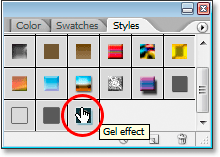
To apply it to my text, all I have to do is make sure I have the "shop" text layer selected in the Layers palette, and then click on the "Gel effect" style in the Styles palette. The effect is instantly added to the text:

What if I wanted the word "shop" to be a different color though? It's easy to change the color, but there's a bit of a trick to it, as we'll see next.
Step 13: Changing The Color Of The Gel Text Effect
We're done creating the "gel" effect using layer styles, we've saved it as a new style named "Gel effect", and we've instantly applied it to the word "shop". But what if I want the word "shop" to be a different color? You're probably thinking "Easy, just use a Hue/Saturation adjustment layer". So let's try that and see if it works.
I'll use Hue/Saturation to change the color of the word "shop" from blue to pink. Here's the result:

The word itself has turned pink, but do you see the problem? The layer styles are still blue. The Hue/Saturation adjustment had no effect on them. If we want to change both the text color and the layer styles color, we need to use a bit of a trick.
With the "shop" layer still selected in the Layers palette, use the keyboard shortcut Ctrl+G (Win) / Command+G (Mac) to place the "shop" layer into a Layer Group, which Photoshop names "Group 1":
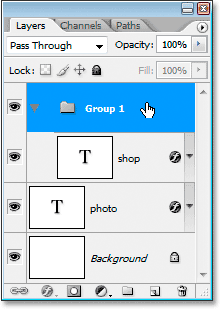
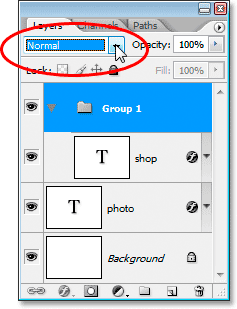
We can see in the Layers palette above that the "shop" layer is now inside the Layer Group. Next, we need to change the blend mode for the Layer Group from its default of "Pass Through" to Normal:
Now click on the "shop" layer to select it and then click on the New Adjustment Layer icon at the bottom of the Layers palette:

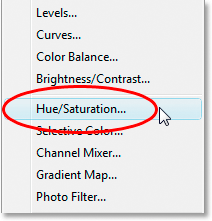
Select Hue/Saturation from the list:
When the Hue/Saturation dialog box appears, drag the Hue slider to change the color of the text:
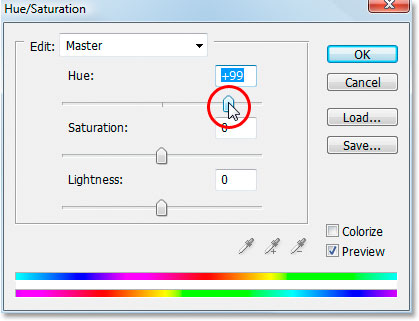
Keep an eye on your text in the Document Window as you're dragging the slider. When you're happy with the new color, click OK to exit out of the Hue/Saturation dialog box, and this time, because the "shop" layer was placed inside a Layer Group, the layer styles are now colored along with the text itself:
Where to go next...
And there we have it! Visit our Text Effects or Photo Effects sections for more Photoshop effects tutorials!